Annke Vision - How to Access the Annke IP Camera's Setting Page via Web Browsers?
Applies to:
I21AE/I21AF/I61DQ/I61DR/I61DS/I61FB/I61FC/I61DE/I61DY/I61DZ/I61DT/I61DU/I71GE/I71GF/I81FB/I81EB/I81EC/I91BE/I51DJ/I51DB/I91BD/I91BF/C800/ C500/ B1200/NC400/ CZ500/ CZ400
Purpose:
Some of the cameras' functions can only be configured in their individual setting page. Below is the instruction to enter Annke's IP cameras' individual setting page.
Step 1:
Connect your IP camera and your computer to the same network/router. The connection can be either via ethernet cable or WiFi.
Step 2:
Find the IP address of your IP camera. The procedures depend on your computer.
a). If your computer is NOT a Windows computer: Please access your router to find the camera's IP address (You may need to contact your router's seller for further information).
b). If your computer is a Windows computer: You can use the software called SADP TOOL to find the IP address. Below are the steps:
b-1). Please download and install the software SADPTOOL.exe to your computer:
https://download.annke.com/CMS/SADP_v3.0.2.4.zip
b-2). Run the software and you will find the camera's IP address on the device list.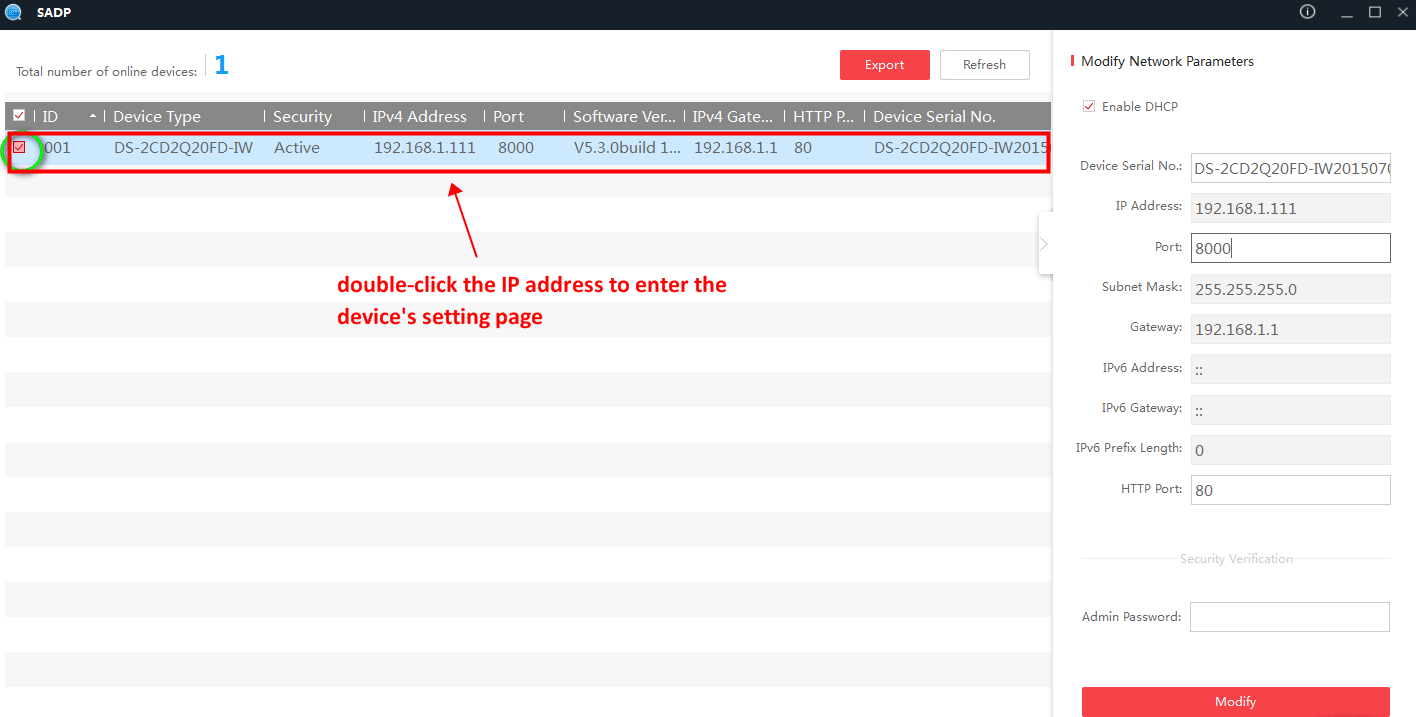
b-3). Double-click on the IP address (or input it into your web browser manually) then you will see the camera's login page. Input the user name 'admin' and the camera's password to proceed.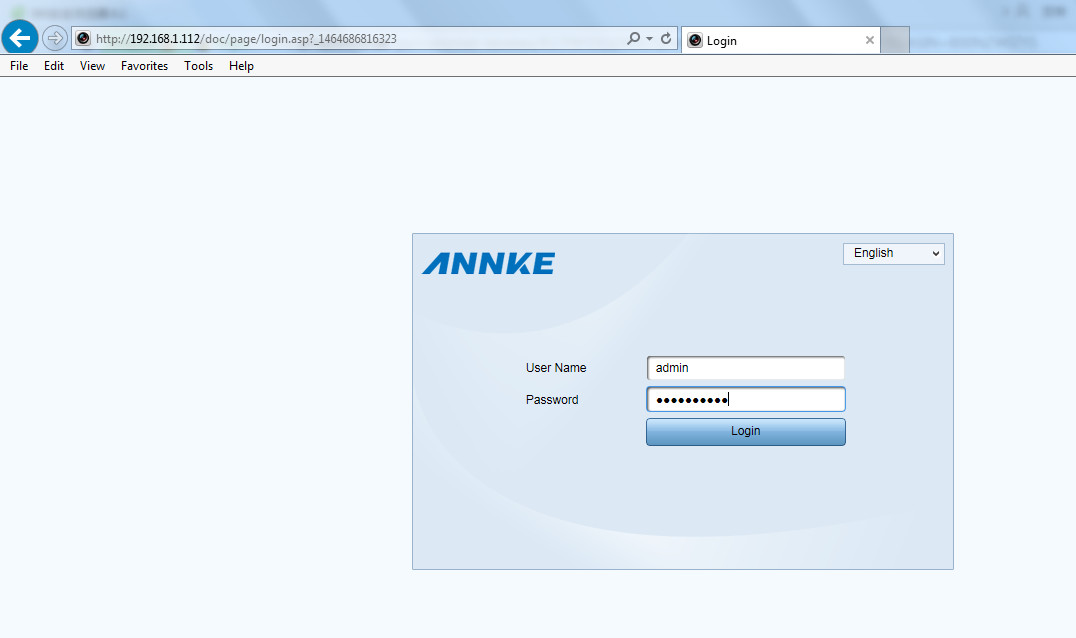
b-4). Click on the Configuration tab to enter the camera's settings page.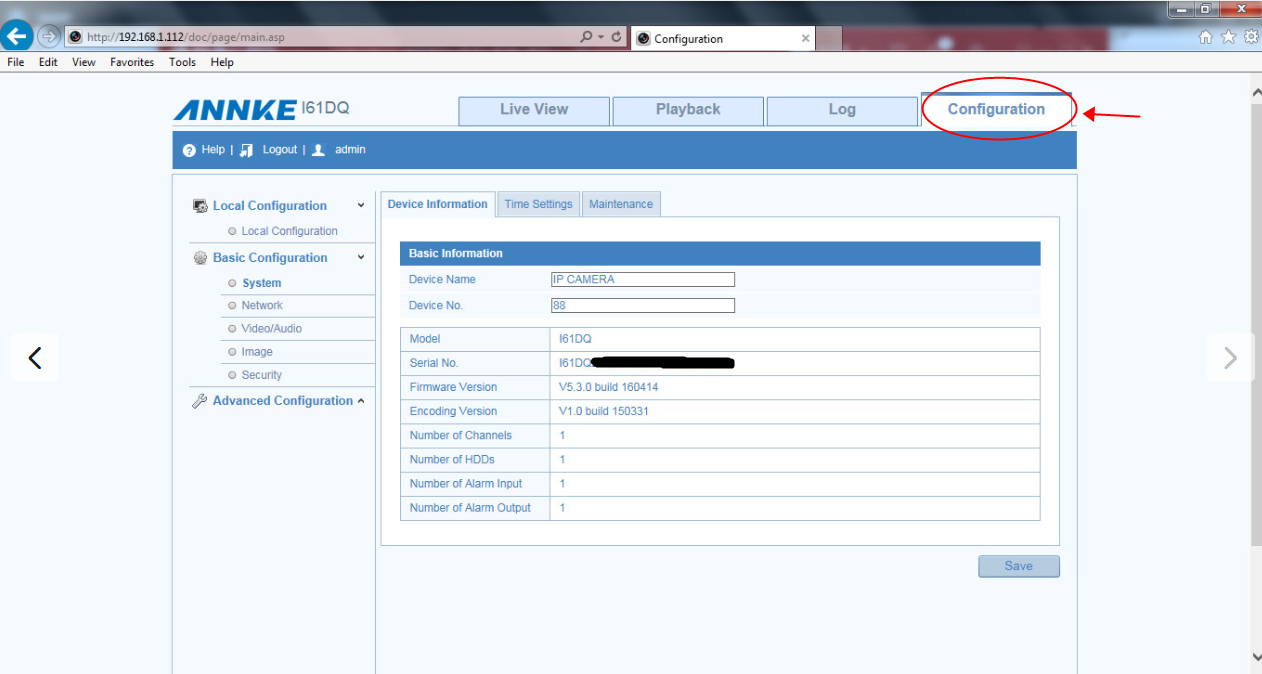
Note: The web page layout may be a little different according to different camera models.
Was this article helpful?
Bu bilgiler sorununuzu çözmeye yardımcı oldu mu?
Still need help?
Uzman ekibimiz size yardımcı olmak için burada.