Annke Vision - How to Check the System's P2P status, Serial Number and Verification Code Locally?
Applies to: DT41Y/DT61Y/DT81Y/DN41R/DN61R/DN81R/DT41GB/DT81GB/DT61GB/DT41GB/DT81GB/DT41DB/DW41JD/DW81KD/DW61LD/DT81DP//N48PI/N44PI/N46PI/N44PAM/N48PAW/N46PCK/N88PCH/N48PBB/S500/S300/FC200/NCK800/H800/H500/E800/FC800
Purpose: This instruction will help you find the P2P status, serial number, and verification code.
Steps:
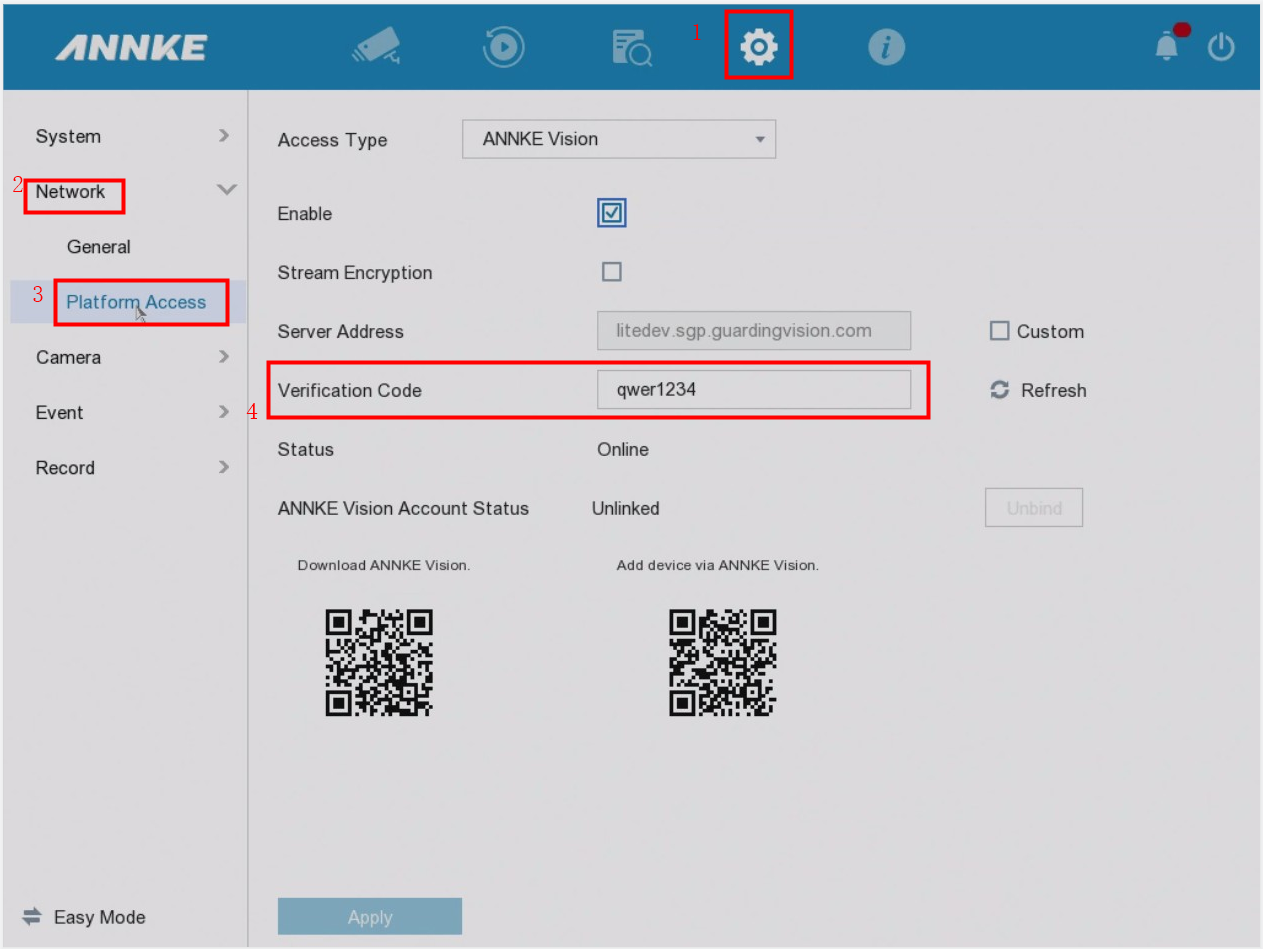
1. If you want to find the verification code and P2P status, please go to Menu->Configuration->Network->Platform Access to find them.
Note: Some systems may refer to "verification code" as "encrypted password".
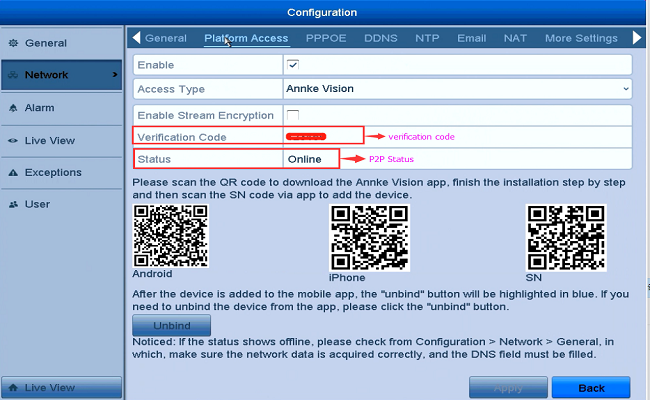
Note: If you find the verification code box is blank, please click the "verification code" box and create a verification code. Or the P2P status will be offline.
For the S500 series system, please refer to this picture to find the verification code:
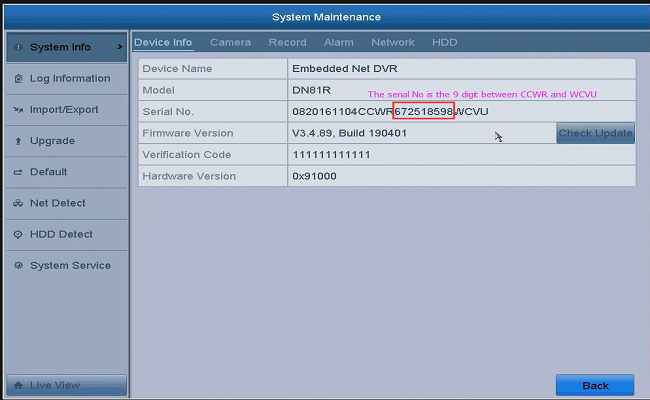
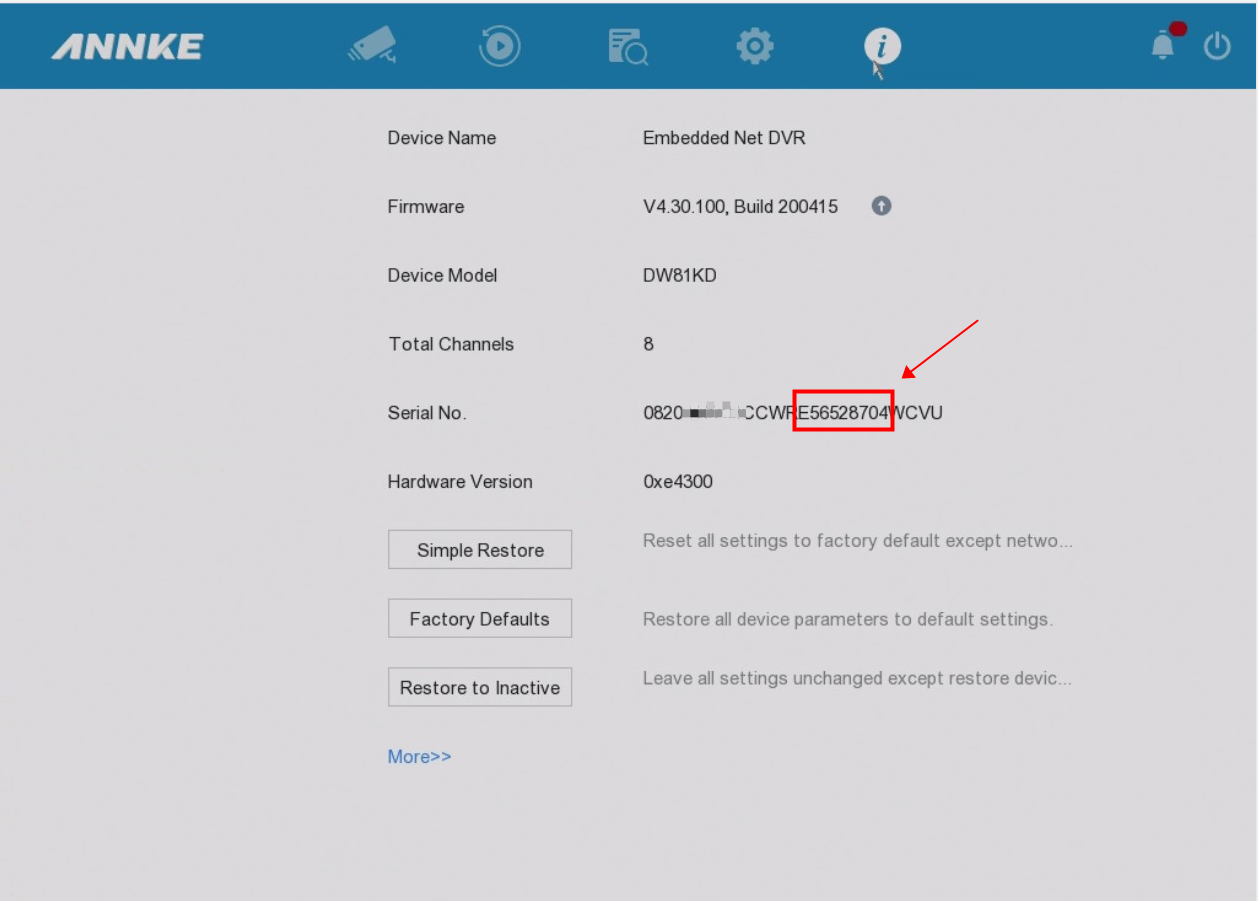
2. If you want to find the serial number of the system, please go to Menu->System Maintenance-> System Info->Device Info to find the serial No.
For the S500 series system, please refer to this picture:
Was this article helpful?
Bu bilgiler sorununuzu çözmeye yardımcı oldu mu?
Still need help?
Uzman ekibimiz size yardımcı olmak için burada.