Annke Vision - How to Set Up Motion Detection App Push Function? (S500 New Series)
Applies to:
DW41JD/DW81KD/DW61LD/S500/S300/FC200
Here are the steps about how to set up the push function for the security system.
1. Log in to the Annke DVR/NVR system, go to Menu-->Network-->ANNKE Vision. Make sure the status is 'Online'.
Note: If the status is 'Offline,' please refer to this instruction to make it online at first:
What to do if P2P status shows offline? (DW81KD New Series)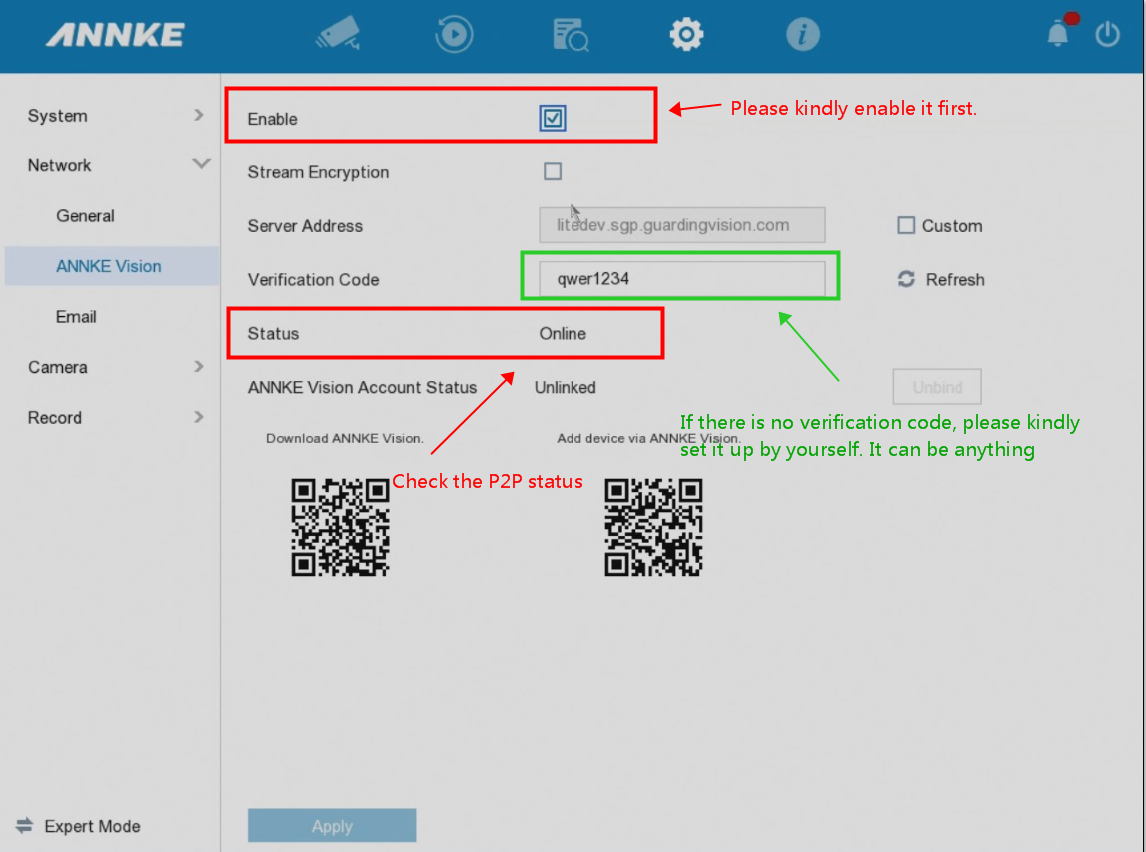
2. Go to Menu-->Camera-->Smart Event to enable motion detection and Notify Surveillance Center.
3. Add the system to app Annke Vision. Here is the instruction: How to connect system by Annke Vision?
4. Enable Alarm Push function on the app.
Go to the Notifications->...->Settings to Enable Push Notification:
5. When finishing the APP setting, please connect the APP setting to the exact device.
Then, navigate to the page Home on the app, touch on the ... icon:
6. Finally, please go to Alarm Notification to enable it and set up the Notification Schedule:
Note:
For the notification schedule button description:
A. Disable: Default is disabled, disable means you can receive the push always. 24h*7
B. Enable: You can enable it to set your own notification schedule.
Such as Monday: 00:00--08:00 + 15:00--18:00 ( It default is 00:00--23:59, so if you want to add multiple time segments, please edit the default 00:00--23:59 to your first-time segment, and then add the second one. Or you will get an error prompt message: The time segments cannot be overlapped.) And please note that the setting will be effective from the next day.
So if you want to enable the push function always, we suggest you disable the notification schedule, and the push function will effective immediately.
When there is motion detection, your phone will receive a push.
If you cannot receive a push, please double-check to make sure your phone enabled notification for app Annke Vision.
If you still can not receive the notification, please contact support@annke.com.
Was this article helpful?
Bu bilgiler sorununuzu çözmeye yardımcı oldu mu?
Still need help?
Uzman ekibimiz size yardımcı olmak için burada.