Dahua - PTZ - Timed Task
19 Aug 2026
373 views
Time Task/Scheduled Task is used to set the PTZ to perform a set function (Preset, Tour, Scan or Pattern) during a set period. 4 individual time tasks can be created.
- Access the Settings: Navigate to the PTZ settings by selecting Settings > PTZ > Function > Time Task.
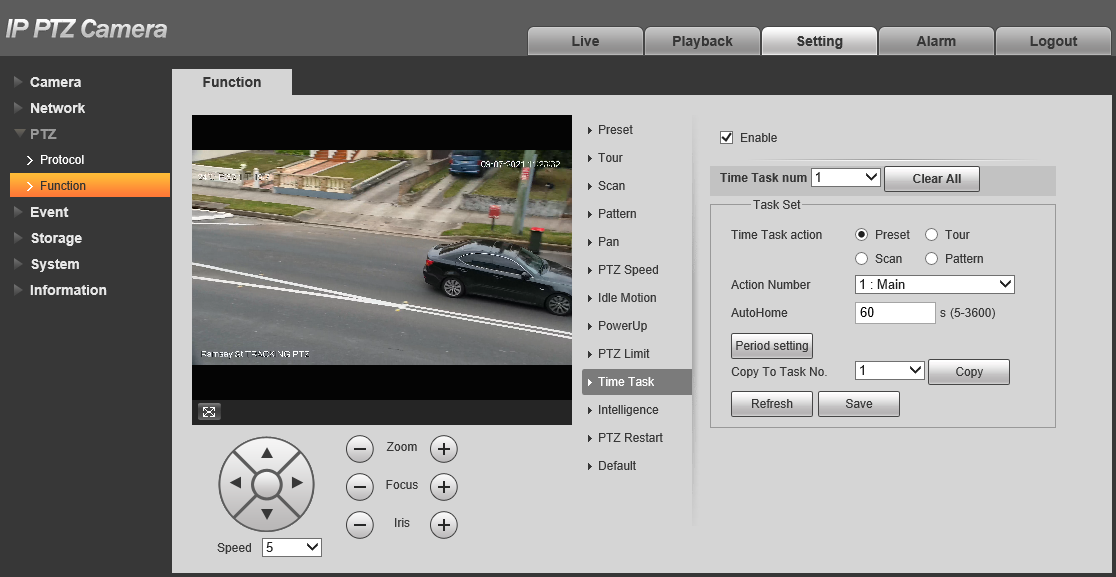
- Select Time Task Number: Choose the specific Time Task number that you wish to configure from the list.

- Enable Time Task: Tick the checkbox labeled "Enable" to activate the Time Task feature for the selected number.

-
Define Time Task Action: Set the action you want the PTZ camera to perform during the scheduled time. This could be a Preset, Tour, Scan, or Pattern

- Specify Action Number: Assign the corresponding Action Number to the specific Preset/Tour/Scan/Pattern you've chosen

- Enable Auto Home (Optional): If desired, turn on Auto Home. This feature ensures that if the Time Task is manually interrupted, such as by manually moving the PTZ using the controls, the camera will revert to executing the Time Task once again.

- Set Time Period: Configure the time duration during which the Time Task should be active.

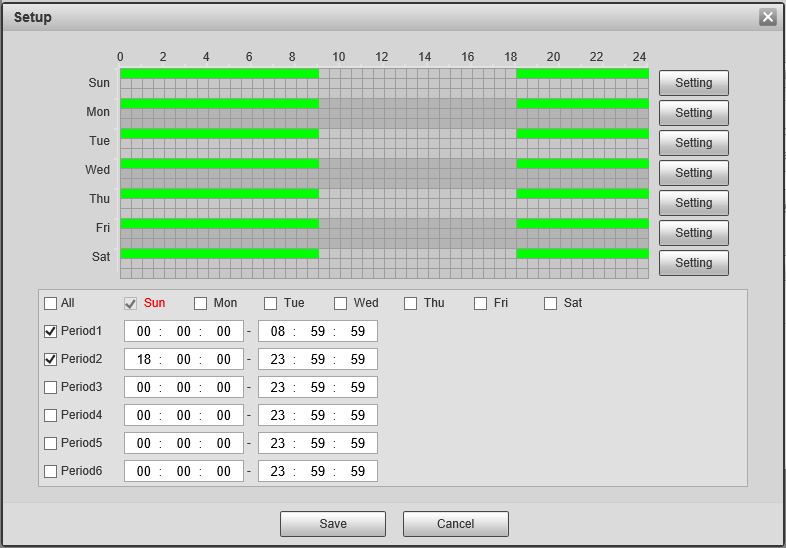
- Configure the period the Time Task to be performed in. Click
 .
. - Lastly Click
 .
.
Was this article helpful?
Bu bilgiler sorununuzu çözmeye yardımcı oldu mu?
Thanks for your feedback!
Still need help?
Uzman ekibimiz size yardımcı olmak için burada.