How to Build a User-based Access Schedule on a Speco Blue Recorder
20 Aug 2026
419 views
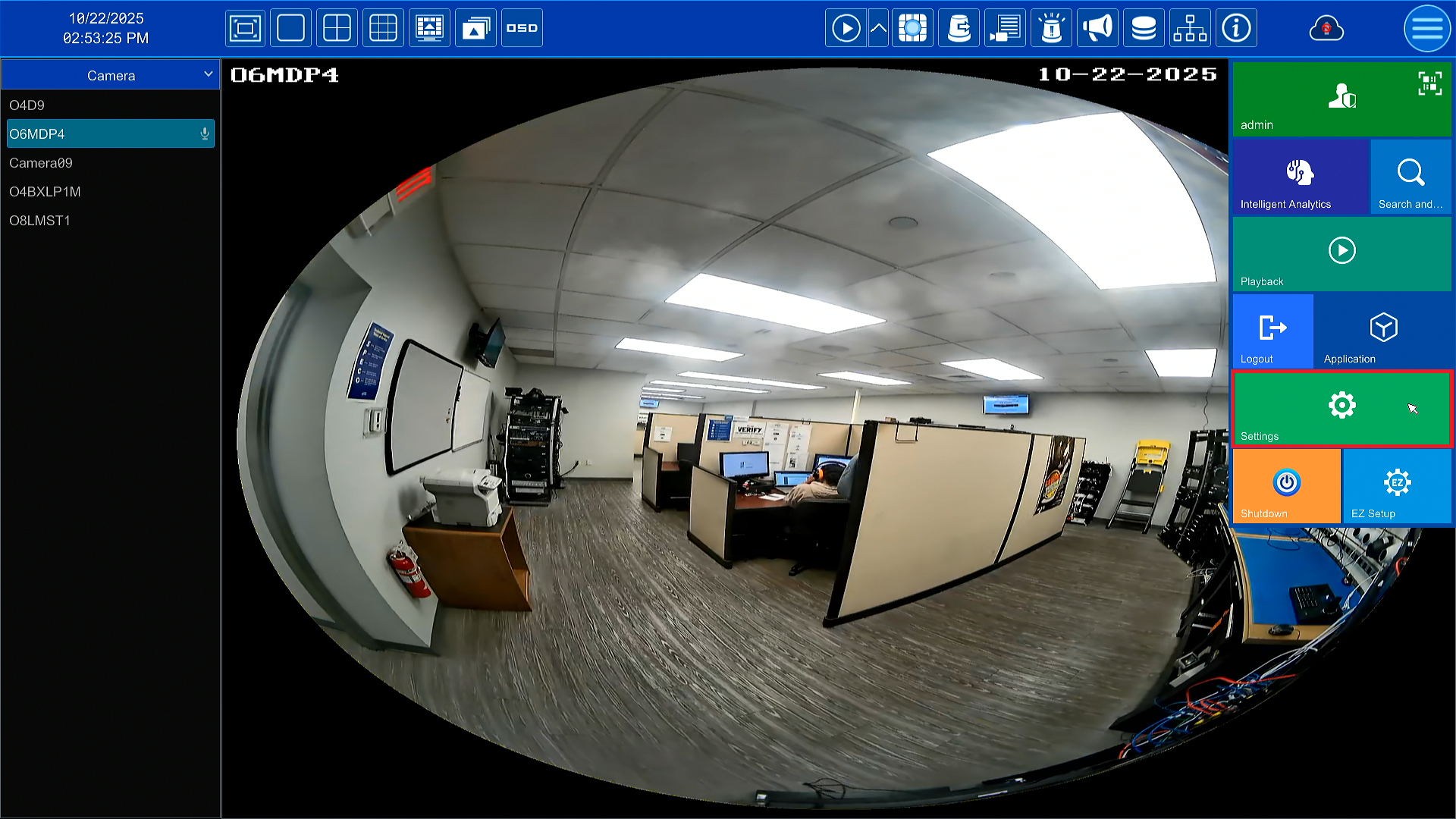
- Click the start button in the top right corner, then click Settings.
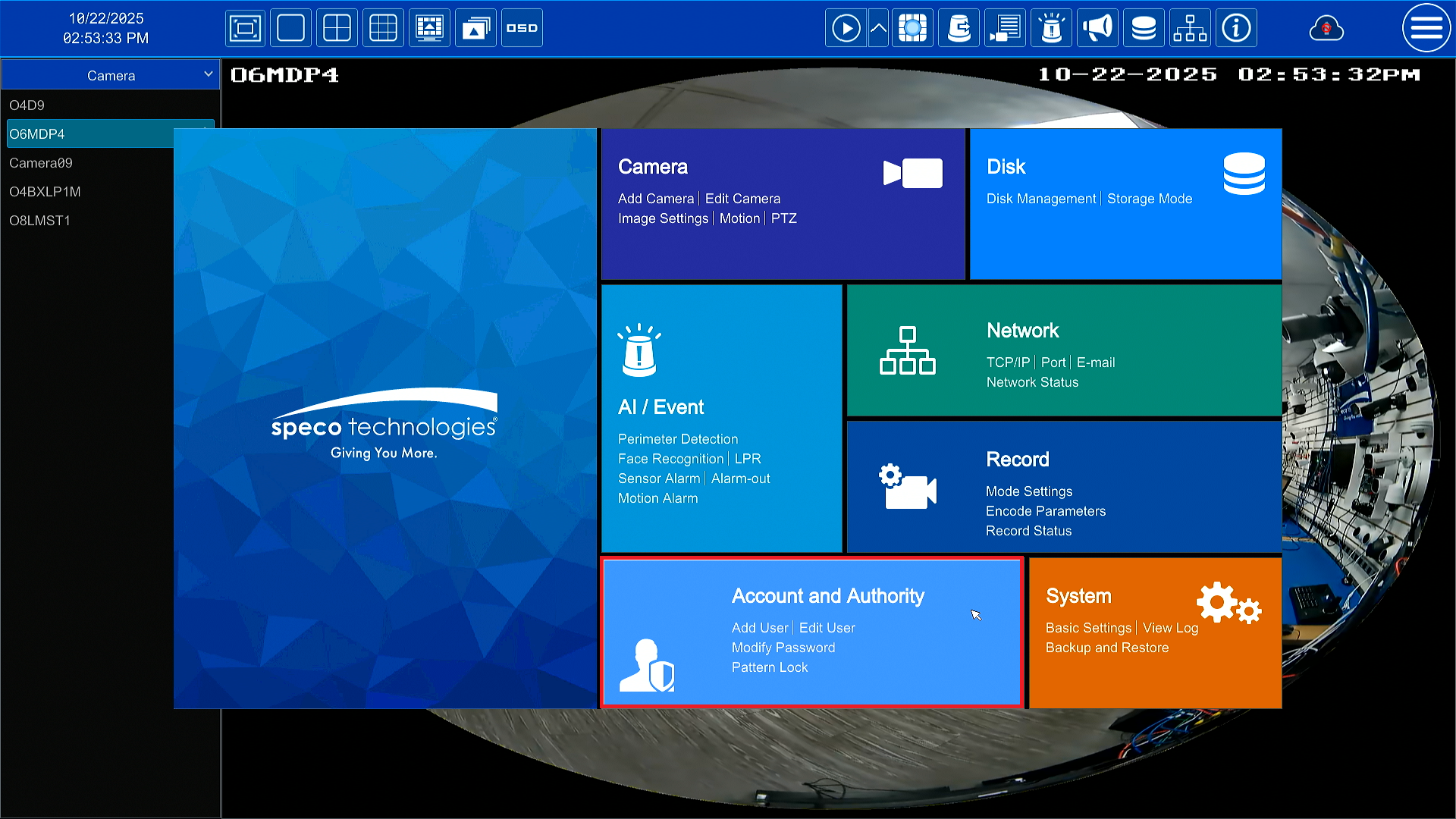
- Go to Account & Authority > Edit User.
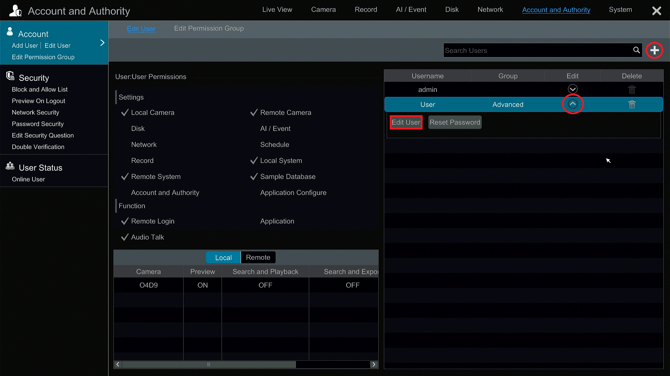
- Go to any sub user account and click the dropdown under Edit > Edit User
- Or click the + to create a new user account.
- The default admin account cannot have a login schedule applied to it.
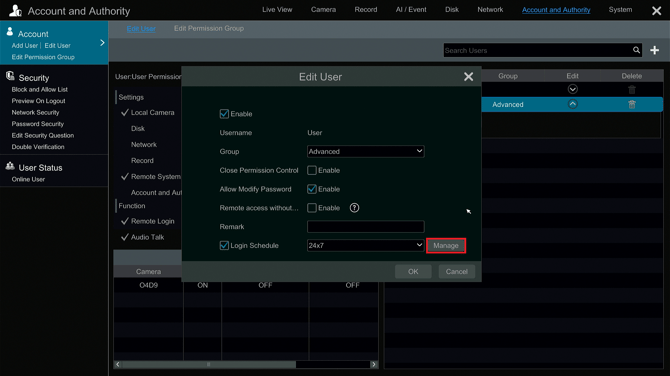
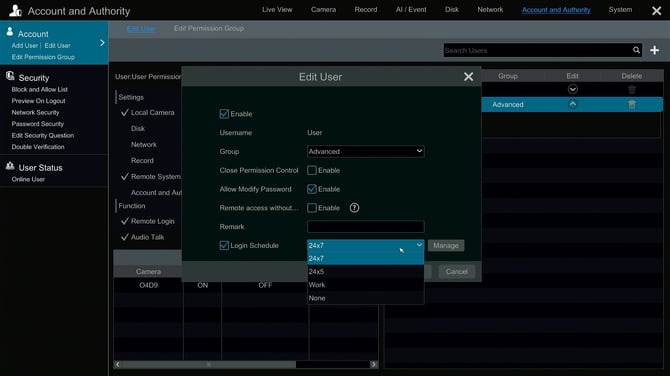
- Click the check box for Login Schedule
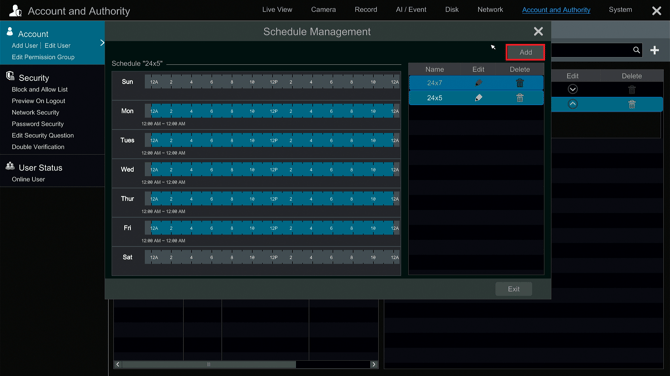
- Click Manage to bring up Schedule Management.
- Click Add to create a custom schedule.
- 24/7 and 24/5 are available by default.
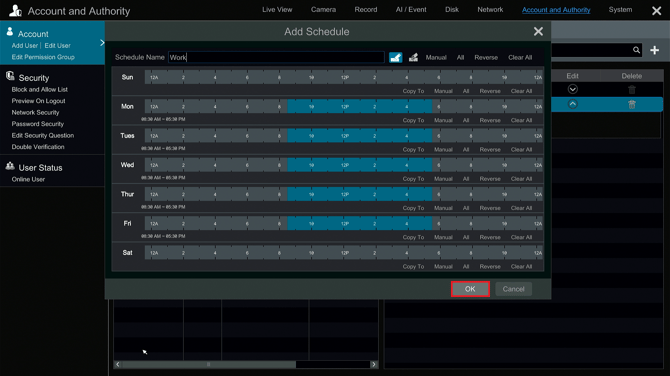
- Set the time and days for your custom schedule.
- Give it a name and select OK.
- Select your schedule from the dropdown and click OK to apply.
Initial submission Date: October 10, 2025

Article authored by: Kevin Holland, Technical Support Agent - Tier 1
- Click the start button in the top right corner, then click Settings.
- Go to Account & Authority > Edit User.
- Go to any sub user account and click the dropdown under Edit > Edit User
- Or click the + to create a new user account.
- The default admin account cannot have a login schedule applied to it.
- Click the check box for Login Schedule
- Click Manage to bring up Schedule Management.
- Click Add to create a custom schedule.
- 24/7 and 24/5 are available by default.
- Set the time and days for your custom schedule.
- Give it a name and select OK.
- Select your schedule from the dropdown and click OK to apply.
Initial submission Date: October 10, 2025

Article authored by: Kevin Holland, Technical Support Agent - Tier 1
Was this article helpful?
Bu bilgiler sorununuzu çözmeye yardımcı oldu mu?
Thanks for your feedback!
Still need help?
Uzman ekibimiz size yardımcı olmak için burada.