How to configure Secondary Output on a Speco Blue Recorder.
19 Aug 2026
415 views
- First, access the Settings menu of the Speco Blue Recorder.
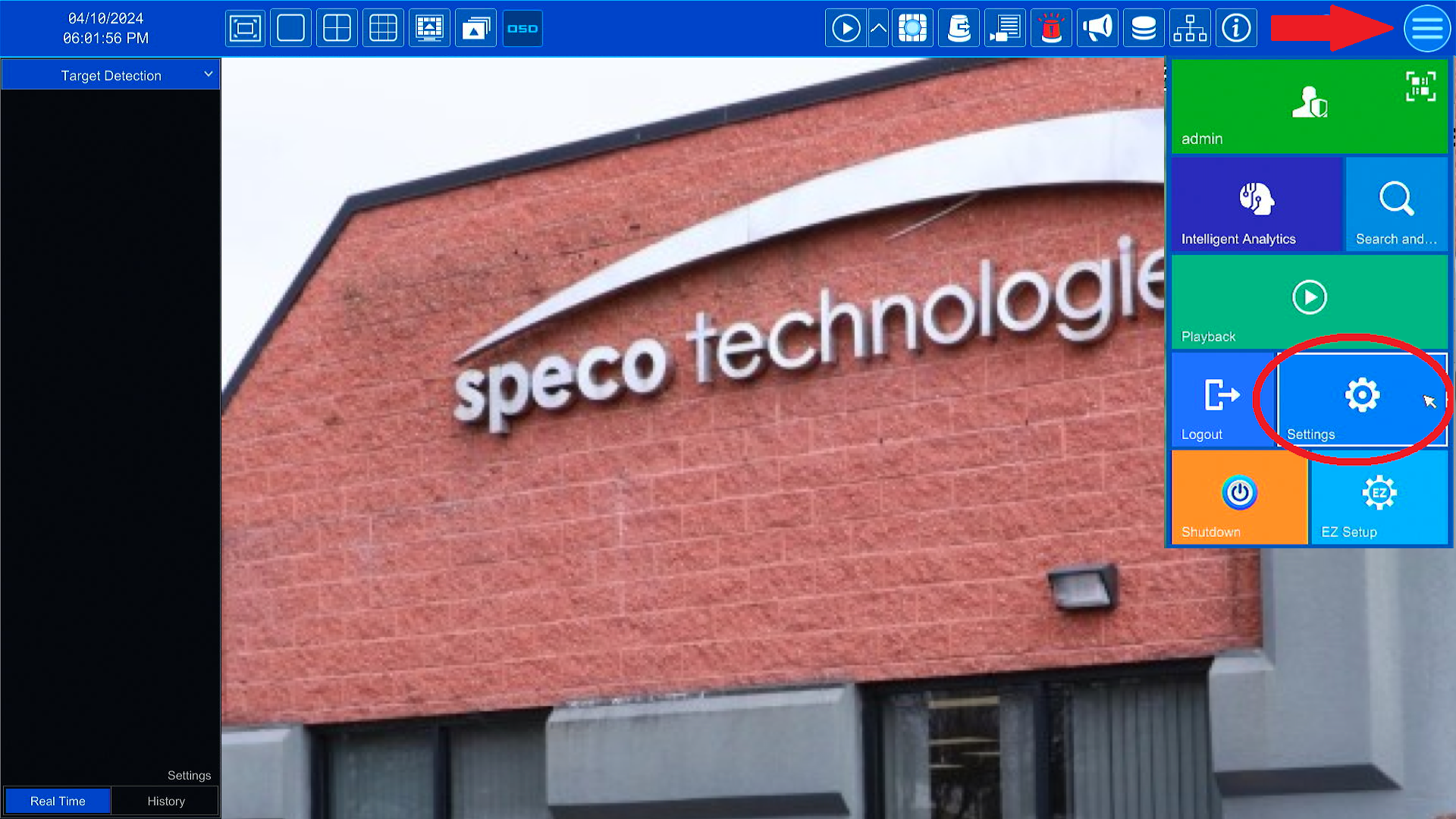
- Once the Settings menu appears, please select the System page. That should automatically open the Basic Settings > General Settings page.
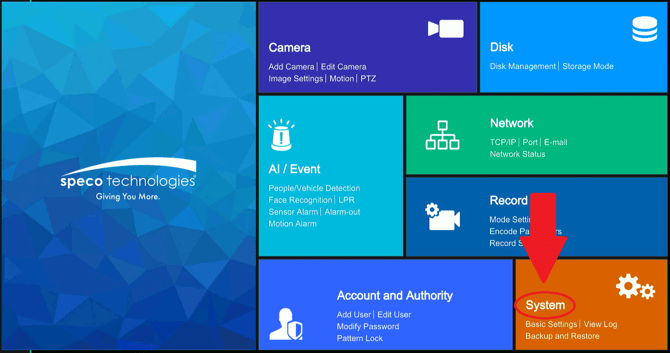
- At the top of the page, select Output Settings.
- Select Secondary Output at the top of the Output Settings page.
- Camera grid options are available towards the bottom of the screen.
- Some recorders are only capable of Sequence views and will not have grid options to select.
- A camera list is available towards the right of the screen.
- Camera grid options are available towards the bottom of the screen.
- Once the desired grid is selected, click and drag the camera names from the camera list into the empty grid squares. This will assign the cameras their positions.
- Select Apply.
- Select Secondary Output at the top of the Output Settings page.
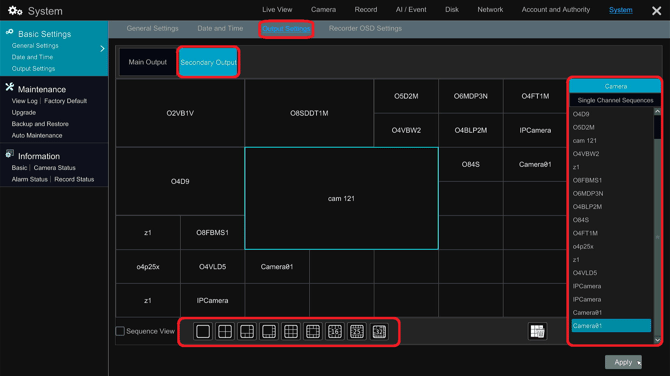
The assigned cameras should now appear on the secondary output monitor.
Initial submission Date: May 22, 2024
Article Authored by: Frank Bondietti
- First, access the Settings menu of the Speco Blue Recorder.
- Once the Settings menu appears, please select the System page. That should automatically open the Basic Settings > General Settings page.
- At the top of the page, select Output Settings.
- Select Secondary Output at the top of the Output Settings page.
- Camera grid options are available towards the bottom of the screen.
- Some recorders are only capable of Sequence views and will not have grid options to select.
- A camera list is available towards the right of the screen.
- Camera grid options are available towards the bottom of the screen.
- Once the desired grid is selected, click and drag the camera names from the camera list into the empty grid squares. This will assign the cameras their positions.
- Select Apply.
- Select Secondary Output at the top of the Output Settings page.
The assigned cameras should now appear on the secondary output monitor.
Initial submission Date: May 22, 2024
Article Authored by: Frank Bondietti
Was this article helpful?
Bu bilgiler sorununuzu çözmeye yardımcı oldu mu?
Thanks for your feedback!
Still need help?
Uzman ekibimiz size yardımcı olmak için burada.