How to Solve Live View Error on Guarding Vision/Annke Vision Software
20 Aug 2026
347 views
Case 1: HCNetSDK.dll[2]
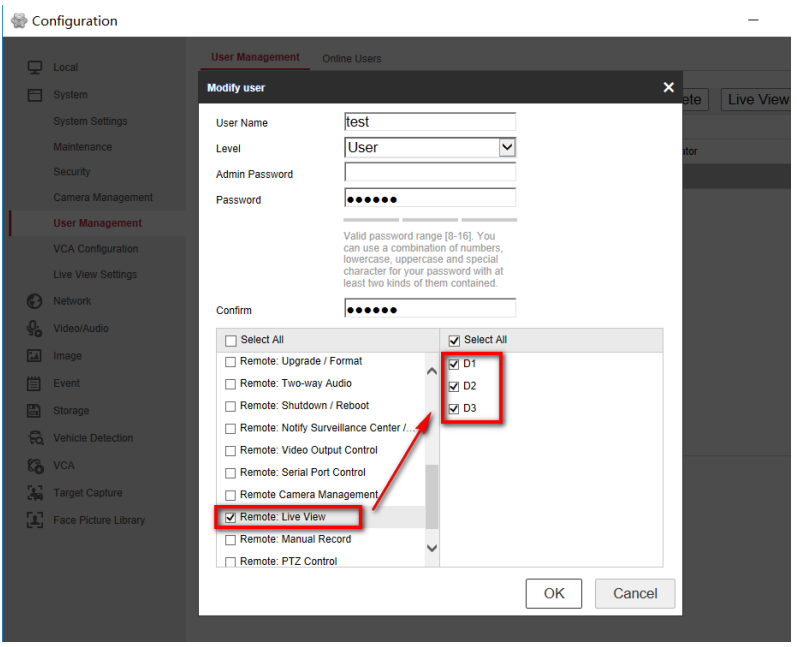
- It means the user of the device has no enough permission. The common reason is you added device with operator account or super user account which do not have permission to get live view.
- In this situation, you can delete device and add device with admin account again, or login admin account to assign live view permission to other accounts.
- Click remote configuration of the device - Basic Settings - System - User Management - click User - Modify User - assign remote live view permission.

Case 2: Playctrl.dll[2]
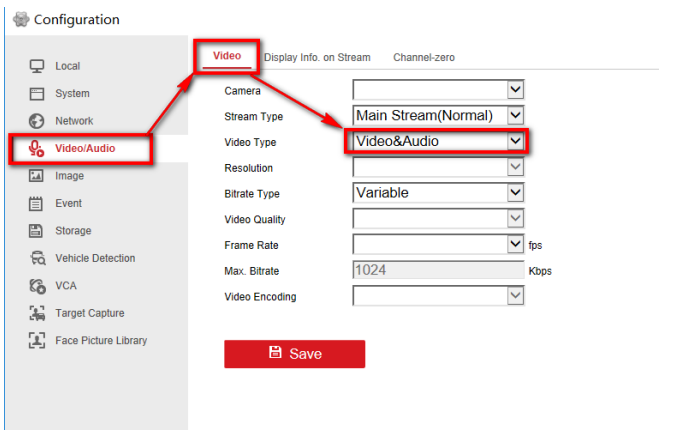
- It means the stream is not Video & Audio stream when you open audio on live view page. Please confirm the current channel support audio function and set the video type as video & audio.
- Click the remote configuration button of the device - Basic Settings - Video&Audio to set the video type as Video & Audio.

Case 3: HCNetSDK.dll[5]
- It means no more user is allowed, the number of device connection has reached the max. limit. You can reboot the device or stop other user's connection to solve this issue.
Case 4: HCNetSDK.dll[91]
- This code will be prompted when failed to get the sub stream or the sub stream does not exist. You can go to Main View - choose the camera channel - right click Stream - choose Main Stream, get live view again.
Was this article helpful?
Bu bilgiler sorununuzu çözmeye yardımcı oldu mu?
Thanks for your feedback!
Still need help?
Uzman ekibimiz size yardımcı olmak için burada.