How to turn on the Navigation Bar
20 Aug 2026
327 views
What is the Navigation Bar?
 Once navigation bar is enabled, click at the middle bottom of the background to call out the function.
- Main menu, Click to go to the main menu interface.
- Click to select screen 2, you can view an interface shown as figure 2. It is a navigation bar for screen2.
- Click any screen split mode, HDMI2 screen can display corresponding screens.
Note: This function is for 2 HDMI model only. Screen 2 function is null if tour is in process, Please disable tour function first. - Click button to enable tour, the icon becomes , you can see the tour is in process.
- Click , system goes to the PTZ control interface.
- Click , system goes to the Color interface.
- Click button , system goes to Search interface.
- Click button , system goes to Alarm status interface.
- Click button , system goes to the Channel Information setup interface
- Click button, system goes to the remote device interface.
- Click button, system goes to the network interface. It is to set network IP address, default gateway and etc.
- Click button, system goes to the HDD manage interface
- Click button, system goes to the USB manage interface
How to Turn on the Navigation Bar?
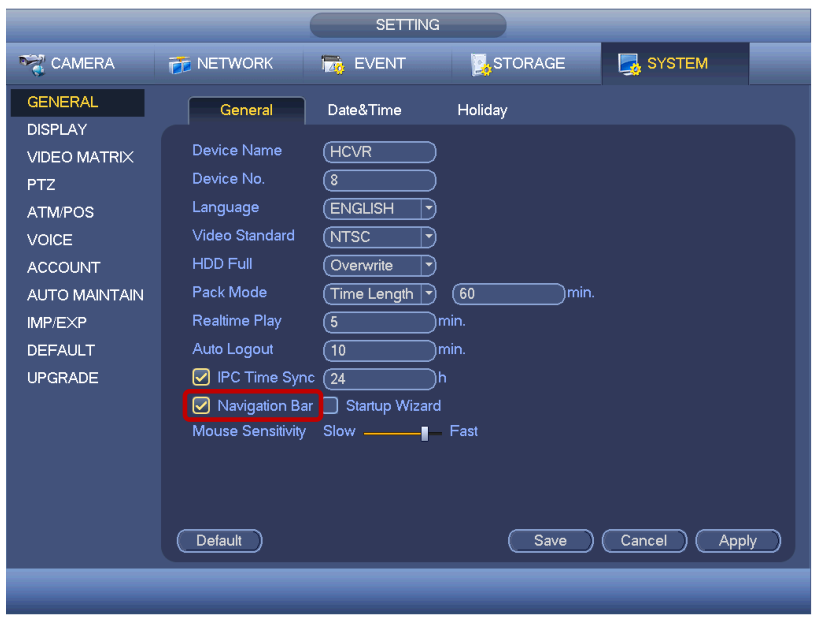
- Open main menu, SETTINGS->SYSTEM->general, tick in the red box to enable navigation bar.
- Using navigation bar, users can do some quick operations.
Was this article helpful?
Bu bilgiler sorununuzu çözmeye yardımcı oldu mu?
Thanks for your feedback!
Still need help?
Uzman ekibimiz size yardımcı olmak için burada.