Reset of IP Dahua and X-Security cameras via mobile app and reset boton
Web user interface of the IP Camera
1. Type the IP of the IP camera into a web browser

2. Click the 'Forgot password?' option

3. A prompt will appear to confirm the reset
Select OK

4. A QR code will be displayed.
This code must be scanned using the mobile app, either iDMSS or gDMSS on a mobile phone
The Security Code will be sent to the email address that was set during the device's initialization; the email will be shown partially below the QR code

On iDMSS / gDMSS
1. Open the iDMSS / gDMSS app
Select 'Me' in the lower right portion of the screen

2. Select 'Password Security'

3. Select 'Reset Device Password'

4. Scan the QR Code from the Web UI of the IP Camera

Once scanned, after a few minutes you will receive an email with a Security Code
5. Enter the Security Code into the Web UI of the camera, then select Next

The camera's password will be reset and you will be able to set a new password for the device
Reset via Physical Button
Depending on the model of your IP Camera, there could be a physical reset button on the outside body of the camera, or inside the camera body
1. Reset: Press the reset button for 5 seconds
2. Serial port connection: Please use connector and weld it on the package of the serial port
- In these kinds of IP cameras, the reset button is always on the back panel of the camera, with a
mark “RESET”
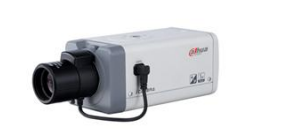
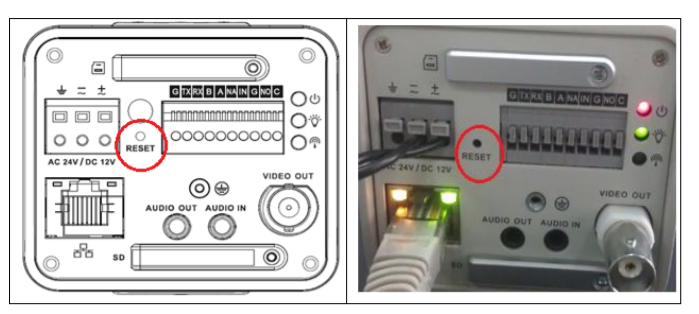
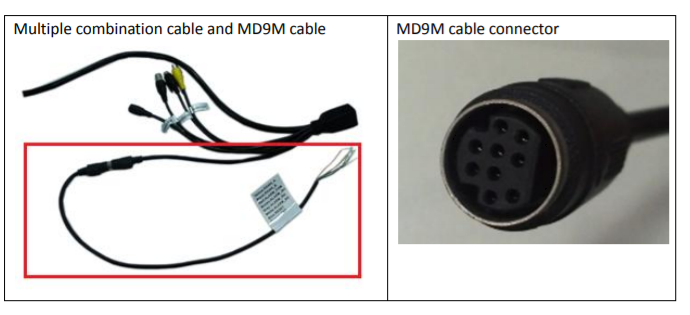
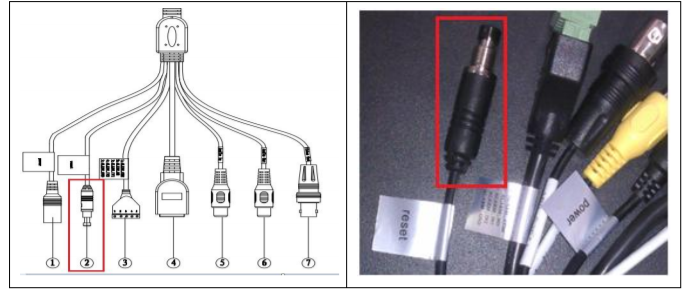
- Some of these cameras (earlier models) were combined with a multiple-function combination
cable; you need to perform a shortage in order to reset.
The picture below regards the cable coming out of the camera; you need an extension cable to
do the reset. Shortage the Blue wire (RESET) and the Orange wire (GND) for at least 5
seconds until the camera restarts
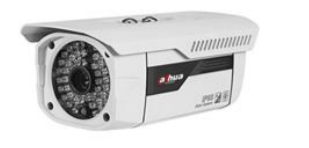
- IR Waterproof Fixed Network Camera (With Integrated Bracket)

The pictures below are the sample of multi-function cable, and the reset is a button. (The
appearance may not exactly the same)
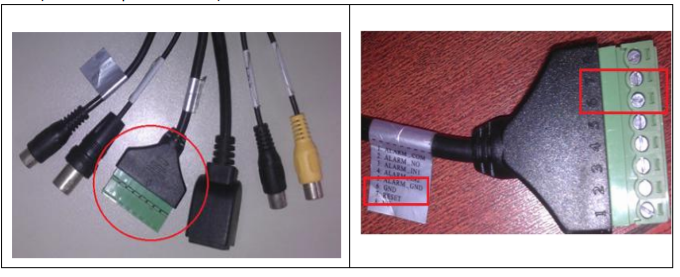
 There is also a multiple-function combination cable for even earlier models; the reset terminal goes together with the alarm terminal (you can find the identifications on the label), you need shortage the RESET and GND pin (7&6 in the picture below) for at least 5 seconds to make a reset.
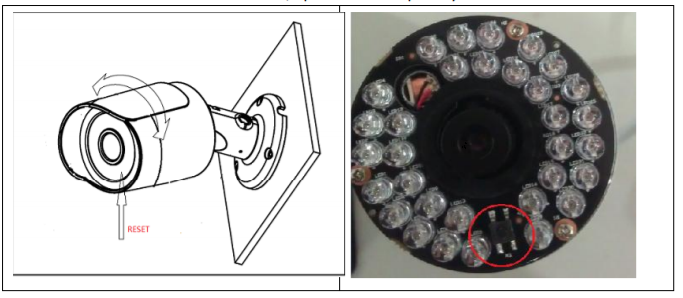
- Mini IR Waterproof Fixed Network Camera (With Integrated Bracket)
Appearance:

The reset button is inside of the camera, open the lens cap and you will find it.
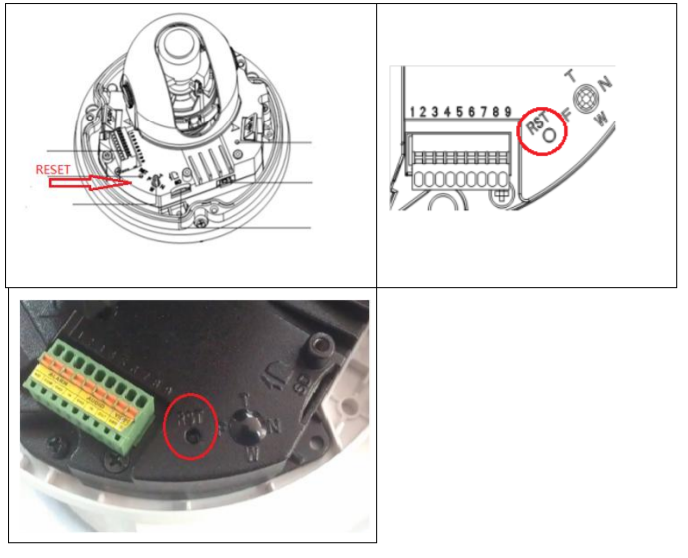
- ( IR) Vandal Proof Network Dome Camera (and In-ceiling model)

The reset button is inside of the camera, open the dome camera enclosure; you will find it
next to the alarm terminals (see the picture below).
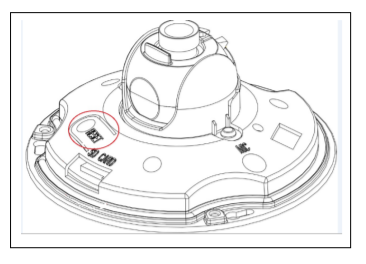
- Mini dome
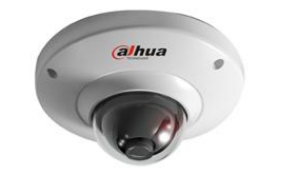
The reset module is inside the camera, open the dome camera enclosure and you will find it
- Mobile Network Camera (and some dome network camera)
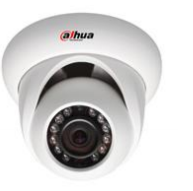
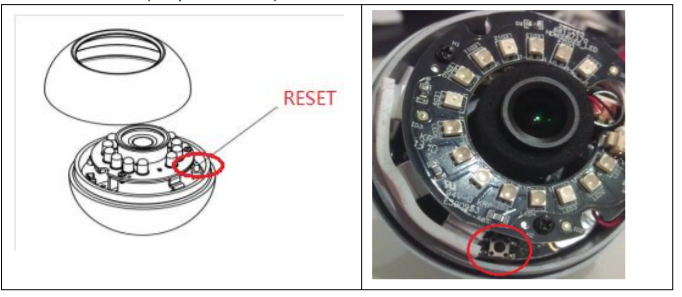
The reset button is inside of the camera, open the dome camera enclosure and will find it
under the IR board (see picture below)
- Home usage series
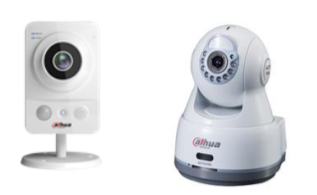
This type of network camera is very simple and small, and there reset button is mostly on
the back or side of the camera.

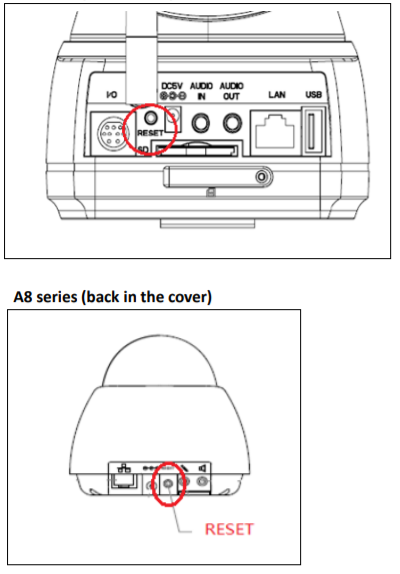
More models:
IT IS POSSIBLE THAT SOME MODELS DO NOT HAVE THE BUTTON TO BE ABLE TO DO THE RESET, IT WILL BE ENOUGH TO MAKE A BRIDGE WITH SOME CLAMPS DURING 20 SECONDS


Was this article helpful?
Bu bilgiler sorununuzu çözmeye yardımcı oldu mu?
Still need help?
Uzman ekibimiz size yardımcı olmak için burada.