Sannce Sight - How to Add the Standalone Camera to the Phone Via the Camera's Wifi Hotspot?
20 Aug 2026
347 views
Apply to: I71BD/I71GM
Preparation:
Please make sure the camera can be powered up. When the camera gets power, the infrared light of the camera will be on.
Here are the steps about how to add the camera to the phone.
-
Please download the app Sannce Sight on the App Store or Google Play Store.
Here is the download package for the Sannce Sight.
http://www.sanncegroup.com/document/APP/Sannce%20Sight_3.3.17.apk
-
Run the app Sannce Sight on your phone and click Register to register an account by email or phone No. at first. Then please log in to the new account.
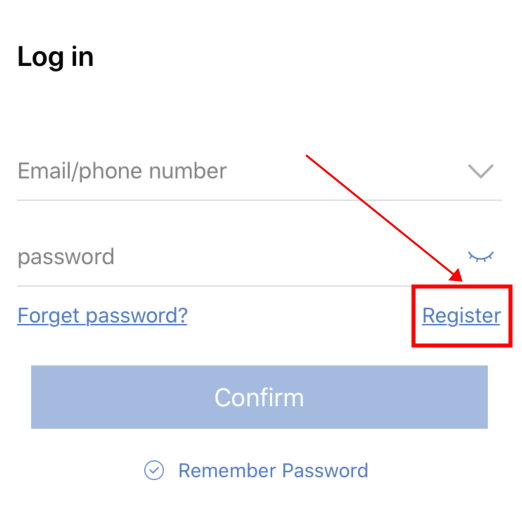
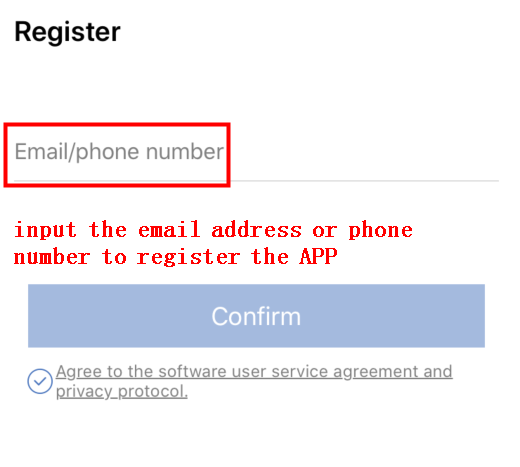
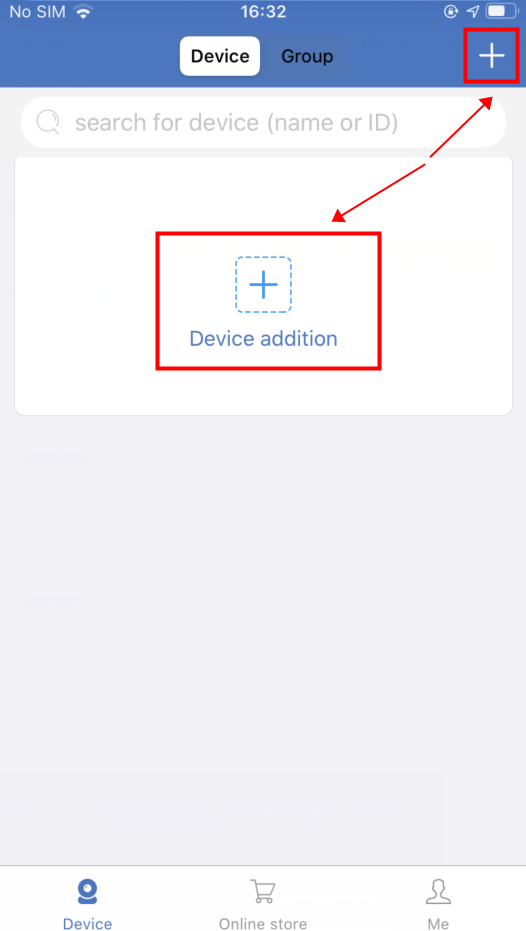
2. Then please click the "+" icon to add the device.
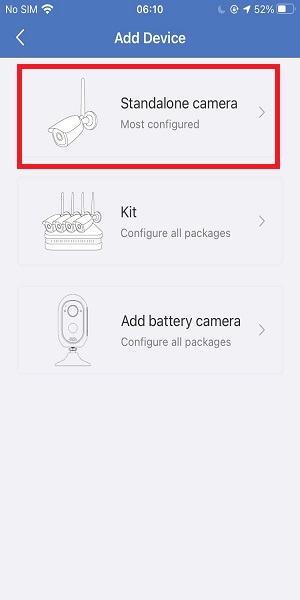
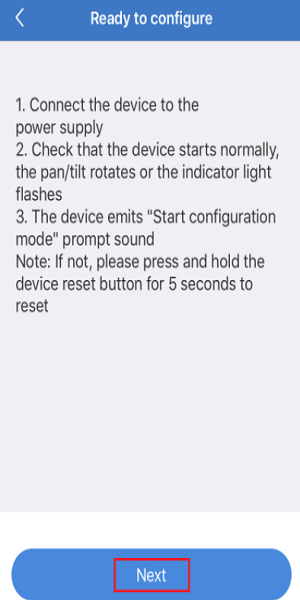
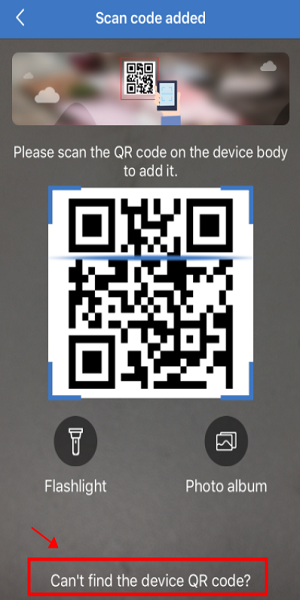
- Then you can see the Ready to Configure interface and please click Next. Please click
Can’t find the device QR code.
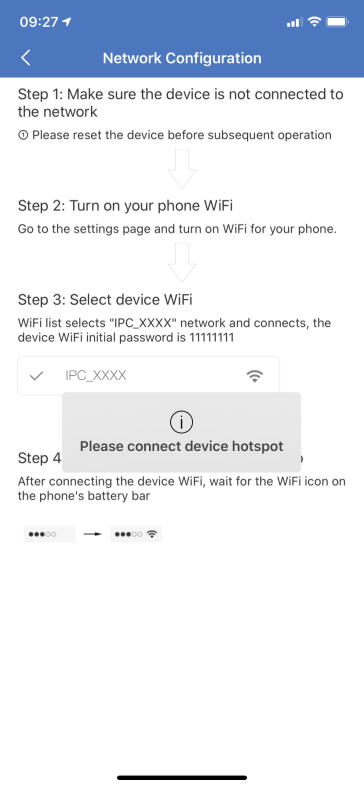
- You will see the Network Configuration. In this case, please open the wifi setting on your phone and choose the IPC wifi. When trying to connect the IPC wifi, please enter the IPC wifi password 11111111.
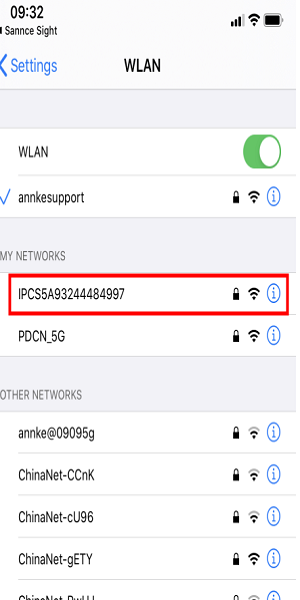
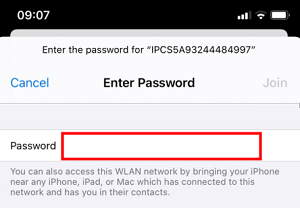
- After connecting the IPC wifi successfully, please go back to the APP Sannce Sight.
Note: If Connecting hotspot doesn't show up when you go back to the App after connecting the IPC wifi, please reopen the APP.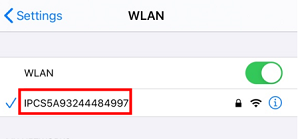
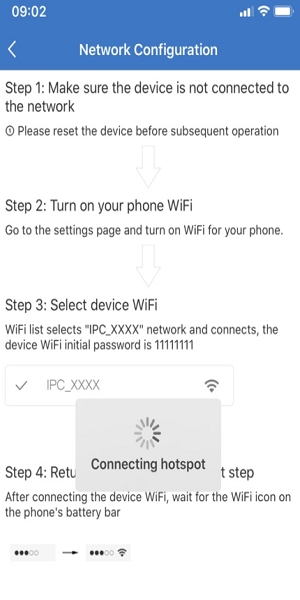
- When the hotspot is connected successfully, the Connecting Wifi interface will come up. Then please select network wifi and enter the wifi password and click Connecting device.
Note: please kindly choose the 2.4GHz wifi in your home network when connecting the camera. As the camera can not work with 5GHz wifi when connecting.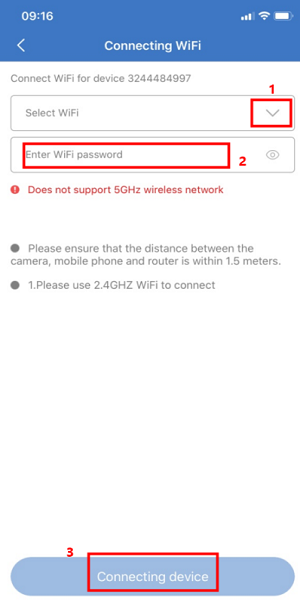
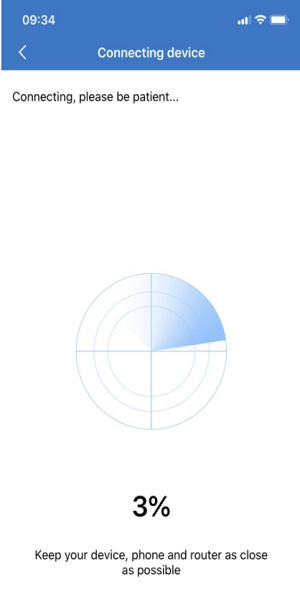
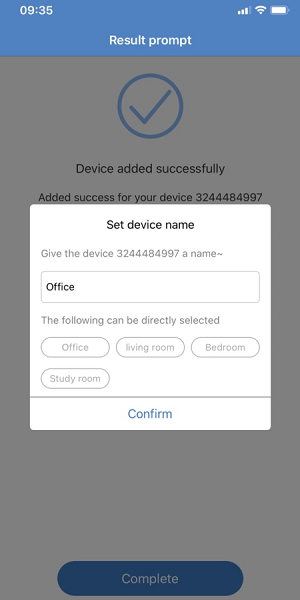
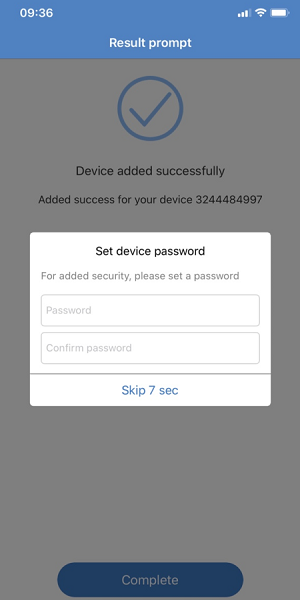
- When you see Device Added Successfully on the phone, please click Complete to name your camera and set a password for the camera (You can skip this step).
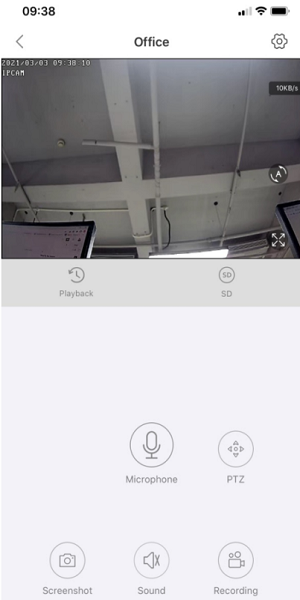
Finally, you can view the camera on the phone.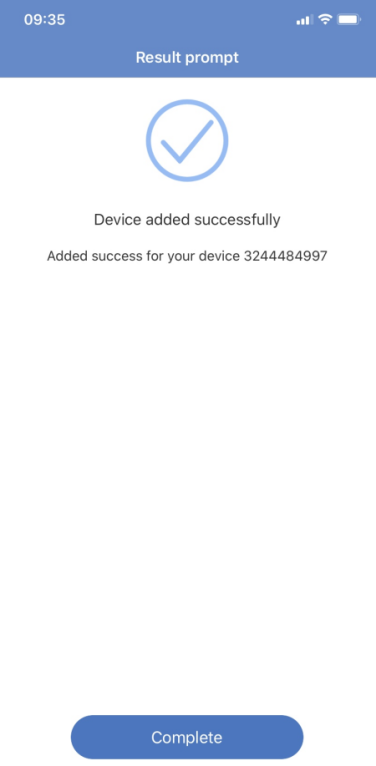
Was this article helpful?
Bu bilgiler sorununuzu çözmeye yardımcı oldu mu?
Thanks for your feedback!
Still need help?
Uzman ekibimiz size yardımcı olmak için burada.