[VAST] Camera indicator is visible in device tree but display black images in the LiveClient
Question
Why does VAST LiveClient do not display camera videos on certain computers, even though it shows the camera name and recording indicator?
Answer
This issue typically arises when the computer doesn't support the default render mode that VAST employs. You may resolve this problem by updating your computer's GPU drivers. Alternatively, you could adjust the render mode that VAST uses. In order to manually change the render mode please follow the next steps:
Step 1. Close the LiveClient application. Note: If the LiveClient is not closed, the changed wont be saved.
Step 2. Go to the following folder: C:\ProgramData\VIVOTEK Inc\VAST\Client\LiveClient and using any editing tool (e.g Notepad++) open the following file: ClientSetting.ini. Once open, change the GDIOnly value to "1"
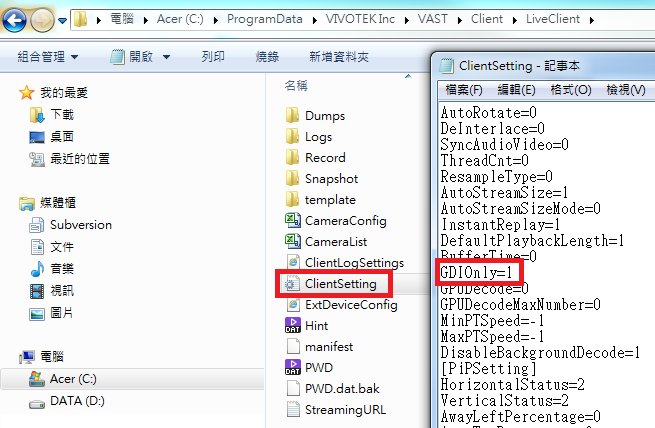
Step 3. After making the necessary changes, save the file. Close and then reopen the VAST LiveClient application. You should now be able to view the camera feeds.
Was this article helpful?
Bu bilgiler sorununuzu çözmeye yardımcı oldu mu?
Still need help?
Uzman ekibimiz size yardımcı olmak için burada.