XMeye - How to Record or Take Snapshot to Local Disk of the Computer?
Applies to: DH81NK/DH41NK/DM21O/DM31O/DL81A/DH81S/DH81NG/DN81NB/DM41G/DN41CJ/DN81BJ/DN61EC/DG81W/DG61X/DG41T/DT81DQ/DT41DC/DT61ER
This function doesn‘t need a hard disk drive installed into DVR.
Here is a method to install CMS software into your windows computer and add DVR/NVR to CMS
https://help.annke.com/hc/en-us/articles/360000255301
Here is a player that could play recording file H.264 format.
https://download.annke.com/document/Computer_Software/Videoplayer.zip
There are 4 kinds of recording. manual recording, regular recording(schedule recording), motion detection recording, alarm recording.
- Manual Recording
1. Select the video path first.
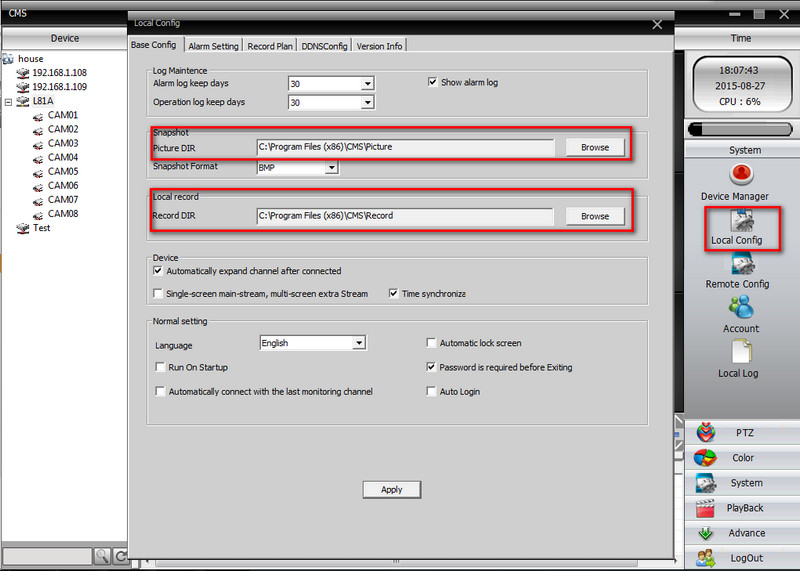
2. Right-click image to enable recording. (You can also click snapshot to take a picture)
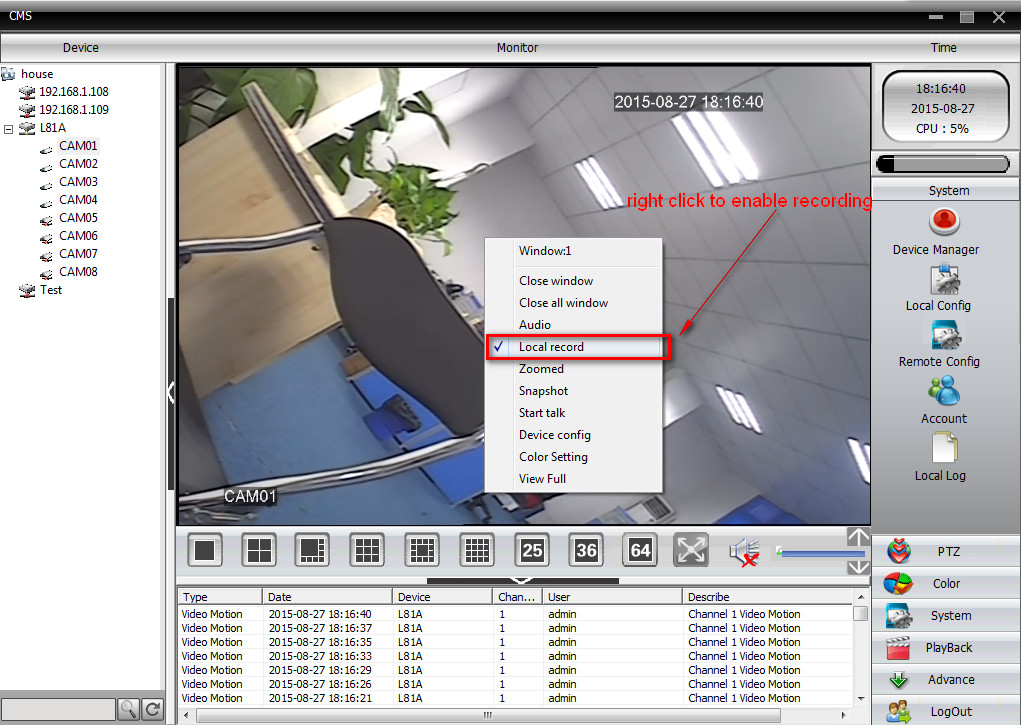
3. Right-click the image again to disable recording.
4. Go to the path to check and play the recording.
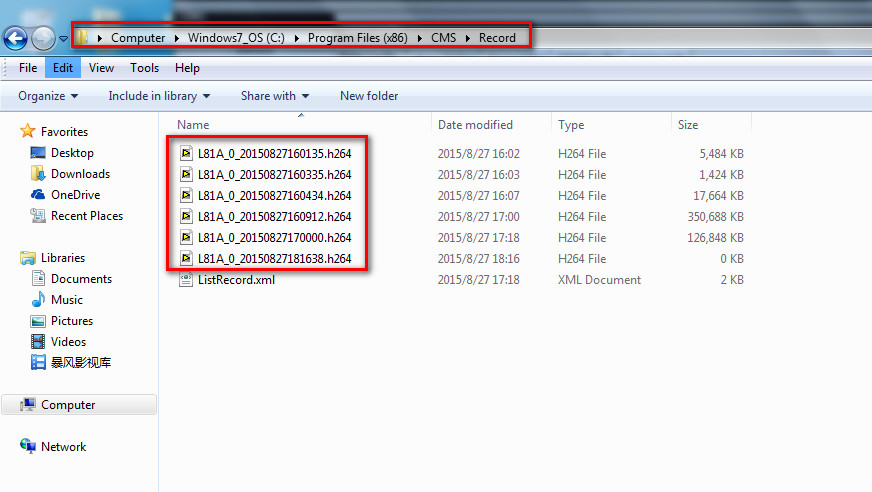
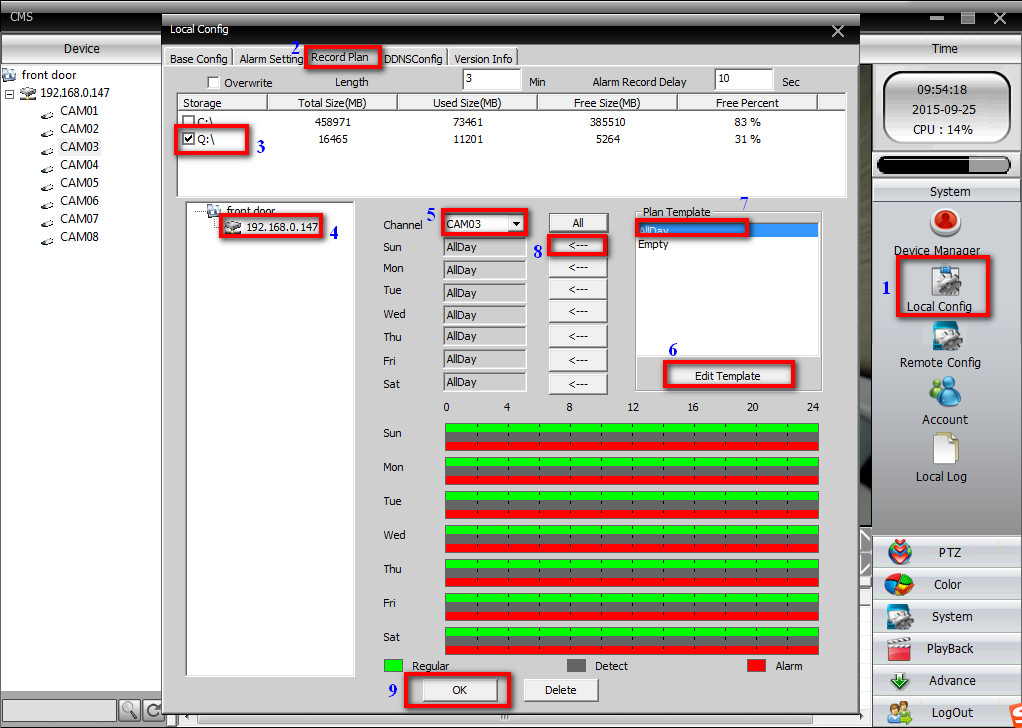
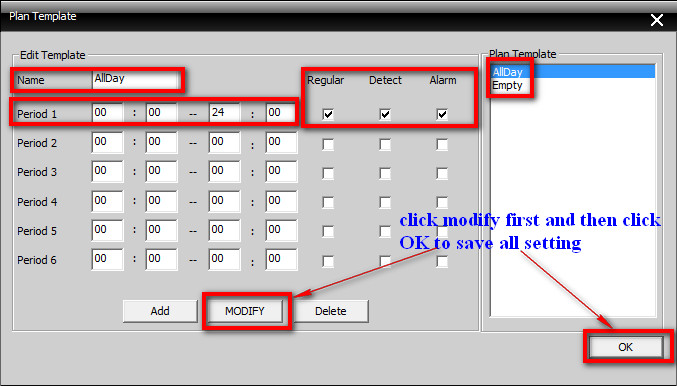
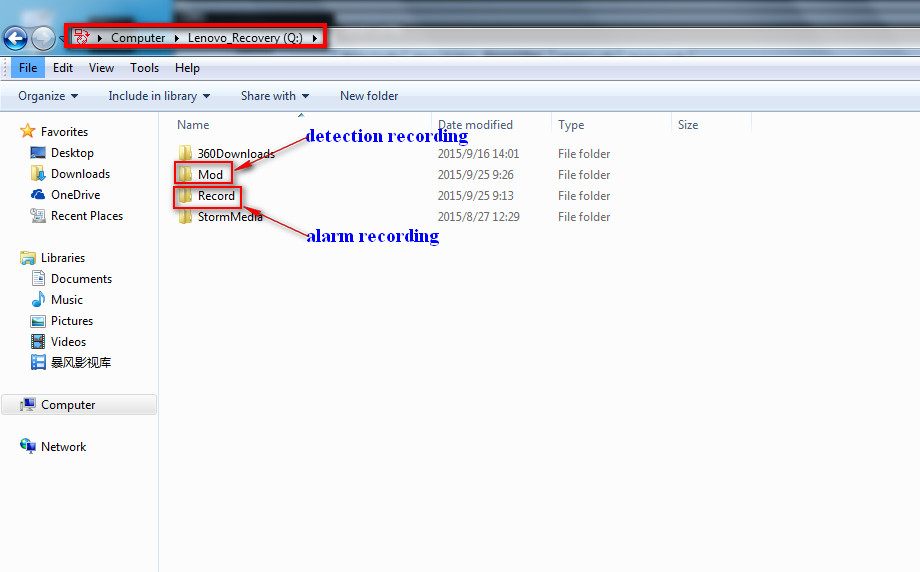
- Schedule(regular), detection, and alarm recording.
NOTICE:
1. There is no port on our DVR to connect an alarm such as a smoke detector. Therefore, alarm recording is not working on the system.
2. If you want the system to get detection recording to your computer‘s disk, you need to enable motion detection first like the picture below.
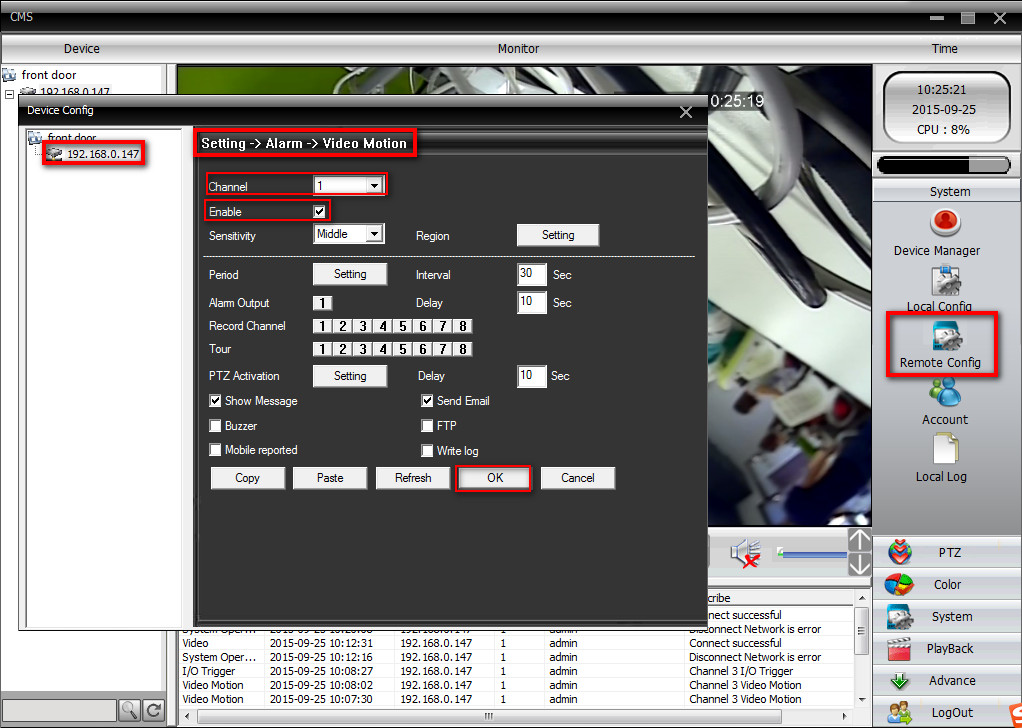
Here are steps to set up regular(schedule) recording and detection recording.
Was this article helpful?
Bu bilgiler sorununuzu çözmeye yardımcı oldu mu?
Still need help?
Uzman ekibimiz size yardımcı olmak için burada.