XS-V2201M-IP video-intercom configuration
For the configuration of this device we will start by setting the appropriate parameters on the board through the browser:
VTO Configuration
First, the VTO must be upgraded to the required firmware version:
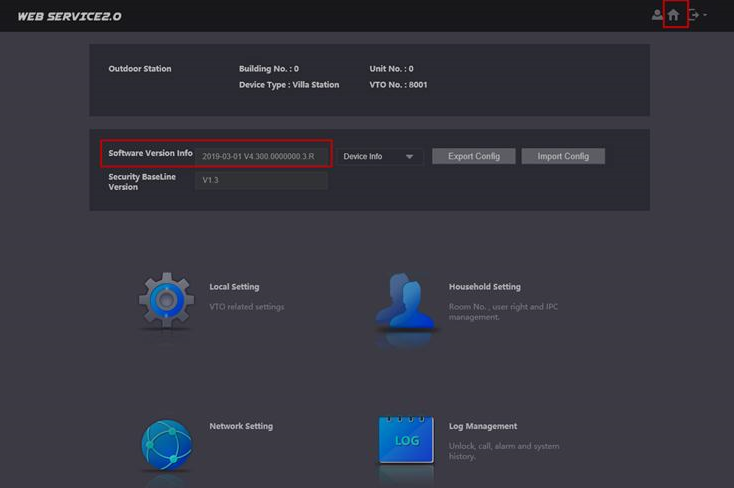
The first menu we have to look at is Household Setting. In the search tab of the outdoor boards, the IP address of the previously connected VTO is automatically displayed:
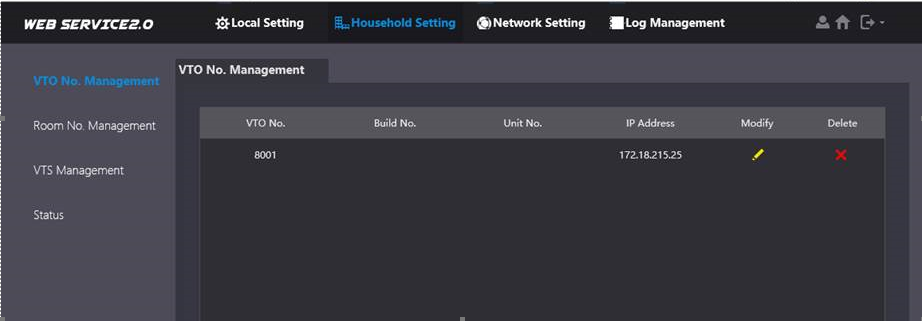
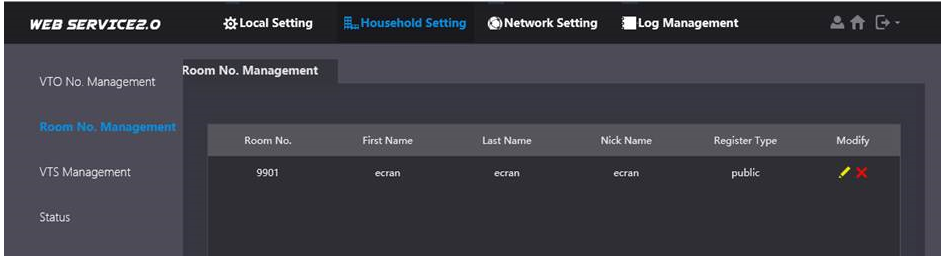
then, we have to add the number of the monitor (or monitors) we want to communicate with:
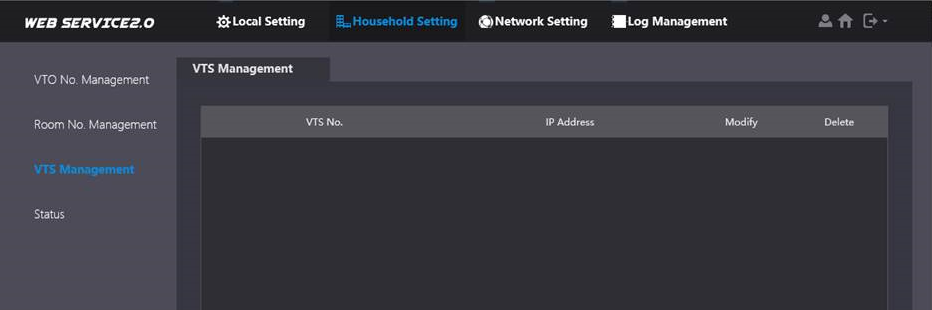
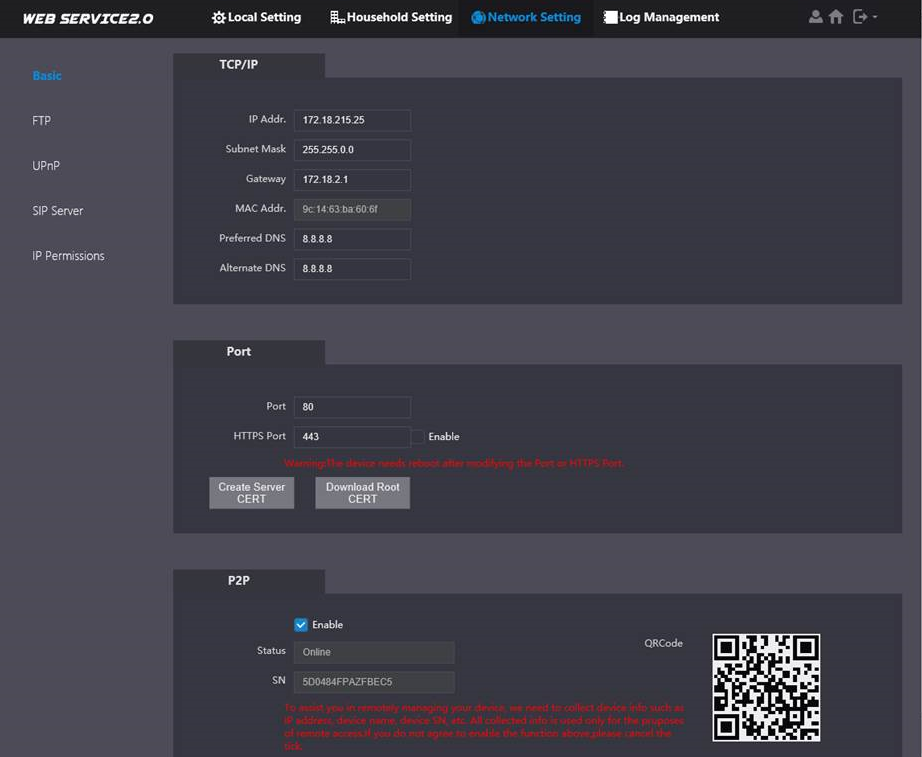
In the Network Setting menu, the IP address of the VTO appears; here we complete the data and activate the P2P service. By completing this step we can also get notifications on our mobile phone.
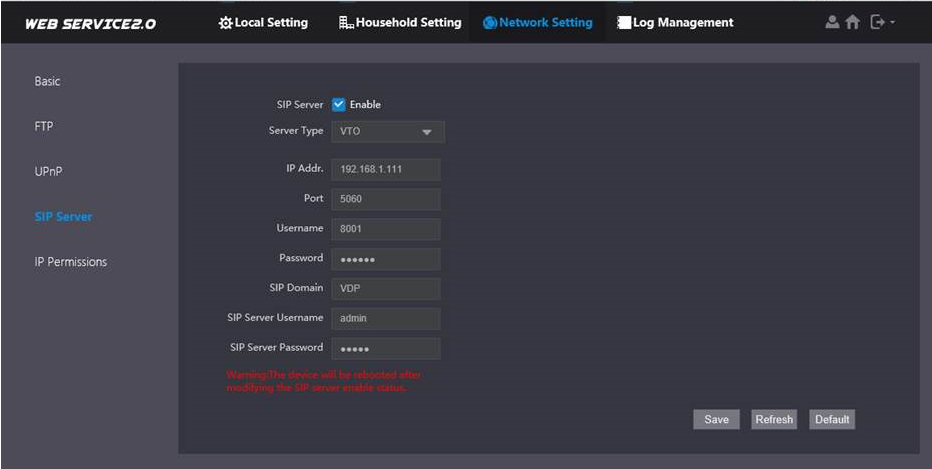
Activate the SIP SERVER.
Configuration XS-V2201M-IP
The configuration of the phone will be performed through a specific version of the VDP Config software, this can be downloaded from the following link: https://athena-visiotech.s3-eu-west-1.amazonaws.com/Ggi-lHIBV_luKmaGxlvi/VDPConfig%20(1).zip
We will detect the phone with VTH nomenclature and establish the following parameters:
- System Type: SIP
- Register PWD: 123456
- VTO Password: Board password
- Domain Name: VDP
- IP Server: Board IP
- Server username: admin
- Server Port: 5060
- Server Password: admin
IMPORTANT: Once the 2 equipment's are configured, we restart the power supply and test that the board makes the phone call correctly.
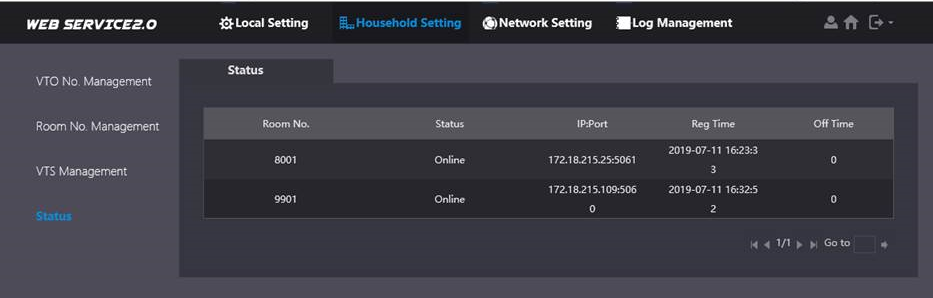
A detail that indicates that the devices have been correctly configured is that in the following section of the board we appear the telephone as connected:
Was this article helpful?
Bu bilgiler sorununuzu çözmeye yardımcı oldu mu?
Still need help?
Uzman ekibimiz size yardımcı olmak için burada.