


The Video Doorbell Pro integrates seamlessly with your SimpliSafe® system, allowing you to see visitors and interact with them through its live streaming and two-way audio features, without needing to be home.
If you are subscribed to either our Pro Premium Monitoring or Self Monitoring with Camera Recordings plans, the Video Doorbell Pro will record video when motion is detected, and those recordings will be stored in your account for 30 days. These recordings can be downloaded from the SimpliSafe® Mobile App or Web App.
The Video Doorbell Pro detects motion using advanced motion analytics during the day to recognise cars, people, and other objects. At night, the Video Doorbell Pro uses passive infrared (PIR) to detect moving, heat-generating objects in contrast to the environment. Since it is looking for warmer objects, you may see an uptick of motion events from the Video Doorbell Pro during the colder months.
Looking to purchase a Video Doorbell Pro? You can find it available for purchase on our website.
Video Doorbell Pro Requirements
Before installing your Video Doorbell Pro, it’s important to know that the device requires:
• Existing doorbell wiring
• A mechanical chime. The Video Doorbell Pro is not compatible with digital chimes
• A transformer with 8-24VAC, 10-30VA
• A Chime Connector. If you do not have a Chime Connector, please reach out to our Support team for one
Failure to meet these requirements may result in damage to your device and/or your home. If you’re unsure if your system meets these requirements, we recommend contacting a licensed electrician.
You can test the voltage of your doorbell using a multimeter or voltage tester. If you’re unsure of how to do this, please consult with a licensed electrician in your area for further assistance.
Before Getting Started
You will need to have a 2.4GHz network connection available to complete the setup of this camera.
What’s in the box:
• Video Doorbell Pro
• Angled mount
• Mounting bracket
• Chime Connector
• Security Screw
• Torx screwdriver
• Mounting bracket screws
• Wood screws
• Wall anchors
You’ll also need to have your own Phillips Head screwdriver to complete the installation.
Watch the video below for a hands-on experience from our team of experts for the installation process.

OhmKat Installation Guide
Overview
OhmKat is a 3rd party supplier of Built in Transformer Power Supplies and Wireless Digital Chimes to support the SimpliSafe Video Doorbell pro.
The OhmKat Power Supply provides a DIY installation alternative, ensuring the Video Doorbell Pro is accessible to all SimpliSafe customers. It is simply a case of plugging in the power supply to a nearby outlet, and doesn’t require a certified electrician to install.
Customers can chose to add the wireless digital chime that simply slots into the power supply set up. The OhmKat Wireless Chime has a choice of 37 different tones/melodies.
OhmKat products do not work in conjunction with any existing hard wired setup.
You can purchase this product online or through one of our expert sales agents.
Installation
Setting up the OhmKat Power Supply:
1.Thread the power cable through the back of the doorbells mounting plate, and then place the two ends of the split red & blue connection under the screws. Once the exposed wire is making sufficient contact, then begin to tighten the screw (Note: there is no requirement in which screw you should install red/blue wired.)
2.Connect the transmitter as seen in the diagram above.
3.Plug the chime receiver into an outlet within 50 feet of the transmitter, and then plug in the the Ohmkat power supply.
4.Give the doorbell some time to power on. The button will light up orange while it is booting up, then turn to white when ready to set up in the SimpliSafe app.
5.Open the SimpliSafe app, press on the hamburger menu in the top right, and then select “Add Device or Camera”
6.Then proceed to select Video Doorbell from the options, and follow the on screen instructions.
7.Once installation is completed, press the doorbell button. I chime should be heard from the doorbell itself, as well as the chime receiver. (Note: if the chime receiver fails to chime, relocate the chime receiver closer to the transmitter)
Setting up the Wireless Chime & Receiver:
1.While plugged in, change the volume and chime tune on the chime receiver as desired. These are the first and second buttons respectively.
2.Press and hold the volume button on the chime receiver. You will hear two beeps. The receiver is now in pairing mode.
3.While still holding the volume button, ring the doorbell three times quickly. You should hear one beep from the chime receiver. This indicates successful pairing. Release the volume button.
4.Your chime is now paired. Ring the doorbell to test.
Pairing additional Wireless Chimes:
You can pair up to 10 chimes to a single transmitter.
1.Plug in the second non-paired receiver into a outlet. With the transmitter plugged in at the split connection, do the following:
2.Press and hold the volume button. (Do not hold it for more than 5 second or all pairing will be deleted.)
3.Then simultaneously press the doorbell button three times quickly in succession so that the transmitter sends a pairing communication to the receiver. You should hear the chime ring. As soon as the chime rings release the volume button. Just make sure that in the SimpliSafe app the chime setting is on.
4.Repeat no. 3 if not successful. Once it rings, it is paired.
5.Once paired both receivers will ring when the bell is pressed. Repeat the process for any
OhmKat Power Supply Troubleshooting
All OhmKats feature a patented OTPT (One Touch Power Test) technology that allows you to self test them for their full operational capability.
Troubleshooting
1.While the Ohmkat Power Supply is plugged in, an Amber light will illuminate on the adaptor to indicate power. Remove the OhmKat wires from behind the doorbell, and touch the two wires together. (Don’t worry – you won’t be shocked).
2.Keep the wires connected whilst you confirm the amber light on the transformer has dimmed to approximately 20% brightness.
3.If the light dimmed, this confirms the OhmKat Power Supply is working as expected.
4.Connect the power supply back the Video Doorbell Pro.
5.If the Video Doorbell Pro does not power back on follow these steps.
Chime Connector Installation Guide
The Chime Connector is a useful part of the Video Doorbell Pro’s setup. It helps to prevent the Video Doorbell Pro from producing a constant buzzing sound, or from not sounding at all when its button is pressed. All Video Doorbells sold in the UK will have this sent with the product, however, If it becomes lost or is missing please contact our Support team and they will send one to you free of charge.
Video Doorbell Pro Requirements
To ensure that your Video Doorbell Pro works as intended, it’s also important to make sure that its setup aligns with its requirements. The Video Doorbell Pro and Chime Connector require:
• Existing doorbell wiring
• A mechanical chime. The Video Doorbell Pro and Chime Connector are not compatible with digital chimes.
• A transformer with 8-24VAC, 10-30VA.
Installing the Chime Connector
You can install your Chime Connector by taking the following steps:
1.Important: Use your circuit breaker to turn off the power to your existing doorbell. To locate the correct switch, try turning off each switch one at a time until your doorbell no longer rings
2.Find the doorbell chime and remove its cover
a.Some covers can be lifted off, others may need to be unscrewed
b.If your chime has batteries, the Chime Connector cannot support it
3.Locate the screw terminals on the chime. The terminals might be listed as Front/Trans/Rear, A/B/C, or 1/2/3. You will need to use the middle (“Trans”) and left or right (“Front”) terminal, which should have wiring attached to them
4.Loosen the screw to disconnect the “Front” wire and clip it into the Chime Connector’s blue wire connector
a.Note: Trim the “Front” wire to 1/4 inch before inserting it into the wire connector
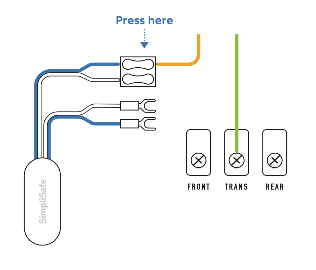
5.Attach the other blue wire from the Chime Connector to the “Front” terminal
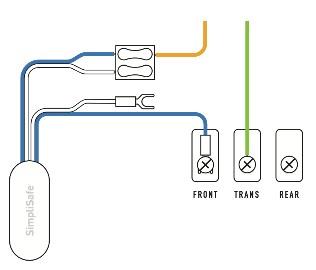
6.Loosen the screw to disconnect the “Trans” wire and clip it into the Chime Connector’s white wire connector
a.Note: Trim the “Trans” wire to 1/4 inch before inserting it into the wire connector
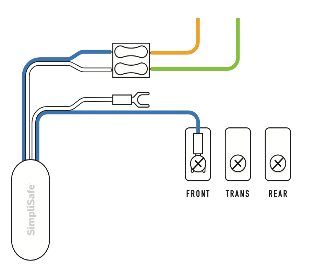
7.Attach the other white wire from the Chime Connector to the “Trans” terminal
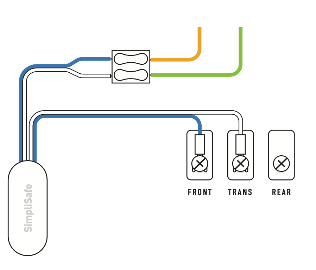
8.Find a place to put your Chime Connector, then replace the cover. You can use the adhesive backing to stick the Chime Connector outside the box, or tuck it inside if there’s room. Make sure it won’t interfere with moving parts and muffle your chime
9.Turn the power back on and make sure your doorbell still rings. If it doesn’t, double check that the wire connections are tight
.
Recording Behavior for the Video Doorbell Pro
The Video Doorbell Pro alerts you when someone’s at the door, even if they don’t ring the bell. With a 162 degree super wide field of view, you can see everything that’s happening day or night in perfectly crisp 1080p HD.
Using Video Doorbell Pro With a SimpliSafe® System
When you add Video Doorbell Pro to a SimpliSafe® Gen 3 Home Security System with a monitoring plan you unlock its full potential. The Video Doorbell Pro will record the during the following events:
• Alarms
• Disarming your SimpliSafe® System
• When a secret alert is triggered (when enabled)
• When your system is placed into a user-initiated Test Mode
• During a Duress Alarm
• When a Silent Panic Button is activated
• During Entry and Exit Delays
• When power is restored to your system after an outage
Using Video Doorbell Pro Without a SimpliSafe® System
Without a SimpliSafe® Gen 3 Home Security System, the Video Doorbell Pro will only record the following events when subscribed to a camera only plan:
• When the doorbell button is pressed
• When the doorbell detects motion
• User initiated recordings
Without a monitoring subscription, you’ll still receive push notifications alerting you that someone is at the door, but won’t have access to recordings – only livestreams.
Gen 3 SimpliSafe® Overview
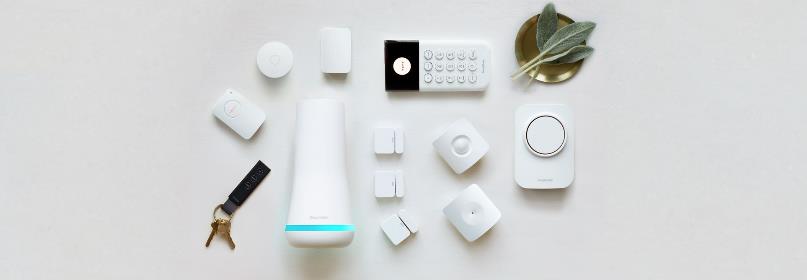
A powerful home security system built for the unexpected
The Gen 3 SimpliSafe® system is our upgraded DIY security system and the only system sold in the UK, with features added to provide homeowners peace of mind. This third-generation of our security system is Wi-Fi compatible, has more than double the components of the Original SimpliSafe® system, and its revamped design makes it easier to blend in with your home. We are constantly providing updates to ensure your system is always prepared to protect your home.
With a cellular connection* to our monitoring centre and 24-hour backup batteries, our latest system ensures you’re always protected, even if you lose power. You can also connect your system to Wi-Fi as a second communication channel. This Wi-Fi connection will allow you to manually update your Base Station and Keypad when updates are available.
*Cellular backup connection is only available with a professional monitoring subscription.
24/7 Professional Monitoring
We strongly recommend that you subscribe to professional monitoring. To learn more about the monitoring plans we offer, visit the What are the service plan options? article. SimpliSafe® has many monitoring centres around the UK that are open 24 hours a day, 365 days a year, so you can be confident whether you are at work or going to sleep that your home is protected. With Pro Premium Monitoring, you can choose to be notified immediately via email, text message, and smartphone push notifications for any events your system detects.
Still uncertain about professional monitoring? Check out thebenefits of having a monitoring plan to ensure your home is as protected as possible. If you have not activated your system, we list out the steps in the article How do I Activate Monitoring?
A Range of Settings to Personalise Your System
You can change your system-wide and device settings through the SimpliSafe® Mobile App and Keypad’s menu. Settings range from the type and frequency of notifications you receive, siren volume, device sensitivity, and more!
To learn more about updating your system’s settings, see our article Base Station and System Settings. For more on updating device settings, visit the Device and Sensor Settings article.
Once installed, you can use your Keypad to test your system. After your system has been tested, you will be able to subscribe to professional monitoring.
To troubleshoot your system, you can use the search bar at the top of this page. If you are unable to find your answer, please contact our Support team for additional help!