Adding a substation to VAST
Question
Adding a substation to VAST
Answer
Introduction
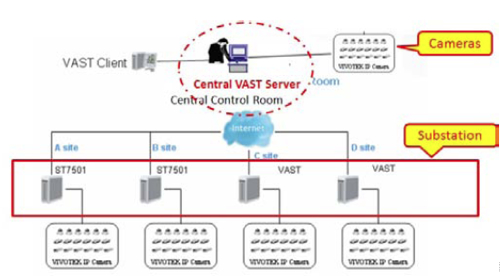
This document describes how to easily add multiple cameras and ST7501- or VAST-based substations on other sites to a VAST server's device list for centralized management.
How to add a substation to VAST
Please refer to the section "How to Manage Station" in the VAST user manual, which can be downloaded from the VIVOTEK website. You will find information on how to enable and configure the substation's Relay feature (on either ST7501 or VAST) and how to add the substation to VAST's device list for management.
How to manage substations
VAST supports the management of more than 64 cameras and multiple substations, allowing you to configure their settings and view video relayed from them.
- Configuration
- To configure a substation, select its icon in the left panel of the LiveClient window and then click on the Configuration drop-down menu, or right-click on the icon and choose the setting page you desire from the pop-up contextual menu.
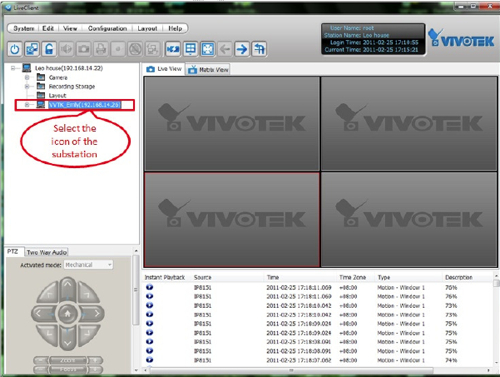
Select the icon of the substation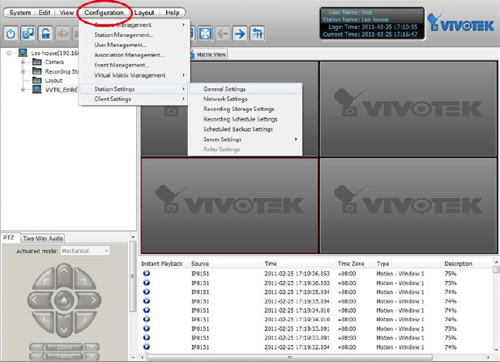
Click Configuration button to choose the settings page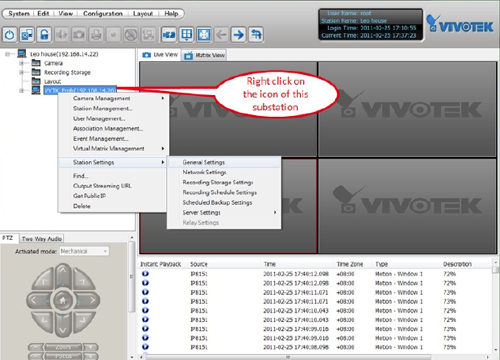
Right-click on the icon and choose the setting page - To configure cameras connected directly to the central VAST server, select the icon for the main station in the left panel of the LiveClient window and then click on the Configuration drop-down menu or right-click on the icon and choose the setting page you desire from the pop-up contextual menu.
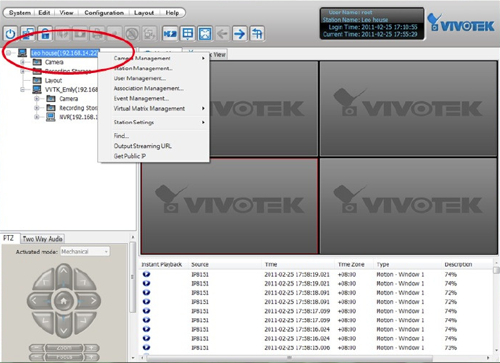
Select and right click on the icon of the main station and choose the setting page
- To configure a substation, select its icon in the left panel of the LiveClient window and then click on the Configuration drop-down menu, or right-click on the icon and choose the setting page you desire from the pop-up contextual menu.
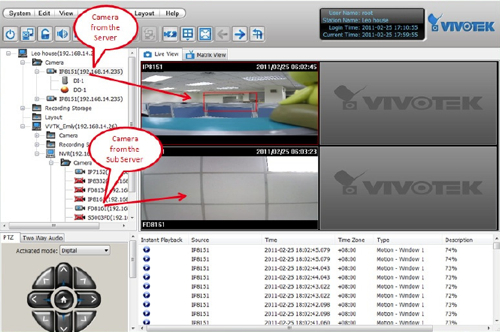
- View cells: In the VAST LiveClient view cells, you can display video from a camera connected directly to the central VAST server and from a camera attached to a substation.
Troubleshooting
If you experience issues adding a substation to VAST's device list, check the following areas.
- Relay settings: Make sure that the Relay feature of the substation is enabled and that you are using the correct password. For additional information, refer to the section "How to Manage Station" in the VAST user manual.
- If your VAST server is connected to the substation via Internet: Make sure that port 3454 (the port used for data communications) has been opened by the router on the substation side.
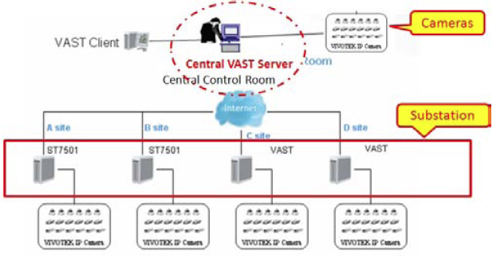
- If your VAST server and substation are on the same LAN: Make sure that any firewall or anti-virus software on the substation PC is not blocking connections to port 3454.
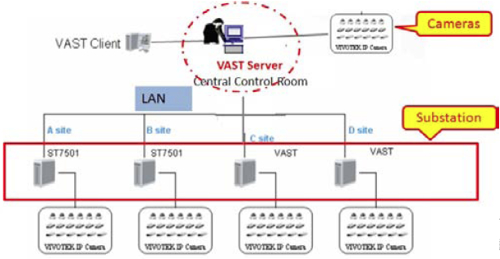
The following figures show an example using Microsoft Firewall of how to ensure port 3454 is available for connections.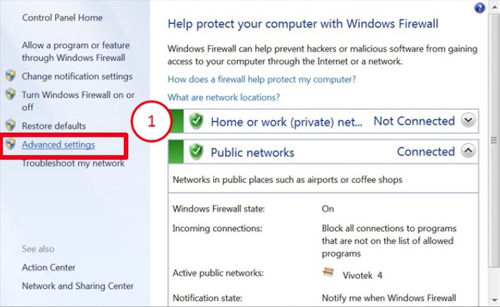
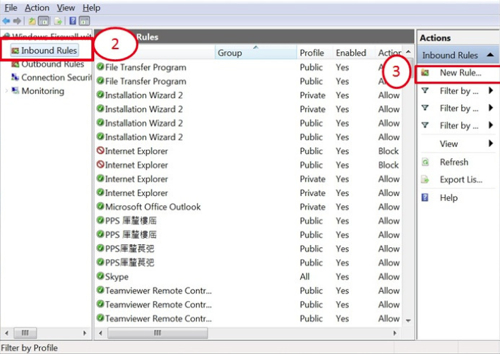
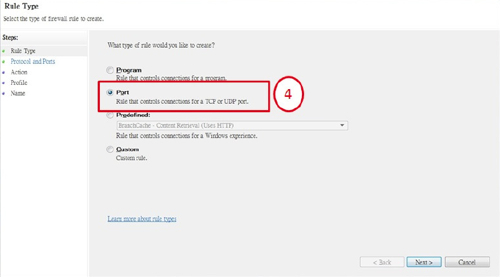
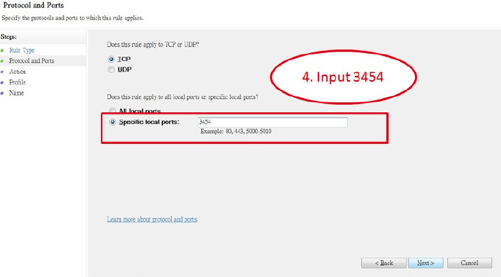
Was this article helpful?
Bu bilgiler sorununuzu çözmeye yardımcı oldu mu?
Still need help?
Uzman ekibimiz size yardımcı olmak için burada.