Annke Nova - How to Adjust the Microphone Volume of Nova camera?
Applies to: I41HG/I41CS/NOVA Orion/NOVA S
Purpose: Nova S (I41HG) or Nova Orion (I41CS) can be added to the PC client for configuring more parameters. Please note that your computer and the IPC need to be on the same network.
Steps:
1. Please connect the IPC to the network or app. You can refer to the following link:
https://help.annke.com/hc/en-us/articles/360000253501
2. For Windows computer, please download the PC client "Guarding vision". Please click the following link to download the client:
http://support.annke.com/document/Computer%20Software/Guarding-Vision.exe
3. Run the software, then you will see the cameras are shown in the device list. 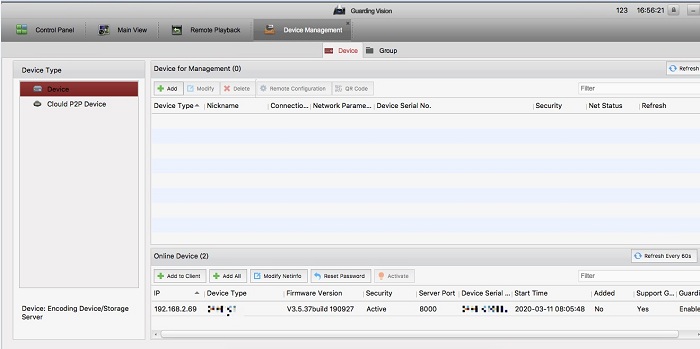
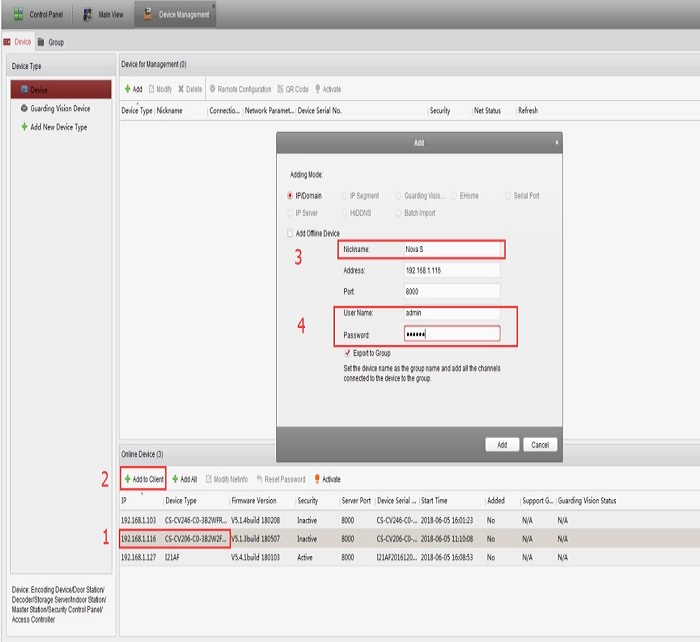
4. Take Nova S as an example here. First of all, select the device Nova S to be added and click "Add to client", then a window will pop up. You need to create a nickname, enter the user name "admin" and the password, namely the device’s verification code, which is the 6-digit capitalized letters on the sticker of the device body. Finally, click "Add" to add the device to the client.
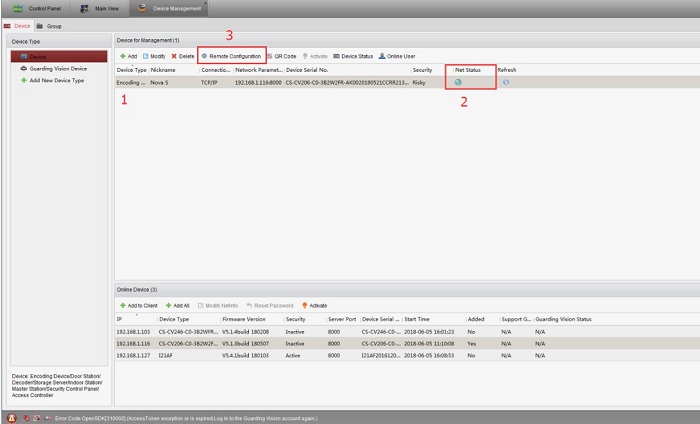
5. Select the Nova S that has been added to the client and click "Remote Configuration". Then go to the parameter configuration page. At this point, you can adjust some parameters of the IPC.
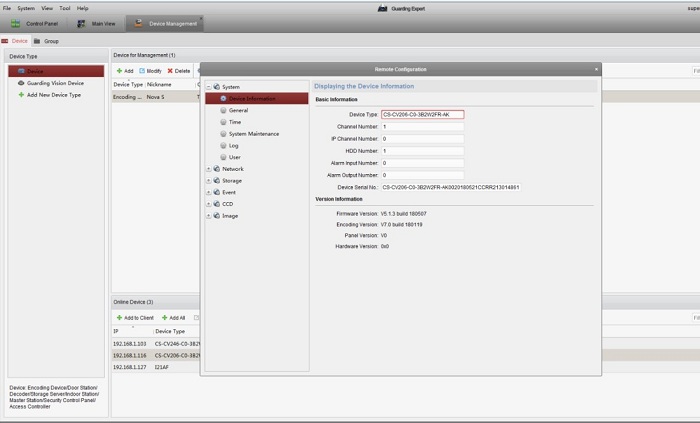
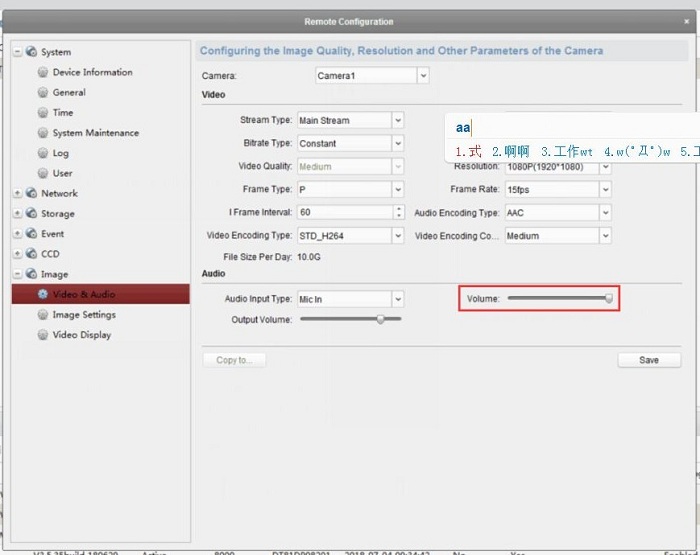
6. Nova Series Camera's mic-in volume is 80 by default, and you can select Image-Video and Audio-Volume to adjust it.
Was this article helpful?
Bu bilgiler sorununuzu çözmeye yardımcı oldu mu?
Still need help?
Uzman ekibimiz size yardımcı olmak için burada.