Annke Sight - What to Do if You Can't Enter Your NVR System?
Applies to: NW41V/N441H/N441K/N28WEB/N441B/N441D/N441L/N44PAN/N34WDB/N34WDD/N44WEB N44WED/N44WEC/NW41V/N44WBD/N48WHD/N48WHP/N44WBF/N48WHE
If your NVR encounters the following three situations and it can't enter the system, please refer to this article to upgrade your system to recover it.
- The NVR system can be powered on, while it can't enter the system.
- The NVR system can be powered on, while it always stays at the "Annke" Logo.
- The NVR system can be powered on, while it always reboots.
As we have different firmware for different models, please submit a request to ask us for the corresponding firmware to avoid upgrading the device by the wrong firmware.
Here are the steps on how to upgrade the system, if you still have difficulty to understand the steps, you can refer to the video below to help you better understand the step 1-5. Please note that you can't plug the ethernet cable during the whole procedure.
http://support.annke.com/document/JA/Automatically-upgrade-the%20NVR-steps.mp4
Step 1:
Please formate USB stick with the tool HPUSBFW V2.2.3.exe on the computer.
http://support.annke.com/document/JA/HPUSBFW-V2.2.3.exe
Step 2:
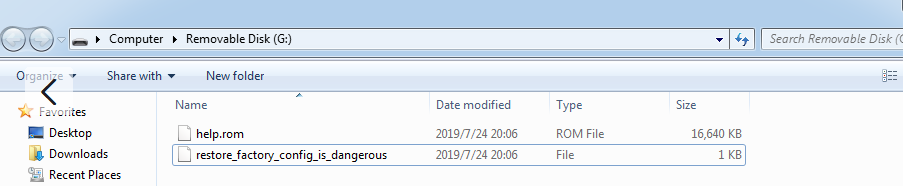
Copy the"help.rom"and the "restore_factory_config_is_dangerous" files to USB-Stick's root directory
Note: The root directory of U disk is the first-grade directory. (The two files are provided by technical support)
Step 3:
Insert the USB-Stick to the USB port at the back of the NVR, please don't plug the ethernet cable.
Step 4:
Power on NVR, then NVR will upgrade automatically, and you will hear "BI" sound, then please wait for about 8mins, and NVR will upgrade successfully and rebooting automatically. (Note: please don't power off NVR when upgrading)
Step 5:
If NVR still doesn't work normally after 8minutes, please try again from step 1-4.
Note:
The restore_factory_config_is_dangerous file in USB-stick is one-time-use if want to upgrade again, it should be copied into the USB-disk again.
Step 6:
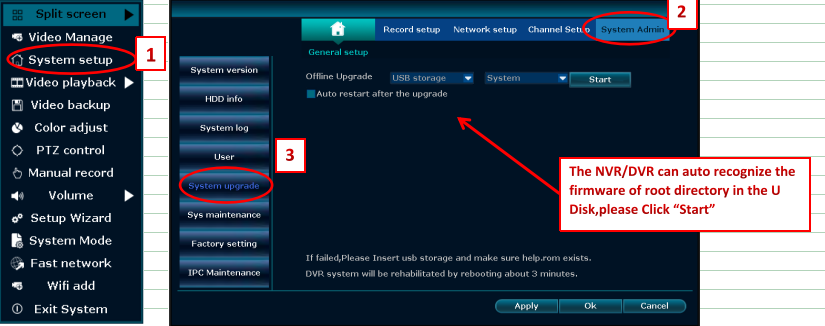
If the device has been upgraded successfully and you can enter the system, please right click your mouse on the monitor of the NVR, Go to System setup--》System Admin--》System upgrade and you can see the offline upgrade. Then, please upgrade it by the second upgrade firmware.
(The firmware is provided by technical support)
Step 7:
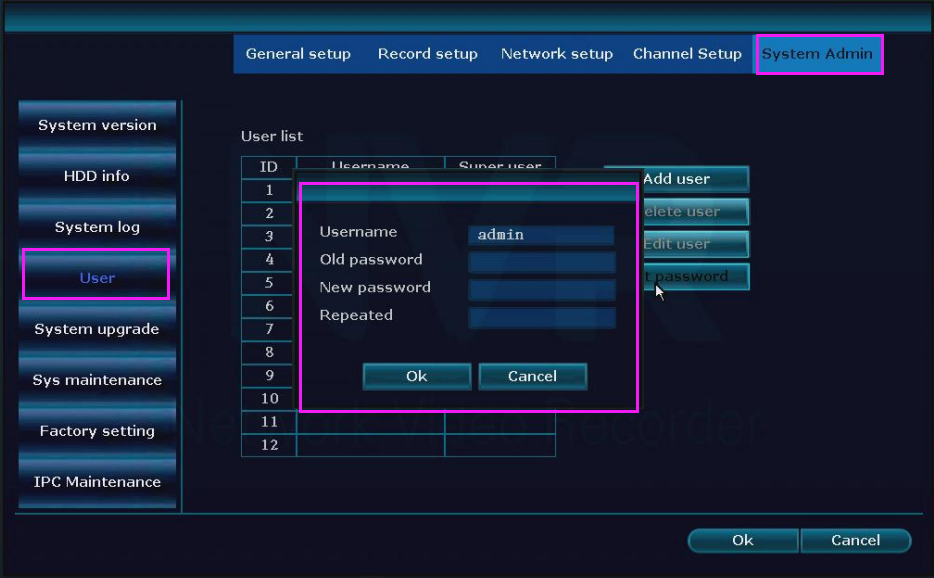
After the second upgrade firmware successfully, please go to System setup--》System Admin--》-User to change your NVR's password into a complicated one.
Note:
After the upgrading, if the cameras lose the connection to your NVR, please follow below instruction to pair the camera to your NVR again.
https://help.annke.com/hc/en-us/articles/360000251041
Was this article helpful?
Bu bilgiler sorununuzu çözmeye yardımcı oldu mu?
Still need help?
Uzman ekibimiz size yardımcı olmak için burada.