Annke Vision - Adding the Online IP Cameras on Annke NVR
Applies to: N48PI/N44PI/N46PI/N44PAM/N48PAW/N46PCK/N88PCH/N441Y/N481Y/NCK800/H500/H800
Purpose:
NVR should connect the network cameras to get and record the video. In order to get a live view or record of the video, the network cameras should be added to the connection list of the device.
Before you start:
Ensure the network connection is valid and correct.
For detailed checking and configuring of the network, please see Checking Network Traffic and Configuring Network Detection.
You can use the shortcut menu at the top of the screen to add an online IP camera.
Steps:
-
Right-click the mouse when you in the live view mode, then the shortcut menu appears on the top.

- Select
 Add IP Camera (Manual) in the pop-up menu to enter the IP Camera Management interface.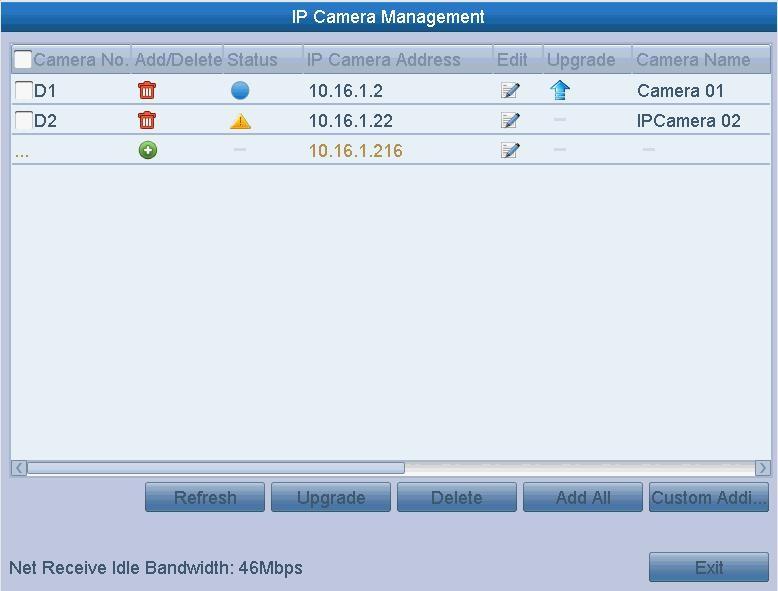
- Click
 to add the camera.
Note: The online cameras with same network segment will be displayed in the camera list. - To add other IP cameras:
1) Click the Custom Adding button to pop up the Add IP Camera (Custom) interface.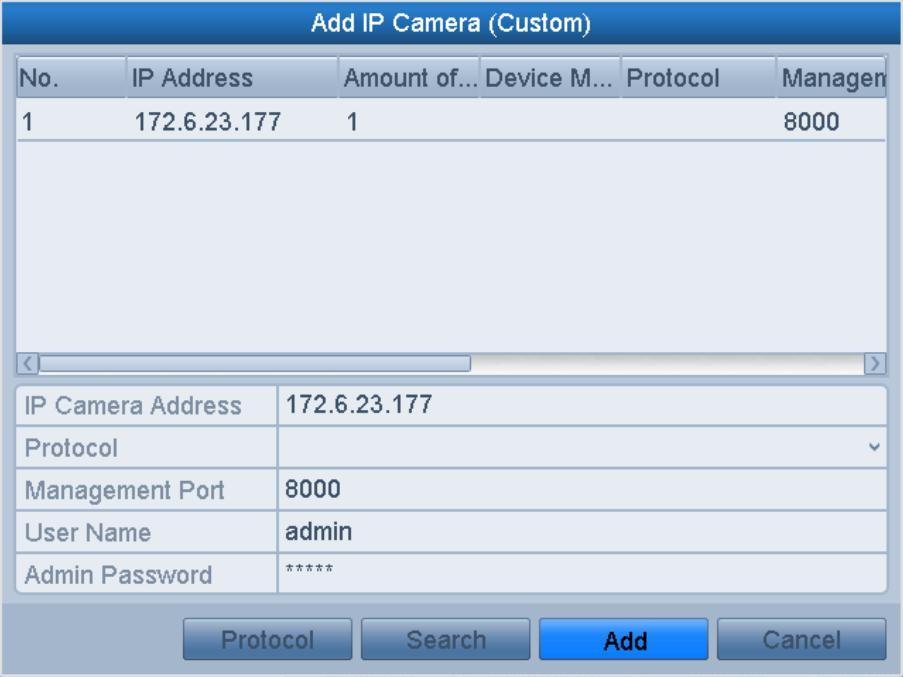
2) You can edit the IP address, protocol, management port, and other information of the IP camera to be added.
3) Click Add to add the camera.
You can also click the main menu to enter the camera interface to add an online IP camera.
Steps:
- Enter the Camera Management interface: Menu > Camera > Camera

-
Repeat steps 3 and 4 of the shortcut menu adding method mentioned above.
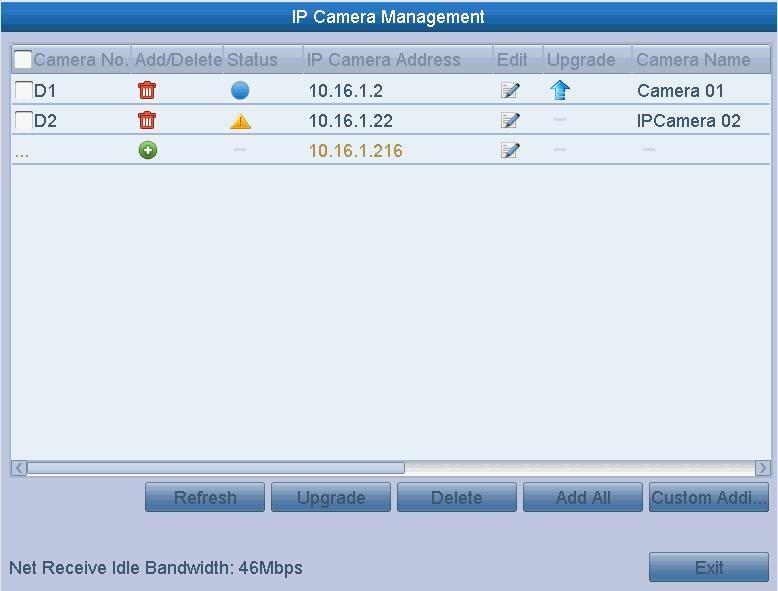
-
Tap the checkbox of Channel No. in the pop-up window, as the following figure shows,
and Click OK to finish adding.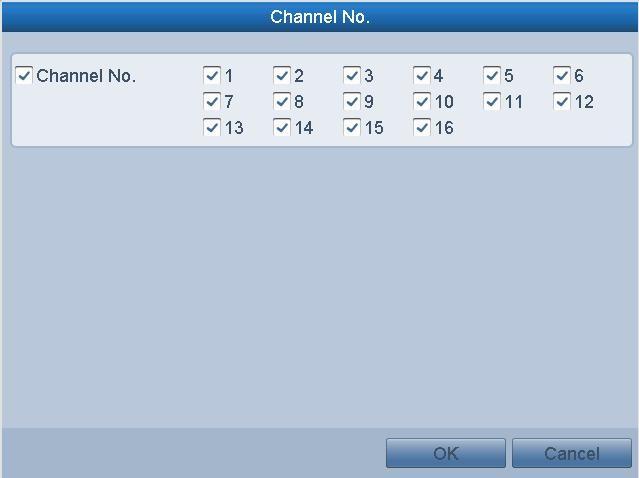
Note: Only for the encoders with multiple channels
The icons of the below table show on the IP Camera Management interface appearing the status of cameras.
| Icon | Explanation | Icon | Explanation |
 |
Edit the basic parameters of the camera |  |
Add the detected IP camera. |
 |
The camera is connected. |  |
The camera is disconnected; you can click the icon to get the exception information of the camera |
 |
Advanced settings of the camera. |  |
Delete the IP camera. |
 |
Upgrade the IP camera. |
Was this article helpful?
Bu bilgiler sorununuzu çözmeye yardımcı oldu mu?
Still need help?
Uzman ekibimiz size yardımcı olmak için burada.