Annke Vision - Brief Introduction of Playback Interface on Annke DVR/NVR
Applies to: DT41Y/DT61Y/DT81Y/DN41R/DN61R/DN81R/DT41GB/DT81GB/DT61GB/DW41JD/DW81KD/DW61LD/DT81DP/N48PI/N44PI/N46PI/N44PAM/N48PAW/N46PCK/N88PCH/S500/S300/FC200/NCK800/H800/H500
Purpose: You can learn about the interface and icon of Annke DVR/NVR.
Before you start:
- You should log in to your account.
- Click Menu>Playback.
The Playback Interface as shown in the following picture:
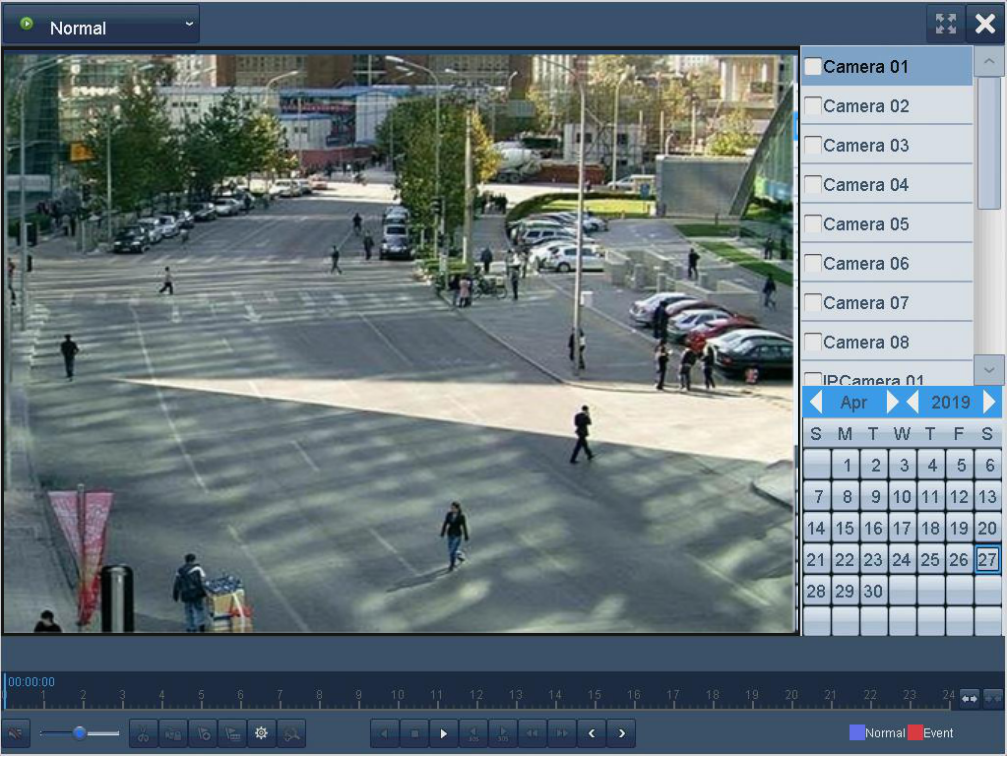
1. Choose Types of Playback: You can playback the record videos via the below types (on the left top of interface).
- Normal (by time)
- Event
- Tag
- Smart
-
Sub-period
Note: NVR does not currently support the features. - External File
2. Click the channel(s) if you want to switch playback to another channel or execute simultaneous playback of multiple channels.
3. You can choose the cameras you want and select the calendar to playback.
4. The below pictures is the Playback Toolbar:

• The  indicates the start time and end time of the record files.
•  represents normal recording (manual or schedule);
 represents event recording (motion, alarm, motion | alarm, motion & alarm).
• Playback progress bar: use the mouse to click any point of the progress bar to locate special frames.
5. The below figure is the detailed explanation of the Playback Toolbar:
| Button | Operation | Button | Operation | Button | Operation |

|
Start/Stop clipping |  |
Audio on/ Mute |  |
30s forward |
 |
30s reverse |  |
Add default tag | 
|
Add customized tag |
 |
Tag management |  |
Speed down |  |
Speed up |
 |
Previous day |  |
Next day |  |
Full Screen |
 |
Exit |  |
Stop |  |
Digital Zoom |
 |
Process bar |  |
Video type |  |
Lock file |
 |
Pause reverse play/ Reverse play/ Single-frame reverse play |
 |
Pause Play/ Play/ Single-frame play |
Notes:
- The Video Type Icon (on the left top of the interface) will change according to the type you have chosen.
- Digital Zoom: Use the mouse to draw a red rectangle and the image within it will be enlarged up to 16 times.
- Speed down: Use the button to change the video frame by frame to playback or reverse playback.
Was this article helpful?
Bu bilgiler sorununuzu çözmeye yardımcı oldu mu?
Still need help?
Uzman ekibimiz size yardımcı olmak için burada.