Annke Vision - Configuring Quota Mode on Annke DVR/NVR
Applies to: DT41Y/DT61Y/DT81Y/DN41R/DN61R/DN81R/DT41GB/DT81GB/DT61GB/DT41DB/DT81DB/DT61EQ/DW41JD/DW81KD/DW61LD/DT81DP/N48PI/N44PI/N46PI/N44PAM/N48PAW/N46PCK/N88PCH/N441Y/N481Y/S500/S300/FC200/NCK800/H800/H500
Purpose: Each camera can be configured with the allocated quota for the storage of recorded files.
Before you start:
- You have logged in to your device.
- Make sure the cameras are connected well with the system.
- Click Menu > HDD > Advanced, enter into the Storage Mode page.
Interface:
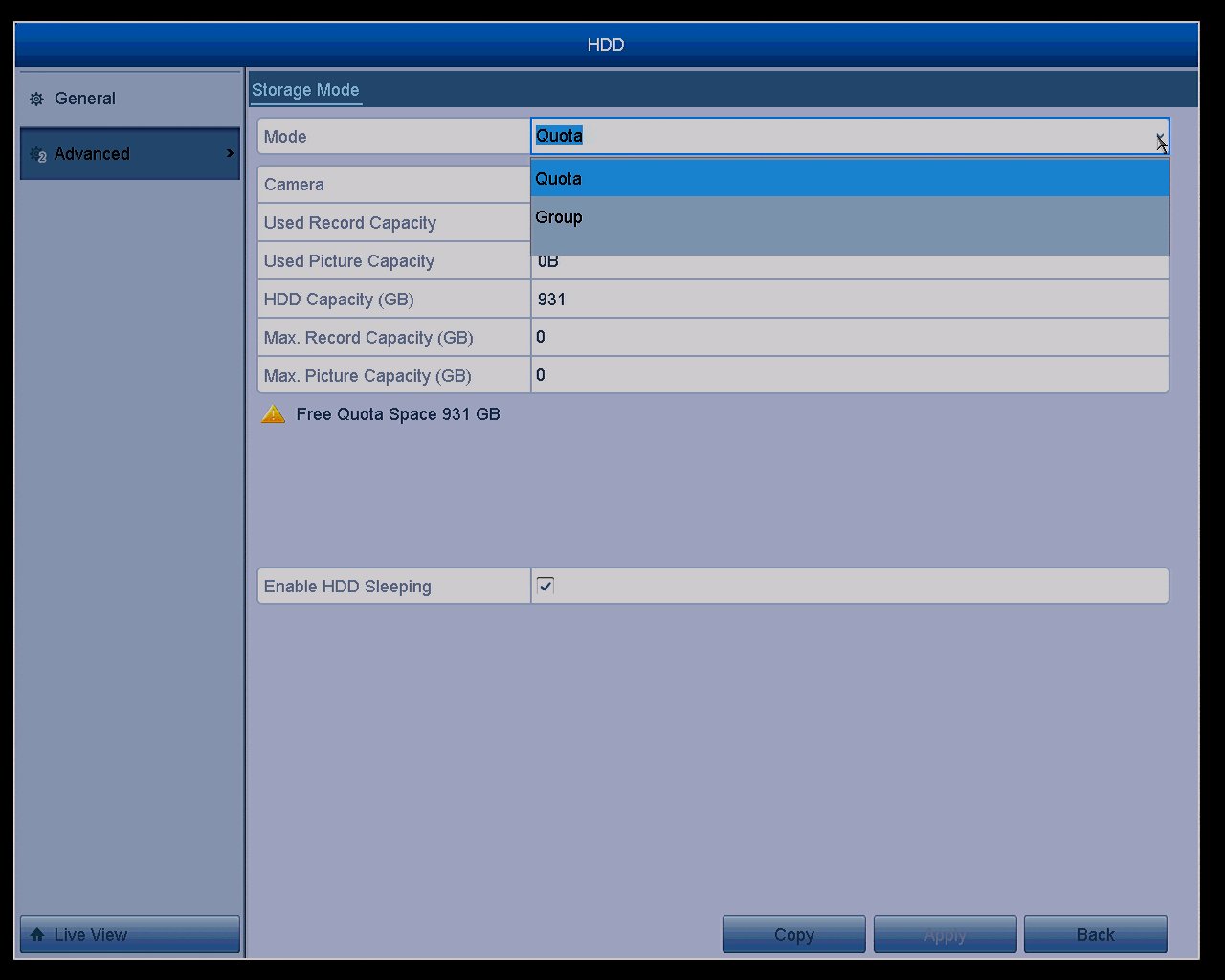
Mode: Set the Mode to Quota.
Camera: Choose the camera which needs to be set to configure quota.
Used Record Capacity: View the used record capacity.
Used Picture Capacity: View the used picture capacity.
HDD Capacity(GB): View the capacity of HDD.
Max. Record Capacity (GB): Enter the storage capacity in the text field.
Max. Picture Capacity (GB): Enter the storage capacity in the text field.
Enable HDD Sleeping: Tick the checkbox to enable the function to protect HDDs use life.
Copy: Copy the quota settings of the current camera to other cameras if required.
Apply: Click the Apply button to apply the settings.
Back: Back to the previous page.
Notes:
- After the setting, please reboot DVR/NVR to make sure the changes will affect.
- If the quota capacity is the default (0 GB), it means all the cameras will l use the total capacity of HDD for the record.
- You can also configure Group Mode to setting an HDD group, please go to this link: Set up HDD Group on Annke DVR/NVR.
Was this article helpful?
Bu bilgiler sorununuzu çözmeye yardımcı oldu mu?
Still need help?
Uzman ekibimiz size yardımcı olmak için burada.