Annke Vision - Drawing Motion Detection Area on Annke Vision
Applies to: DT41Y/DT61Y/DT81Y/DN41R/DN61R/DN81R/DT41GB/DT81GB/DT41DB/DT61EQ/DW81KD/DW61LD/DT81DP/N48PI/N46PI/N44PI/N44PAM/N48PAW/N46PCK/N88PCH/N441Y/N481Y/NCK800/H800/H500/I21AE/I21AF/I41DQ/I61DQ/I61DR/I61DS/I41HG/I41CS
Purpose:
You can draw the motion detection area. The alarm will be triggered and the recording will be started when the device detects the moving objects in the motion detection area.
Steps:
-
Enter the Settings page.
1.1 Option 1
On the Annke Vision page, if you are in the list mode, slide the device's name to left and tap

1.2 Option 2
On the Annke Vision page, if you are in the thumbnail mode, tap the device's name or tap
 .
.1.3 Option 3
Enter the Live View page. Tap
 and tap Settings.
 - Tap Alarm Notification to enter the Alarm Notification page.
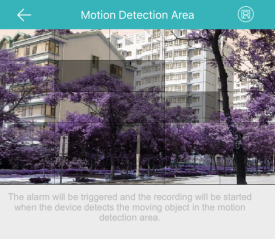
- Tap Draw Motion Detection Area to enter the Motion Detection Area page.
-
Tap
 at the upper-right corner of the page.
 - Drag on the live view window to draw the motion detection area.
-
Tap
 at the upper-right corner of the page to save the settings.
- Back to Alarm Notification page and enable alarm notification function. For details, see Enabling/Disabling Alarm Notification. If the device detects moving objects in the motion detection area, the alarm will be triggered and the client will send a notification to remind you.
Note:
The function is only supported by Wi-Fi doorbell.
Was this article helpful?
Bu bilgiler sorununuzu çözmeye yardımcı oldu mu?
Still need help?
Uzman ekibimiz size yardımcı olmak için burada.