Annke Vision - Editing and Hiding Linked Camera on Annke Vision App
19 Aug 2026
366 views
Applies to: DT41Y/DT61Y/DT81Y/DN41R/DN61R/DN81R/DT41GB/DT81GB/DT61GB/DT41DB/DT81DB/DT61EQ//DW41JD/DW81KD/DW61LD/DT81DP/N48PI/N44PI/N46PI/N44PAM/N48PAW/N46PCK/N88PCH/N441Y/N481Y/I21AE/I21AF/I41DQ/I61DQ/I61DR/I61DS/S500/S300/FC200/NCK800/H800/H500
Purpose: For the linked cameras of NVR/DVR, you can edit their names, as well as hide them so that they will not be displayed on the Annke Vision page.
Before You Start:
- Make sure the NVR/DVR has added to the client.
- Run and Log in to your account.
- Enter the Settings page, and Click Linked Camera.
Steps:
-
Enter the Linked camera page.
You can see the linked cameras list.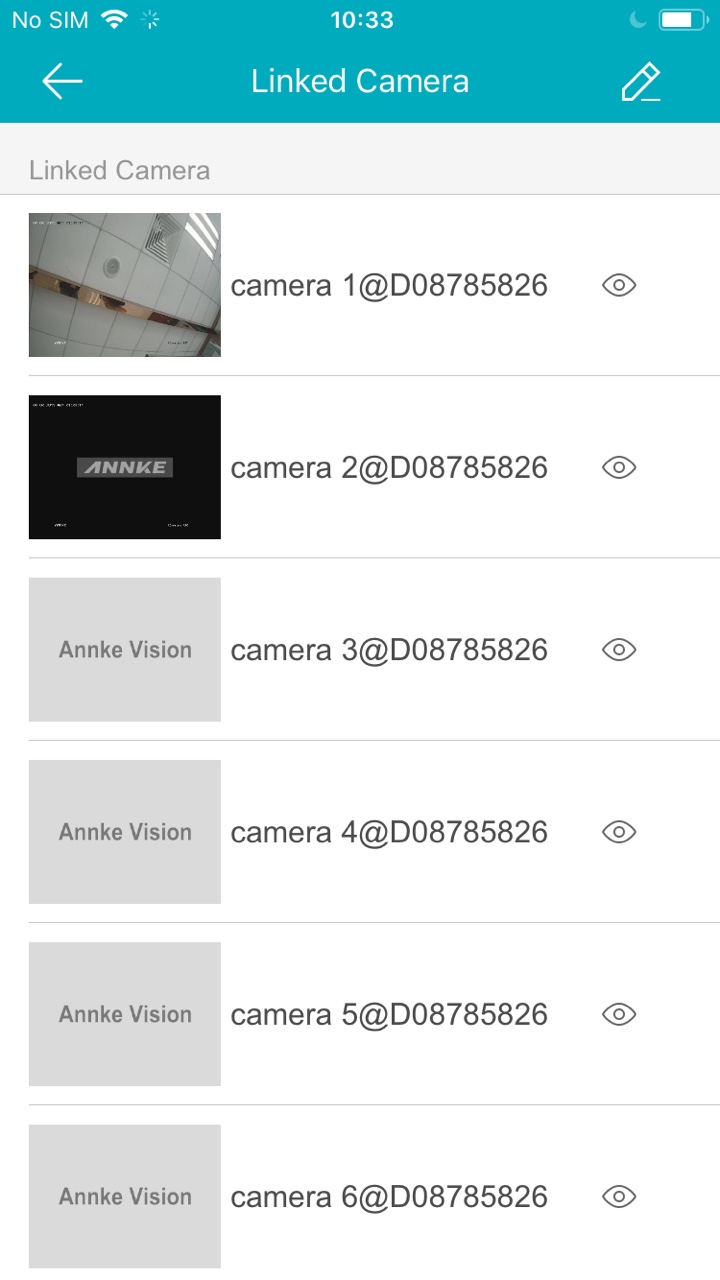
-
Tap
 .
. -
Select a linked camera, and then edit its name.
Note: The name of the linked camera should contain 1 to 32 characters. -
Tap
 to save the settings.
 -
Tap
 to hide the camera.
Note:The icon turns to
 , which means the camera will be hidden on the Annke Vision page.
Was this article helpful?
Bu bilgiler sorununuzu çözmeye yardımcı oldu mu?
Thanks for your feedback!
Still need help?
Uzman ekibimiz size yardımcı olmak için burada.