Annke Vision - How to Adjust Camera's Color Mode on Annke DVR?
20 Aug 2026
378 views
Applies to:
C51BH/C51BG/C51BM/CT1DR/CT1DS/CT1DL/CT1DM/CR1BM/CR1BN/CR1BL/CR1BJ/CR1BB
Purpose: If the camera presents a vision in black and white during day time or the night vision is totally black, please find below:
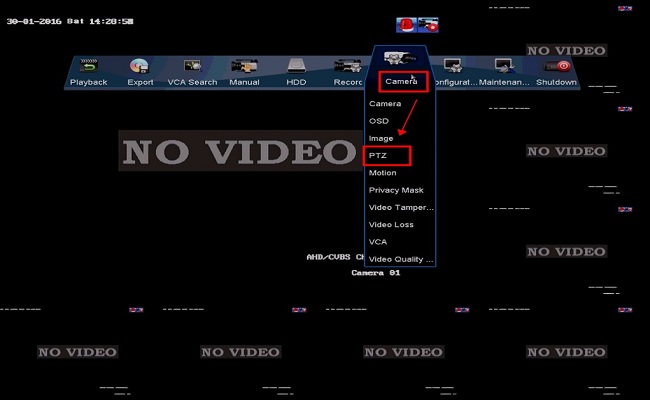
- Please go to the DVR Menu -- Camera -- PTZ, access "PTZ" settings, click "PTZ" button.
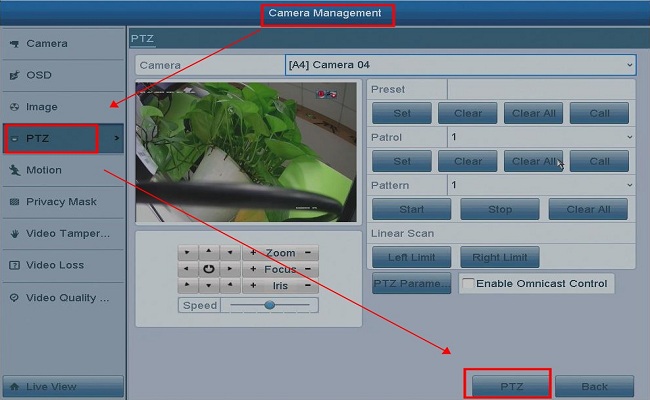
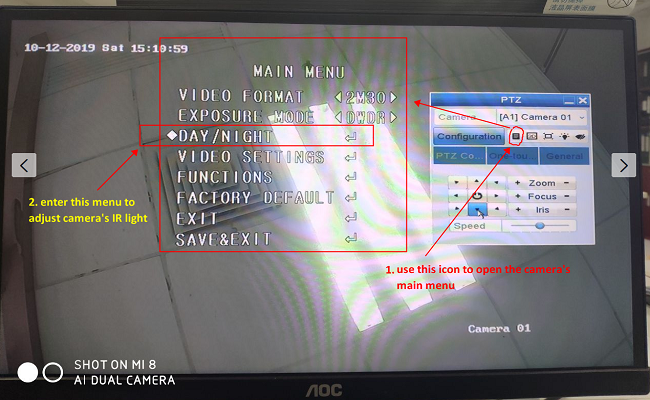
- Then the system will show PTZ setting pannel. Please choose the camera, click the menu icon
 for further settings.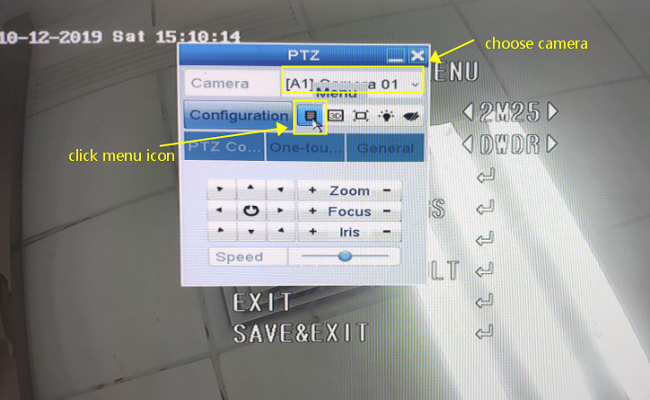
-
a) Please note the button
 and
and  is for up and down
b) button
 and
and  is for left and right
c) button
 if for entering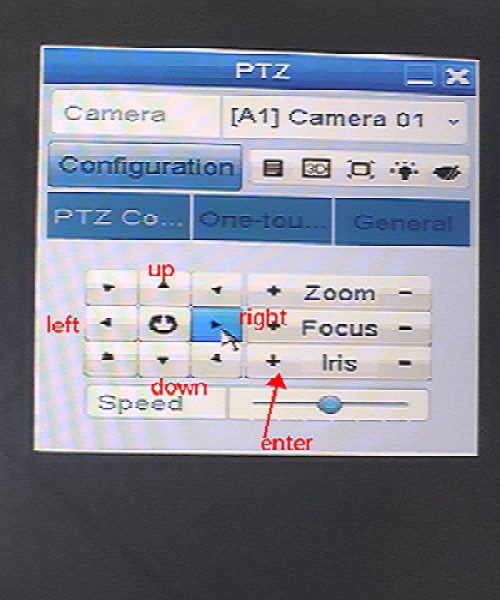
- Please enter the item "Day/Night" on the main menu.
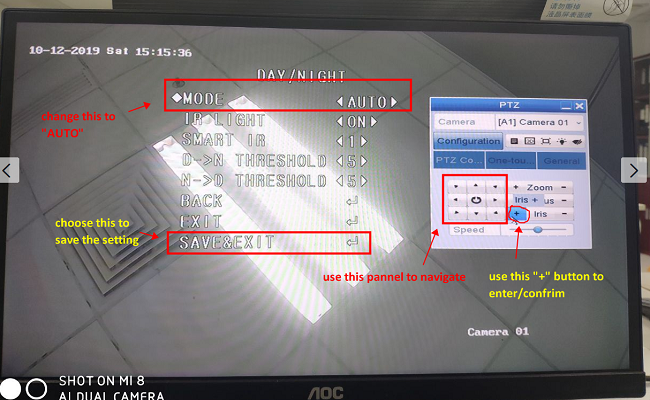
- Here you can adjust the mode to "auto" "color" "B/W", please adjust the mode to "auto", and save the change, the camera will auto switch day model and night model by the light condition.
Was this article helpful?
Bu bilgiler sorununuzu çözmeye yardımcı oldu mu?
Thanks for your feedback!
Still need help?
Uzman ekibimiz size yardımcı olmak için burada.