Annke Vision - How to Get a Capture/Screenshot of the Camera's Image on the Computer/Phone APP?
Applies to: DN41R/DN81R/DN61R/DT41Y/DT61Y/DT81Y/DT81GB/DT61GB/DW41JD/DW61LD/DW81KD/DT81DP/DN31GN/N441Y/N481Y/N48PBB/N44PI/N48PI/N46PI/N44PAM/N48PAW/N88PCH/N46PCK/S500/S300/FC200/NCK800/H800/H500/C800/ C500/ B1200/NC400/ CZ500/ CZ400
First of all, please add the cameras system to computer software and the phone APP.
For computer software: https://help.annke.com/hc/en-us/articles/360000252441
For phone APP: https://help.annke.com/hc/en-us/articles/360000252581
Secondly, please follow the below steps to get the capture/screenshot of the camera's image:
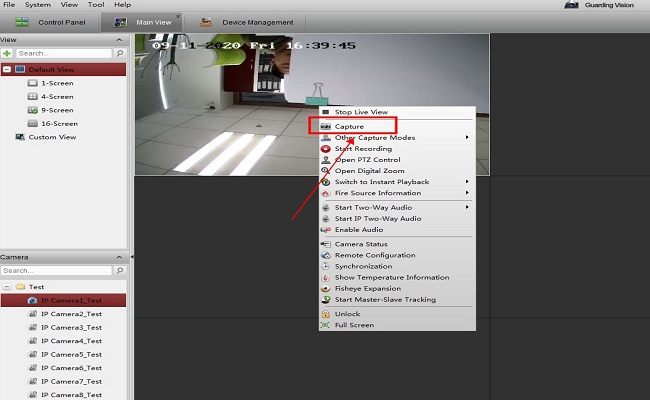
On Guarding Vision, please select the camera and right-click the mouse, and then click Capture:
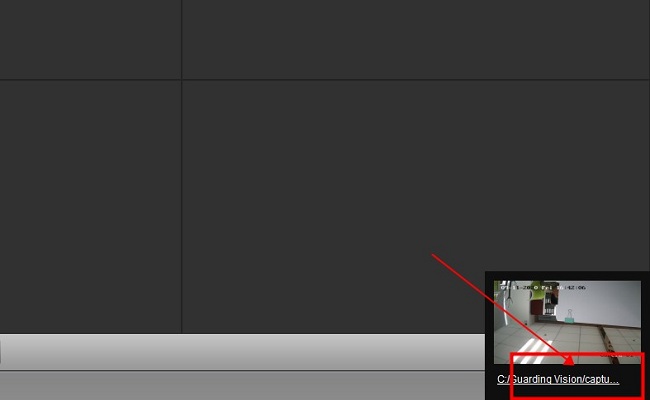
After that, the capture will be saved on the computer, and you could click the link on the right corner to check the capture directly:
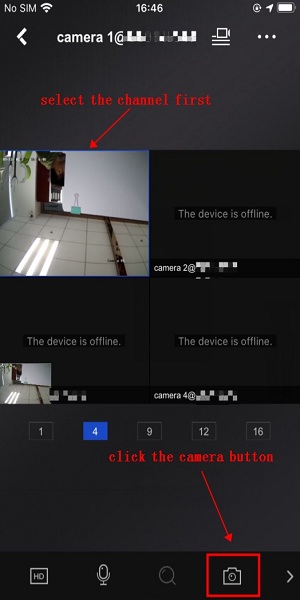
On the phone APP, please preview the cameras, and then select the camera button to take a screenshot for the camera:
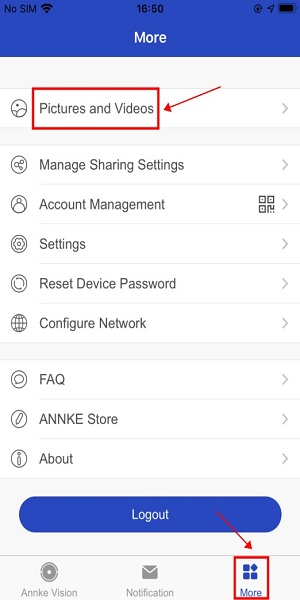
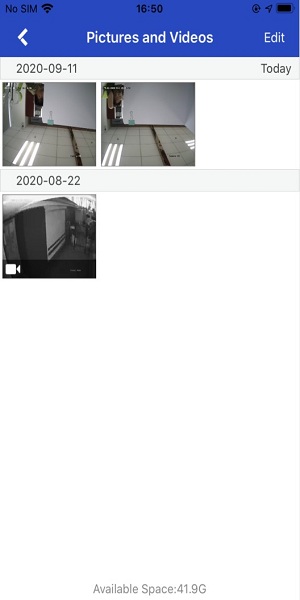
After that, you could check the screenshot of the camera's image on the More-->Pictures and Videos:
If you view the cameras on the monitor and the computer, please select the camera and double-check it. Or please view the camera in one screen mode. After that, the camera will be displayed in the mainstream and the picture will be clearer so that you could get a clearer capture from the computer.
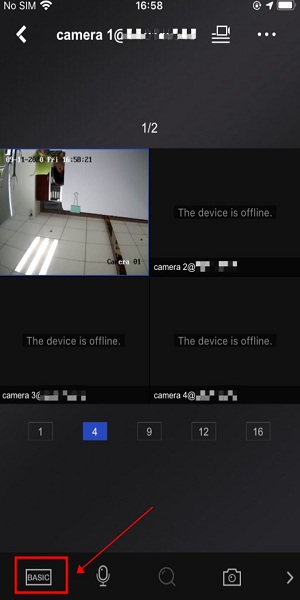
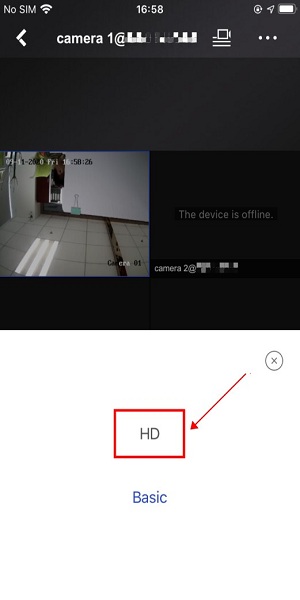
If you view the cameras on the phone APP, you could switch the mode from Basic to HD so that you could get a clearer screenshot from the mobile phone.
Was this article helpful?
Bu bilgiler sorununuzu çözmeye yardımcı oldu mu?
Still need help?
Uzman ekibimiz size yardımcı olmak için burada.