Annke Vision - Learning the Live View Icons and Shortcut Menu on Annke DVR/NVR
Applies to: DT41Y/DT61Y/DT81Y/DN41R/DN61R/DN81R/DT41GB/DT81GB/DT61GB/DT41DB/DT81DB/DT61EQ/DW41JD/DW81KD/DW61LD/DT81DP/N48PI/N44PI/N46PI/N44PAM/N48PAW/N46PCK/N88PCH/N441Y/N481Y/NCK800/H800/H500/N48WHS
Purpose: Live view mode can show you the video image getting from each camera in real-time.
Before you start: Powered on the DVR/NVR, then it will automatically enter Live View mode.
Live View Icons
In the live view mode, the icons are at the right top of the screen for each channel, showing the status of the alarm, record, alarm&record, event/exception.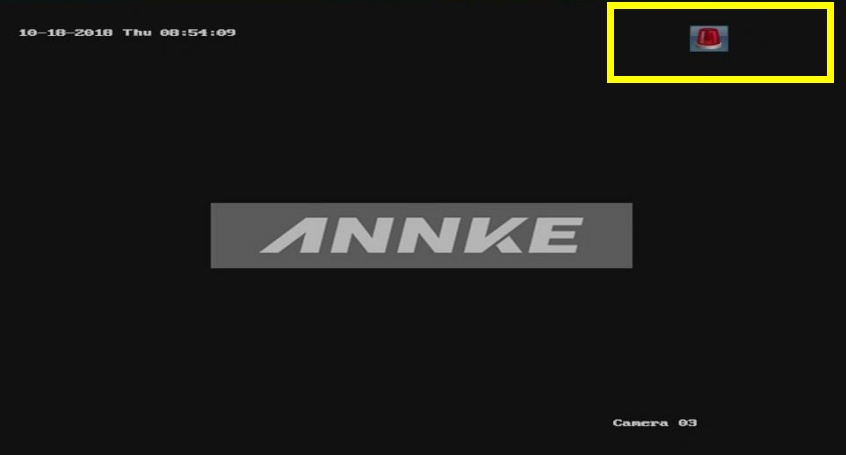
The below table is the description of live view icons:
| Icons | Description |
 |
Alarm (video loss, tampering, motion detection or sensor alarm) |
 |
Record (manual record, schedule record, motion detection or alarm triggered record) |
 |
Alarm & Record |
 |
Event/Exception (motion detection, sensor alarm or exception information. For details, see Chapter 8.6 Handling Exceptions.) |
Live View Shortcut Menu
At the very top of the monitor interface, you can see the simple shortcut menu.

The below table is the description of the live view shortcut menu:
| Name | Description |
 |
Enter the main menu of the system by right-clicking the mouse. |
 |
Switch to the single full screen by choosing channel number from the dropdown list. |
 / / / / / /
|
Adjust the screen layout by clicking the specific icon. |
 / /
|
Switch to the previous/next screen. |
 / /
|
Enable/disable the auto-switch of the screens. |
 |
Start continuous recording or motion detection recording of all channels. |
 |
Add the IP camera manually. |
 |
Enter the playback interface and start playing back the video of the selected channel immediately. |
 |
Four modes of output supported, including Standard, Bright, Gentle and Vivid. |
 / /
|
Auto-hide/ lock the live view toolbar. |
Notes:
- The dwell time of the live view configuration must be set before using Auto-switch.
- If the corresponding camera supports intelligent function, the Reboot Intelligence option is included when the right-clicking mouse on this camera.
Was this article helpful?
Bu bilgiler sorununuzu çözmeye yardımcı oldu mu?
Still need help?
Uzman ekibimiz size yardımcı olmak için burada.