Annke Vision - Learning the Playback Page on Annke Vision App
Applies to: DT41Y/DT61Y/DT81Y/DN41R/DN61R/DN81R/DT41GB/DT81GB/DT61GB/DT41DB/DT81DB/DT61EQ/DW41JD/DW81KD/DW61LD/DT81DP/N48PI/N44PI/N46PI/N44PAM/N48PAW/N46PCK/N88PCH/N441Y/N481Y/I21AE/I21AF/I41DQ/I61DQ/I61DR/I61DS/S500/S300/FC200/NCK800/H800/H500/E500/E800
Purpose: Learn about the icon and interface of the playback page.
Before: Run the Annke Vision App and make sure you are logged in to your account.
Enter into the playback page:
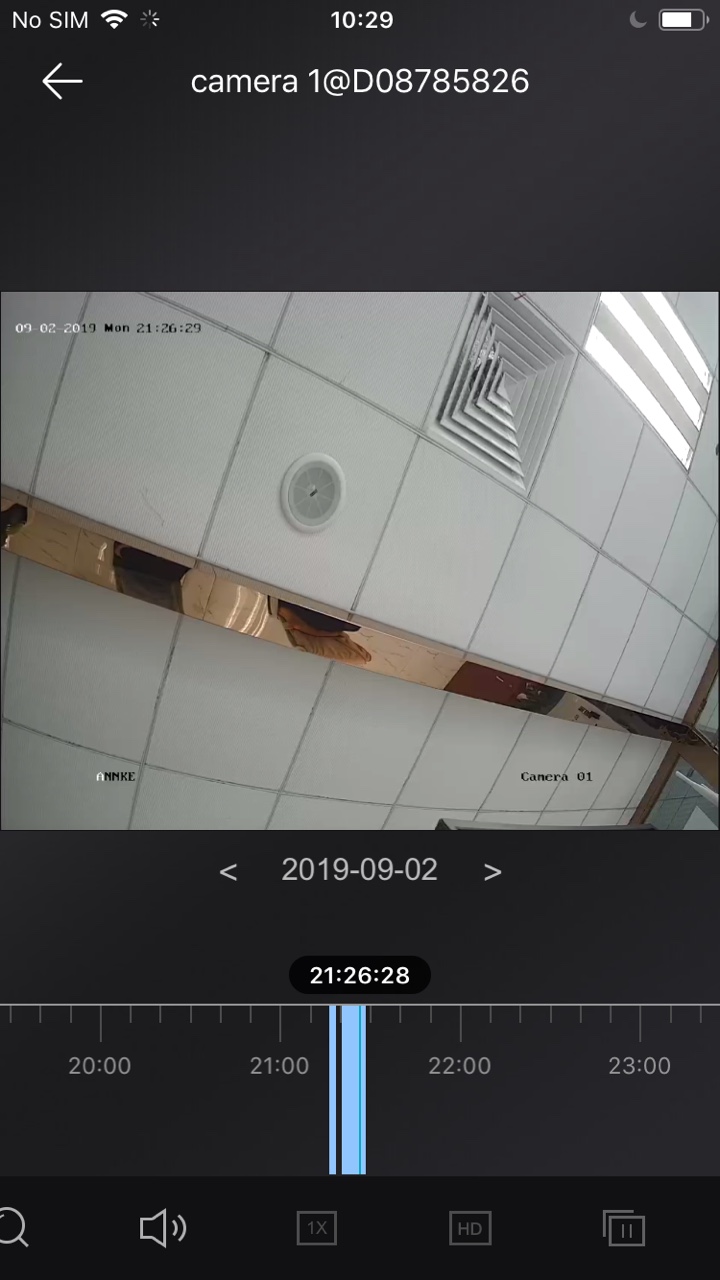
The following table displays the icons on the Playback page:
 
|
Start/pause the selected playback window. |
 
|
Start/pause all playback windows in the multiple-window division mode, |
 |
Enable digital zoom function. |
 
|
Turn audio on/off. |
 |
Capture. |
 |
Record. |
 |
Set the playback speed. You can increase or decrease the speed of playback. |
 |
Split the screen into 4 windows |
 |
Set the playback video quality. |
Notes:
The function is for local devices only. The function is for local devices only, and the icon displays the current video quality.
Timeline Bar:
You can slide the timeline bar to adjust the playback time.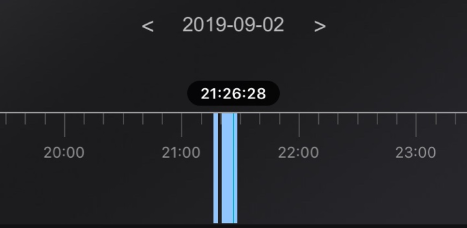
You can also spread two fingers apart to scale up or pinch them together to scale down the timeline. 
Note:  represents continuous recording and
  represents alarm triggered recording.
Was this article helpful?
Bu bilgiler sorununuzu çözmeye yardımcı oldu mu?
Still need help?
Uzman ekibimiz size yardımcı olmak için burada.