ANNKE VISION - Set up Account Management on ANNKE VISION App
Applies to: DT41Y/DT61Y/DT81Y/DN41R/DN61R/DN81R/DT41GB/DT81GB/DT61GB/DT41DB/DT81DB/DT61EQ/DW41JD/DW81KD/DW61LD/DT81DP/N48PI/N44PI/N46PI/N44PAM/N48PAW/N46PCK/N88PCH/N441Y/N481Y/I21AE/I21AF/I41DQ/I61DQ/I61DR/I61DS/S500/S300/FC200/NCK800/H800/H500/FC800/E800
Propose:
This article introduces some configurations about the account settings on the Annke Vision app. Such as checking the account details, modifying account passwords, deleting the account permanently, etc.
The article will be helpful during troubleshooting some issues on the app.
Before you start:
Make sure you have logged in to your account before the below steps.
Steps:
- On the More page, tap Account Management.
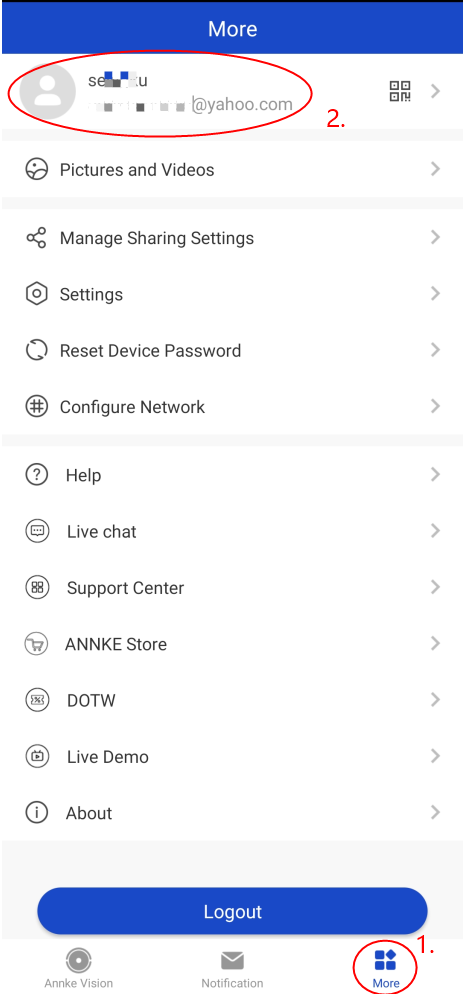
- Below is the Account Management page interface.
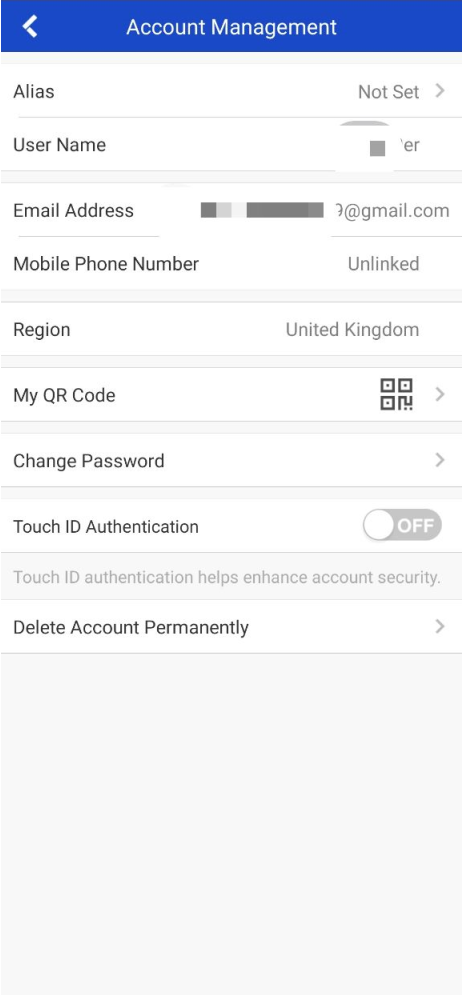
View the User Name, the account Email Address, the account linked Mobile Phone number, and the Country/Region.
Note: Both the User Name and the linked Email Address/Phone Number can be used as the user name when logging in to the app.
My QR code: Check the QR code of your account. This code is used for device sharing only.
Change Password: you can change the account password.
Fingerprint Authentication: you can turn on or turn off the fingerprint authentication function.
Delete Account Permanently: This option will remove all your account data from the ANNKE server and CANNOT be redone. Recommend to contact ANNKE support before choosing this option.
If you find this article helpful, please click 'Yes' at the end of this article;
If you have any suggestions or questions for this article, please leave a comment in the below comment zone.
Was this article helpful?
Bu bilgiler sorununuzu çözmeye yardımcı oldu mu?
Still need help?
Uzman ekibimiz size yardımcı olmak için burada.