Annke Vision - Starting and Stopping Playback on Annke Vision App
20 Aug 2026
376 views
Applies to: DT41Y/DT61Y/DT81Y/DN41R/DN61R/DN81R/DT41GB/DT81GB/DT61GB/DT41DB/DT81DB/DT61EQ/DW41JD/DW81KD/DW61LD/DT81DP/N48PI/N44PI/N46PI/N44PAM/N48PAW/N46PCK/N88PCH/N441Y/N481Y/I21AE/I21AF/I41DQ/I61DQ/I61DR/I61DS
Purpose: You can start and stop playback on Annke Vision App.
Before you start: Run the Annke Vision App and make sure you are logged in to your account.
Steps:
1. On the Annke Vision main page, tap  .
.
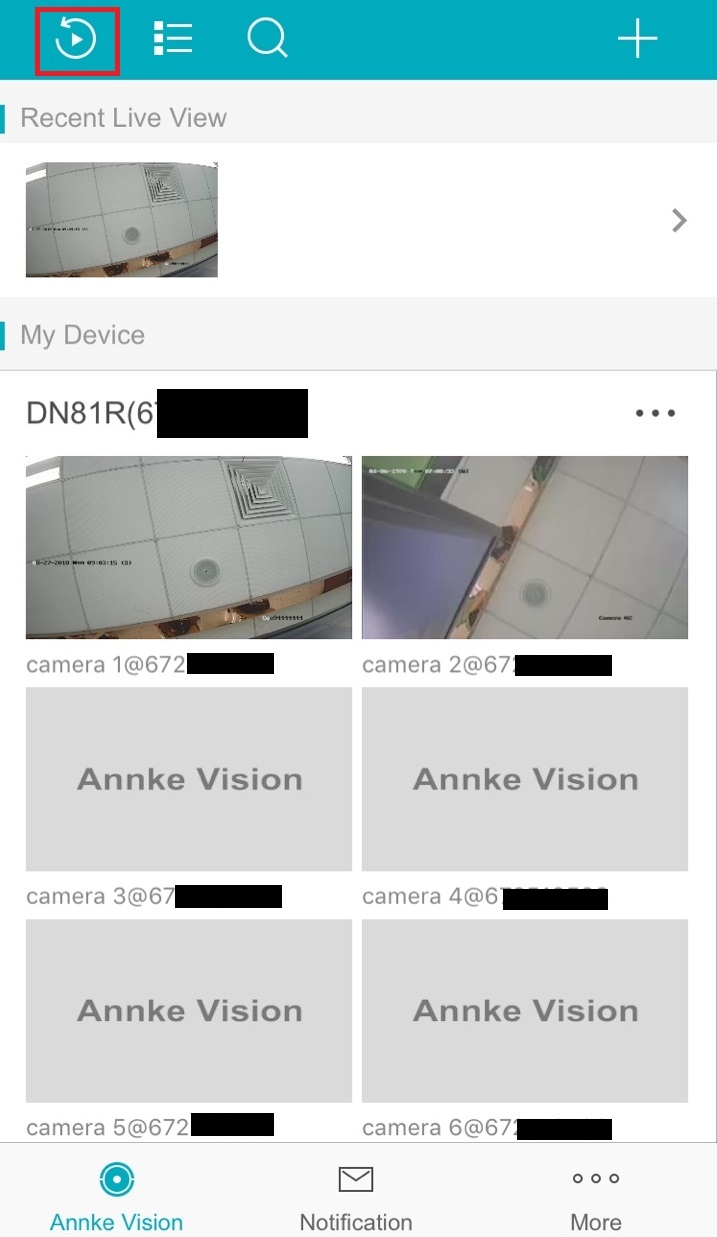
2. Select the Playback Date and Time you want.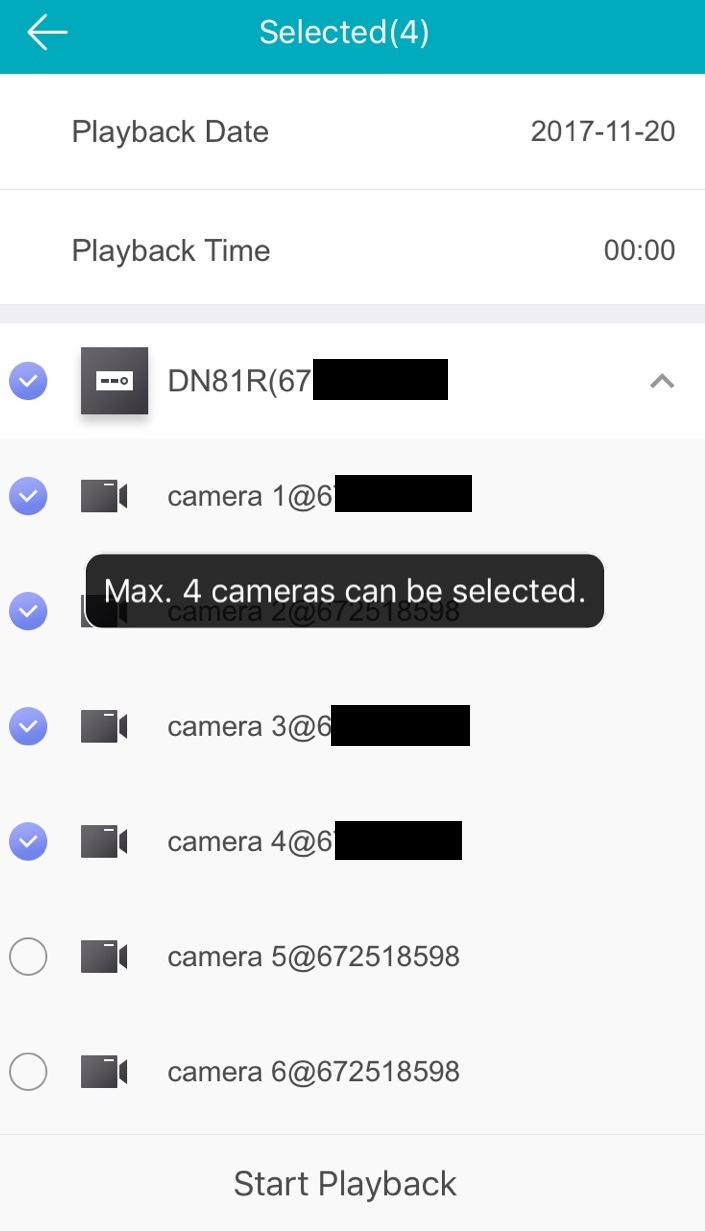
Notes:
- The date with a yellow dot under the Calendar panel has a history video record.
- Max 4 cameras can be selected for playback.
3. Then Click Start to Playback, enter the playback page.
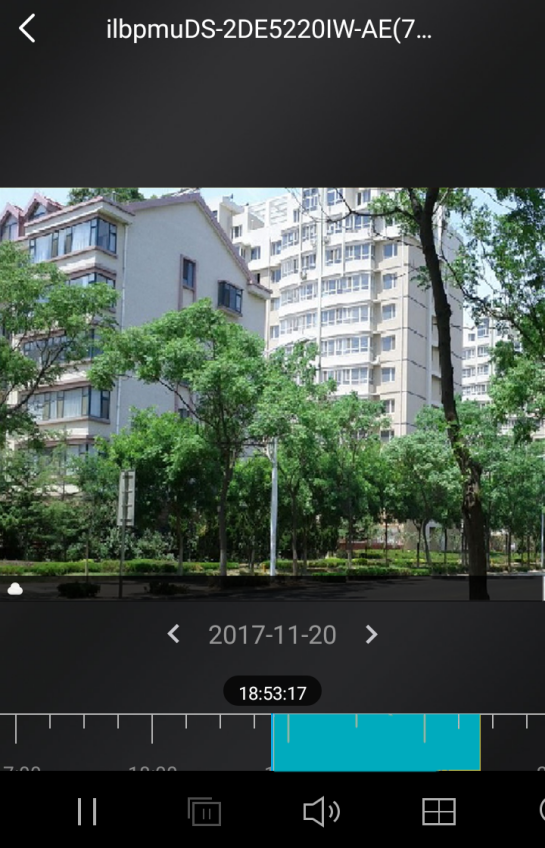
4. Tap  to start playing Or tap
  to stop playing.
Was this article helpful?
Bu bilgiler sorununuzu çözmeye yardımcı oldu mu?
Thanks for your feedback!
Still need help?
Uzman ekibimiz size yardımcı olmak için burada.