Arecont Vision IP Utility: Quick Start Guide
20 Aug 2026
373 views
Objective:
An Arecont Vision camera needs to be discovered on the customer network.
Requirements:
- Download AV IP Utility: https://sales.arecontvision.com/software.php
- AV IP Utility v2 (legacy Mega line products)
- AV IP Utility v3 (Contera and newer Mega line products)
- PoE injector or PoE switch (IEEE 802.3af compliant)
- Windows workstation
- (2) Patch cables (CAT5e or better)
Procedure:
- See the attached file at the bottom of this article for a quick reference.
- For best results, disable all Ethernet adapters EXCEPT for the one used to connect to the cameras (i.e. VMWare Network Adapters)
- Verify you are not using any subinterfaces on the local Ethernet adapter.
- Verify Windows Firewall is off.
- Verify Cisco Anyconnect secure mobility Client disconnected
- Connect the camera and computer to a PoE injector or PoE switch.
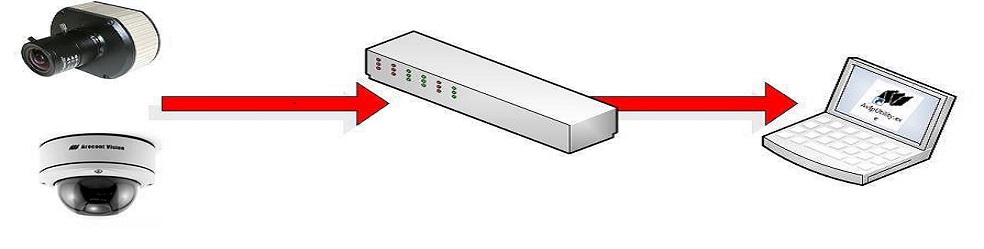
- For AV IP Utility v2.2.16
- Right-click and run the program as an administrator.
- The program will begin to discover cameras.
- If no cameras appear create an exception for the AV IP Utility or disable your firewall.
- Put a checkmark next to the camera.
- Click Set IP Address > Input IP.
- Enter the IP address you want to assign.
- Click Set.
- Note: In order to see the camera in the web browser your computer must be in the same subnet as the camera.
- For AV IP Utility v3+.
- Right-click and run the program as an administrator.
- The program will begin to discover cameras.
- If no cameras appear create an exception for the AV IP Utility or disable your firewall.
- Click Discovery > Select Network Interfaces. Verify the Ethernet adapter is enabled.
Select only the interface adapter that is connected.
- Highlight the camera.
- Click Camera > Set IP Address > Input IP.
- Enter the IP address you want to assign.
- Click OK.
- Note: In order to see the camera in the web browser your computer must be in the same subnet as the camera.
- Once the IP has been set double click a camera to launch a web browser to it and modify your settings.
- Connect the camera to the customer's network and add it to their VMS.
Was this article helpful?
Bu bilgiler sorununuzu çözmeye yardımcı oldu mu?
Thanks for your feedback!
Still need help?
Uzman ekibimiz size yardımcı olmak için burada.