(Browser) (Live) - view Sapphire Video thru IE browser
Live View separate to two versions, the Internet Explorer Version or the HTML5 browser version.
- Internet Explorer Version (Only for the Internet Explorer; support save and more functions)
- HTML5 Browser Version (for Chrome/Firefox/Safari Browser; mostly for view purpose only)
The Internet Explorer - Live View
After successfully Login and install the Plugin, you should able to see the Live window.
Most button functions are pretty simple to understand.
Live View Screen
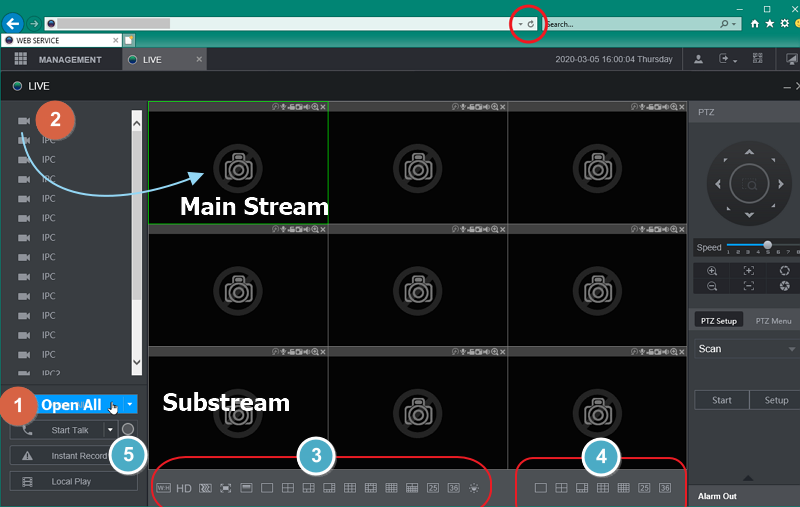 I only address the area that you might confuse with it.
(1) Open All, will display all cameras at once. (only available for the new firmware v4)
(2) click Camera individually.
What is the difference between 3 & 4 layout buttons?
(3) is the actual Live view display Layout.
(4) is the combine view mode. The combine mode will combine the camera you pick & display to 1 view.
It only cost one camera bandwidth. But, of course, you won't see it in clear. This is design for the low bandwidth internet situation.
Combine View Mode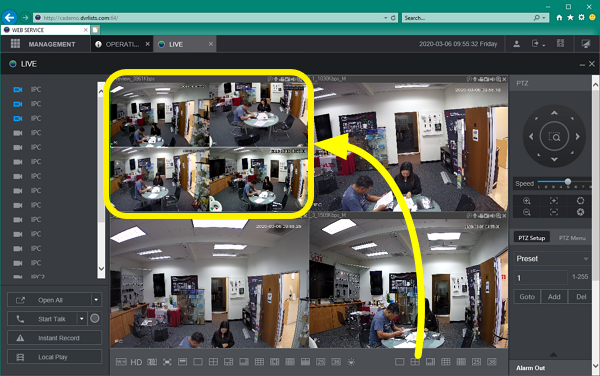
(5) What is the Instant Record button for? It seems no effect on anything.
The Instant Record is designed for the "Local DVR/NVR" purpose only. Not for the Remote.
It is the Manual Record button. When you enable it, no matter currently it is Motion Detect recording or the Continous recording, it will Force to record from now until you disable it.
That is the Manual Record button (aka Instant Record). It is not designed for the PC browser recording.
If you want to do the video record to your PC, please use the Multi-Function Bar.
Multi-Function Bar (Locate on top of the Video window)
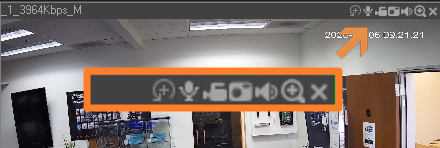
This function bar icon may be vary based on your DVR/NVR model.
From the left to right, each button is
Smart Tracking,
Microphone (Talkback),
Video Record (Save to your PC),
Screenshot (Save to your PC),
Speaker (Listen Audio),
Digital Zoom,
Close button.
Where is the video file save to?
By default, it saved to the C:\RecordDownload or C:\PictureDownload
You may change the default save location from the menu.
NVR/DVR default save path location; MENU > Camera > Encode > Path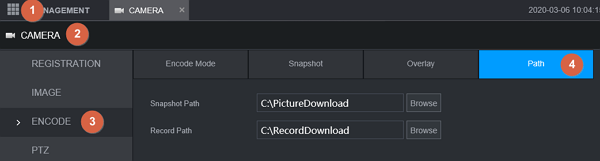
The default Save File Format is the .dav file. You may use the Local Play below (5) to play it.
How to change the view Stream?
Pointing on the camera itself, it should popup the drop-down symbol. Click it to see the menu.
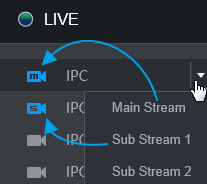
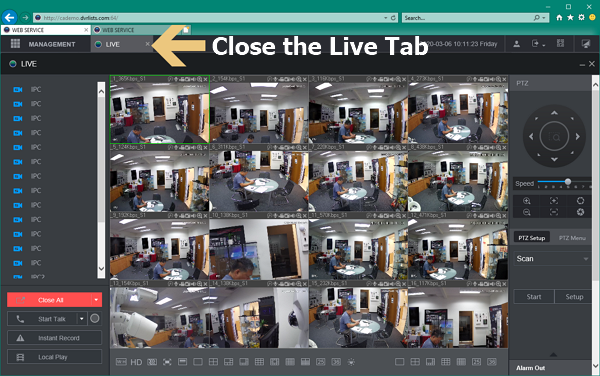
And Final, how to Close All the Live Channel view in fast?
You can use the Multi-function bar Close button to close each window, but it is not the fastest way.
Use the Red Close All button might work too.
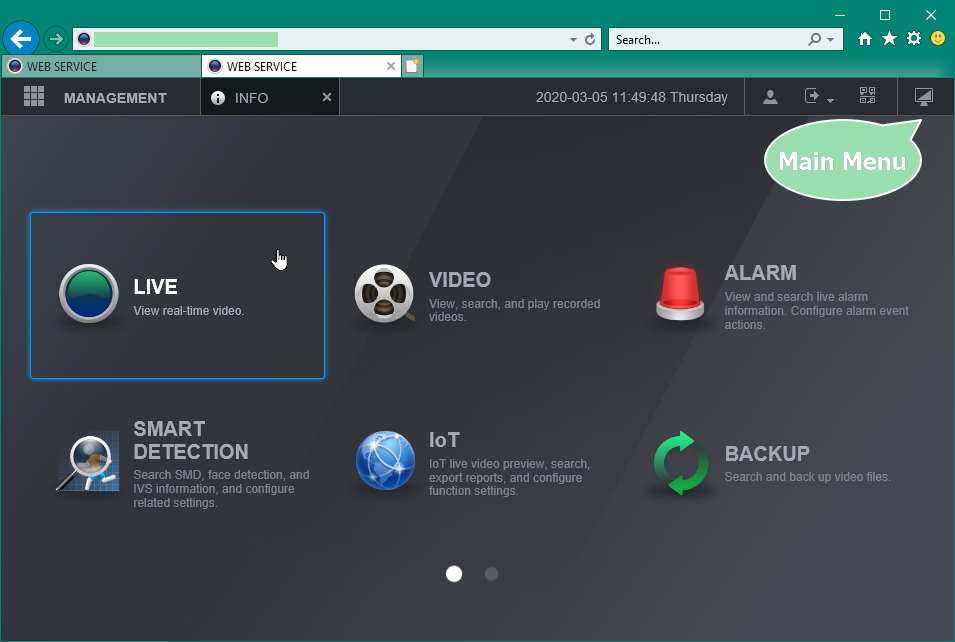
But, the Fastest way is Close the Live Tab.
Was this article helpful?
Bu bilgiler sorununuzu çözmeye yardımcı oldu mu?
Still need help?
Uzman ekibimiz size yardımcı olmak için burada.