Contera VMS: Feenics Integration WS Alert Configuration
Issue:
Contera VMS and Feenics Integration WS Alert Configuration
Procedure:
*Note: You will need an AV-CWSP#Y License applied in order for integration functions to start.
1. Create a New Intrusion Alert Rule
2. Select a Door Access or Access Control Alert Rule Type when creating a new rule.

3. When creating an Alert Rule, Event Types further define when an event notification will be sent. More than one type can be added when creating a rule.
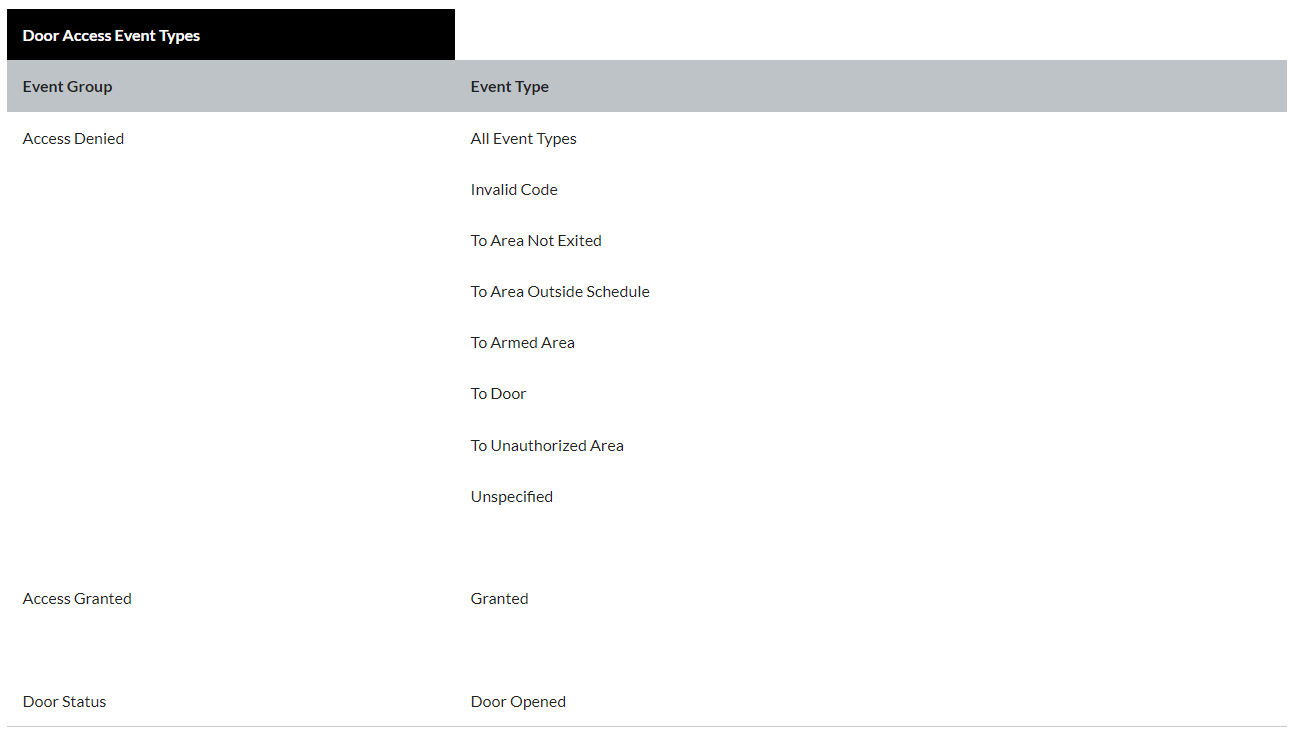
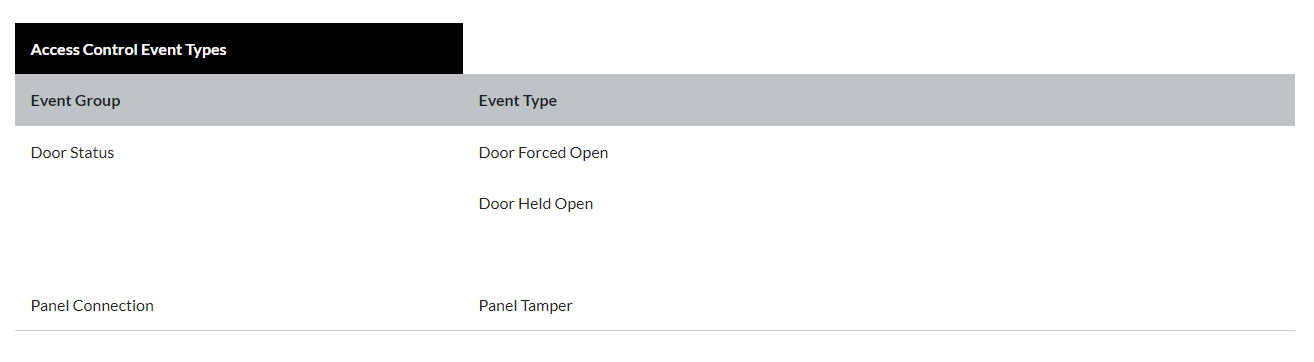
4. Add Users to an Alert Rule - Click Users / Notifications on the navigation sidebar.
5. Click Add User or Add Group.
6. Check the box next to each User or User Group who will receive emails and/or push notifications when the alert is triggered.
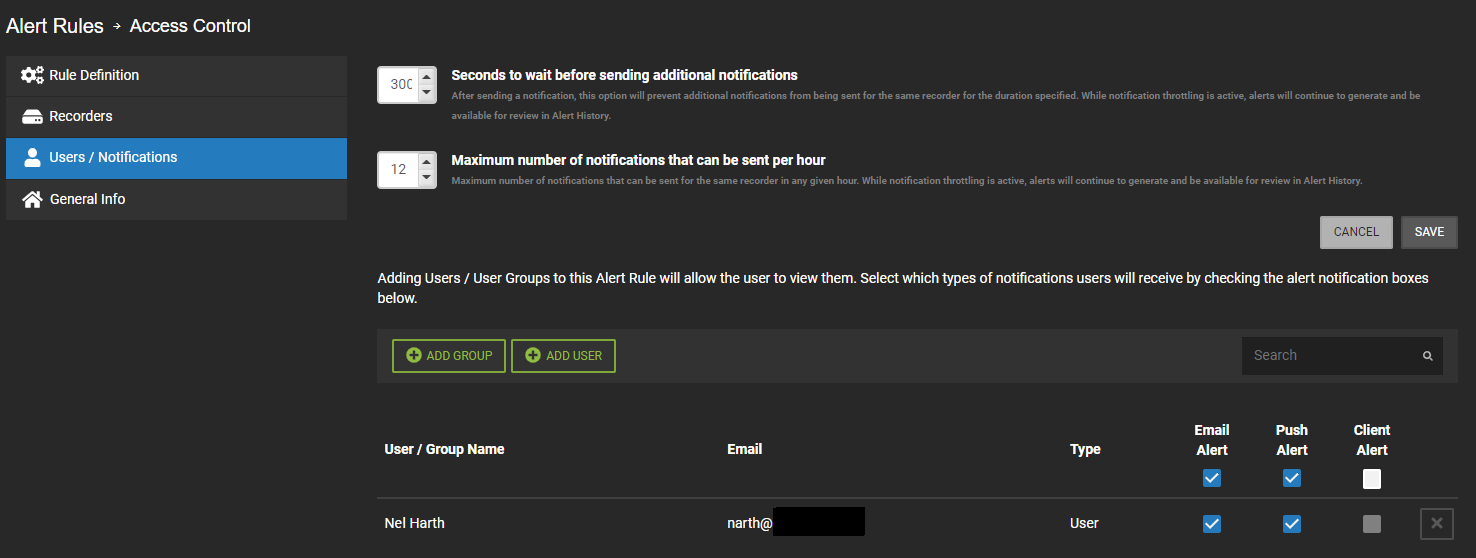
7. Click Add when finished.
NOTE: To receive email alerts, push alerts or client alerts, the Email Alert, Push Alert or Client Alert boxes must be checked. Simply adding a user only gives them access to see this alert's history.
8. Updating, Disabling, or Deleting an Alert Rule - Click General Info on the navigation sidebar.
9. Edit the Name and Description as desired.
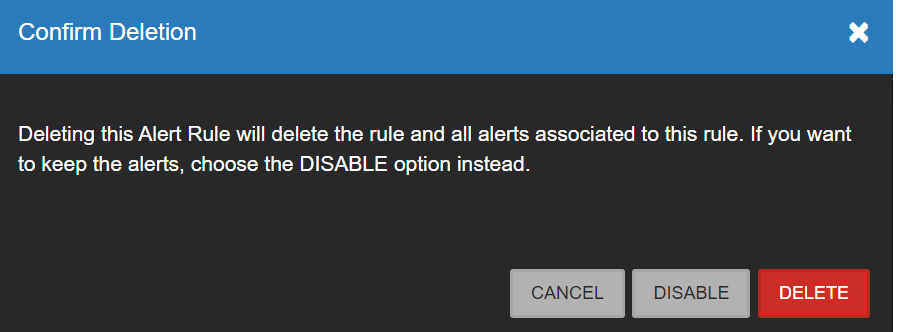
10. Click Disable to turn the Alert Rule off without deleting it.
11. Click Delete to permanently remove the Alert Rule and delete all history associated with it.
12. Click Save when finished.
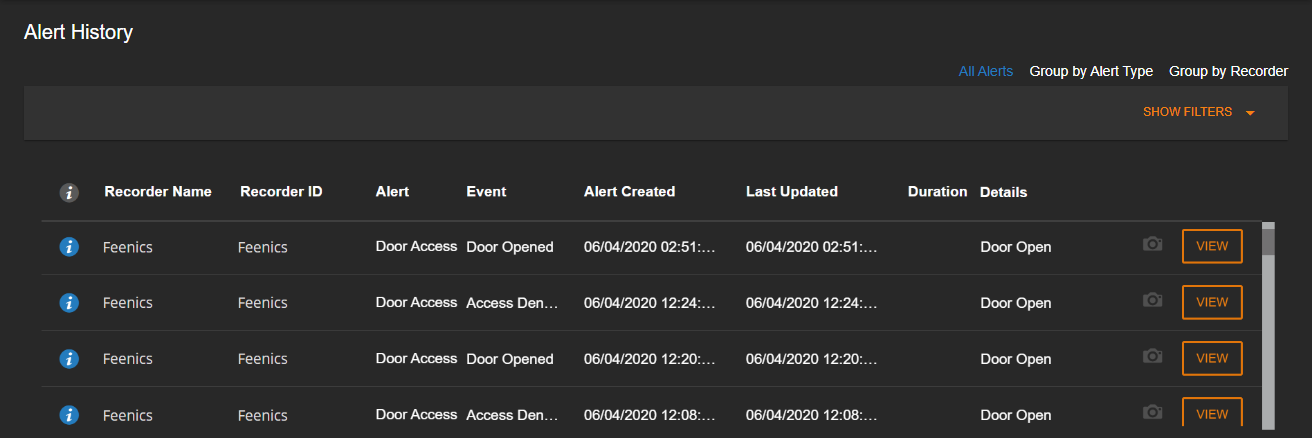
13. Alert History - In WS - Select Alerts > Alert History. Here you will find all Alert events created by associated recorders that have rules assigned.
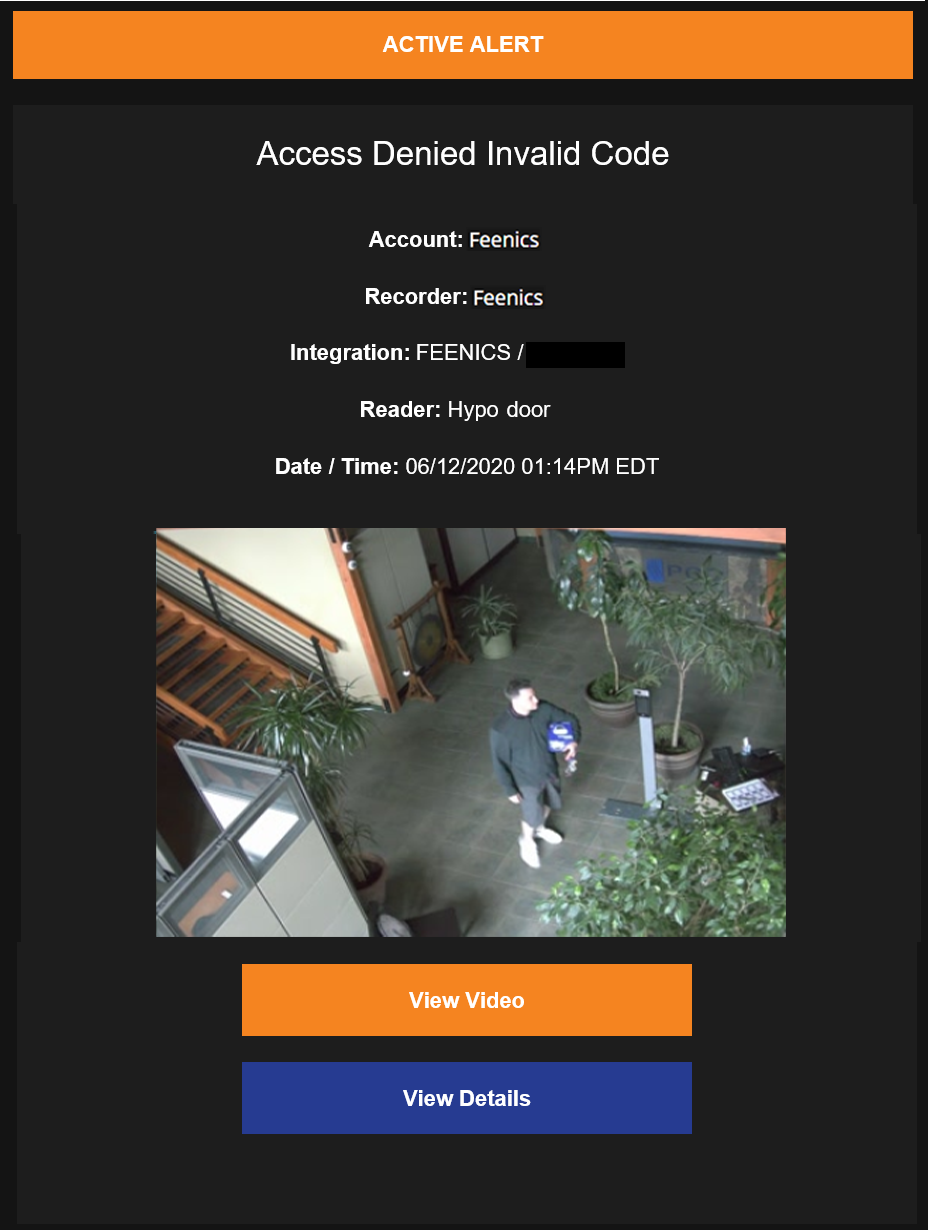
14. Email Alerts - Any User or User Group checked to receive email alerts for an event, are notified with Account, Recorder, Camera, Zone, Date and Time information as well as a thumbnail image and links that allow additional Event monitoring.
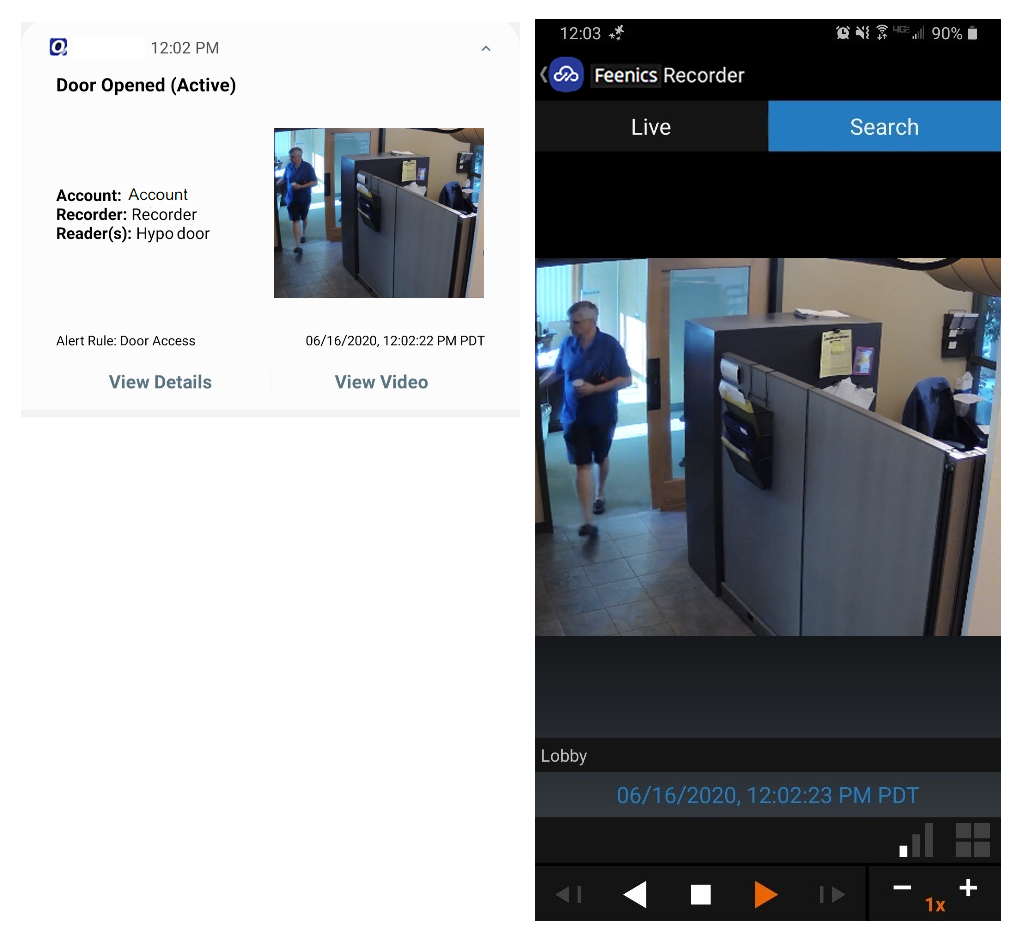
15. Push Notifications - A User or User Group that has Push Notifications enabled in an Alert Rule and has the Contera mobile app installed will receive notifications on their mobile device with information, a screenshot, and associated video whenever an alarm condition is detected.
Was this article helpful?
Bu bilgiler sorununuzu çözmeye yardımcı oldu mu?
Still need help?
Uzman ekibimiz size yardımcı olmak için burada.