Danale - How to View the Camera on Your Phone?
Applies:
I41HD/I41EH
Please confirm the following information before adding the device:
1. Is the Wi-Fi connected to your mobile phone is a 2.4 GHz frequency band. As the camera does not support 5 GHz.
2. The Wi-Fi router has enabled DHCP, and MAC address binding or filtering has not been enabled.
3. There is no special character in the Wi-Fi name and password, and their length does not exceed 30 digits.
Here are the steps to add the camera to the APP:
1. Download and install the APP
Enter Google Play Store or App Store on your mobile phone, search for the "Danale" app, then download and install it on your phone.
Note: Please give APP the corresponding permission rights after installation.
2. Register an account
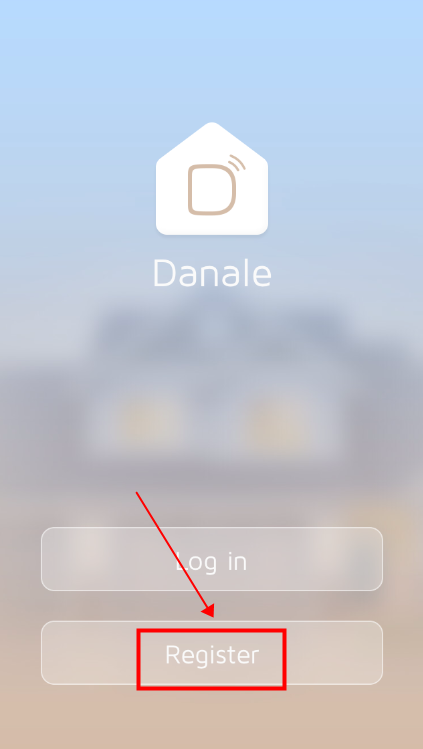
Open the APP and you need to register an account to log in. You can register with your email address or mobile number. Please ensure your email box or mobile phone can receive the verification code correctly. The setting steps are as follows:
Click Register:
Enter your email address or mobile number and click Next:

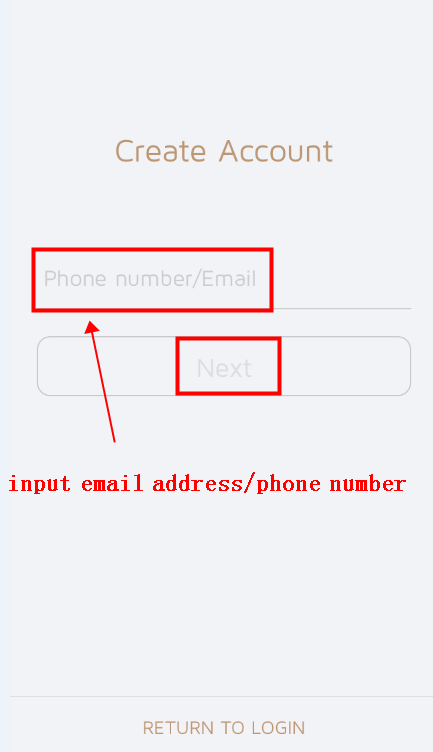
Enter the verification code you received in your email box or mobile phone and click "Next"
Enter the password you want to set and click "OK" to complete the registration.
Return to the login screen. Enter your email address or mobile number, as well as the corresponding password. Click "Log in" to log in to the APP system.

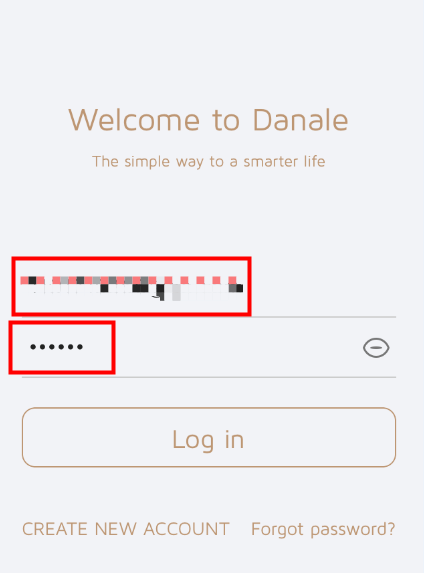
After logging into your account, you can start to add the device.
After the device is powered on and started properly, you can hear the prompt tone for Wi-Fi configuration and the indicator light will flash.
If you cannot hear the prompt tone, please long press the back reset button for 10 seconds to reset. You may need to wait about 30 seconds for the device to restart automatically.
Place the device 2 to 3 meters away from the Wi-Fi router without any obstruction between them. Open the APP, login in, and click the "+" icon.

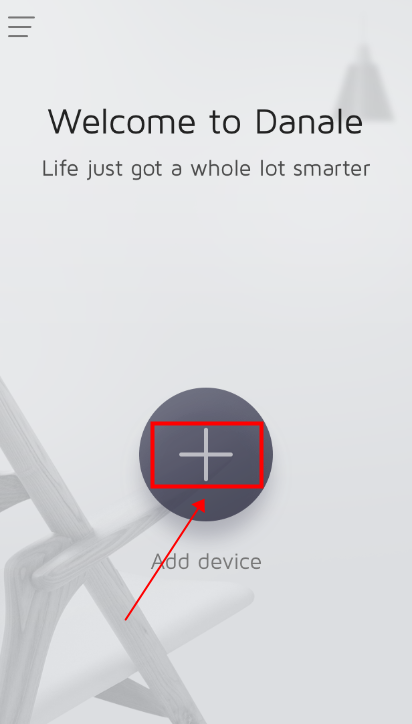
Confirm the Wi-Fi name, enter the current Wi-Fi password, place the phone within one meter of the device, and click "Next".

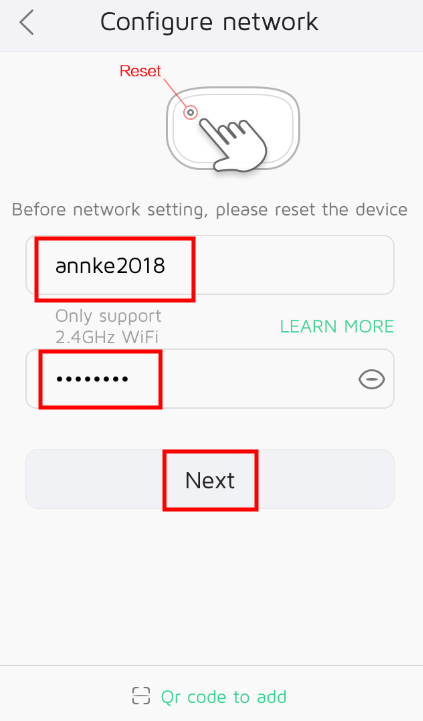
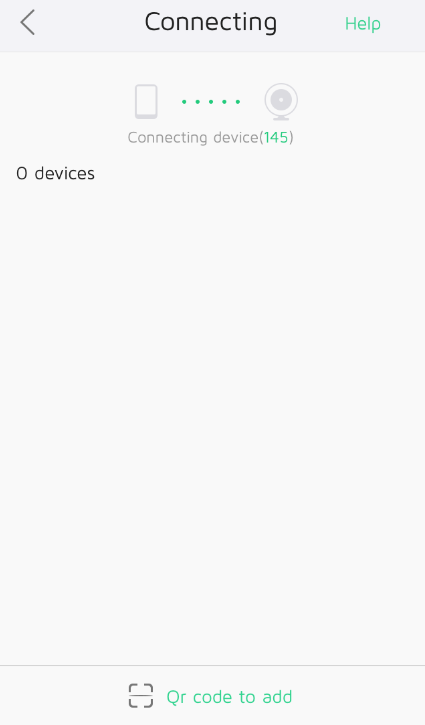
At this point, the APP will automatically pair with the device. Please wait about 100 seconds.
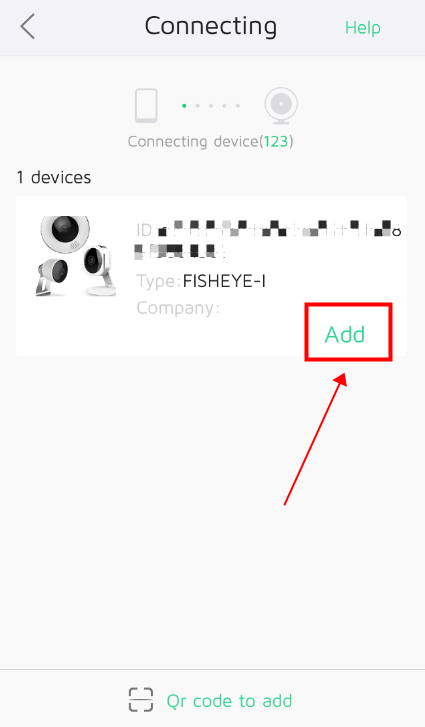
After the pairing is completed, the device will be displayed automatically. Please click "Add" to add the device.

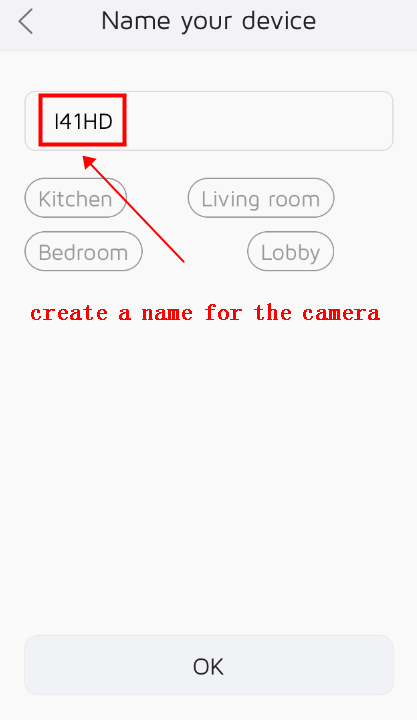
Enter your device name and click "OK" to save it.

Now you can start to watch the device.

Was this article helpful?
Bu bilgiler sorununuzu çözmeye yardımcı oldu mu?
Still need help?
Uzman ekibimiz size yardımcı olmak için burada.