How To Configure Basic Deterrent Functionality
20 Aug 2026
348 views
Certain R-series cameras have Built-in Deterrent Functions. This is great for if you want an Event-based Strobe or Flood Light action to trigger.
In this guide, we are referencing the Web Interface to the M5T-NC.
Please Note
In order for the deterrent functionality to be available, the camera must be in Day/Night Mode in its Image Settings.
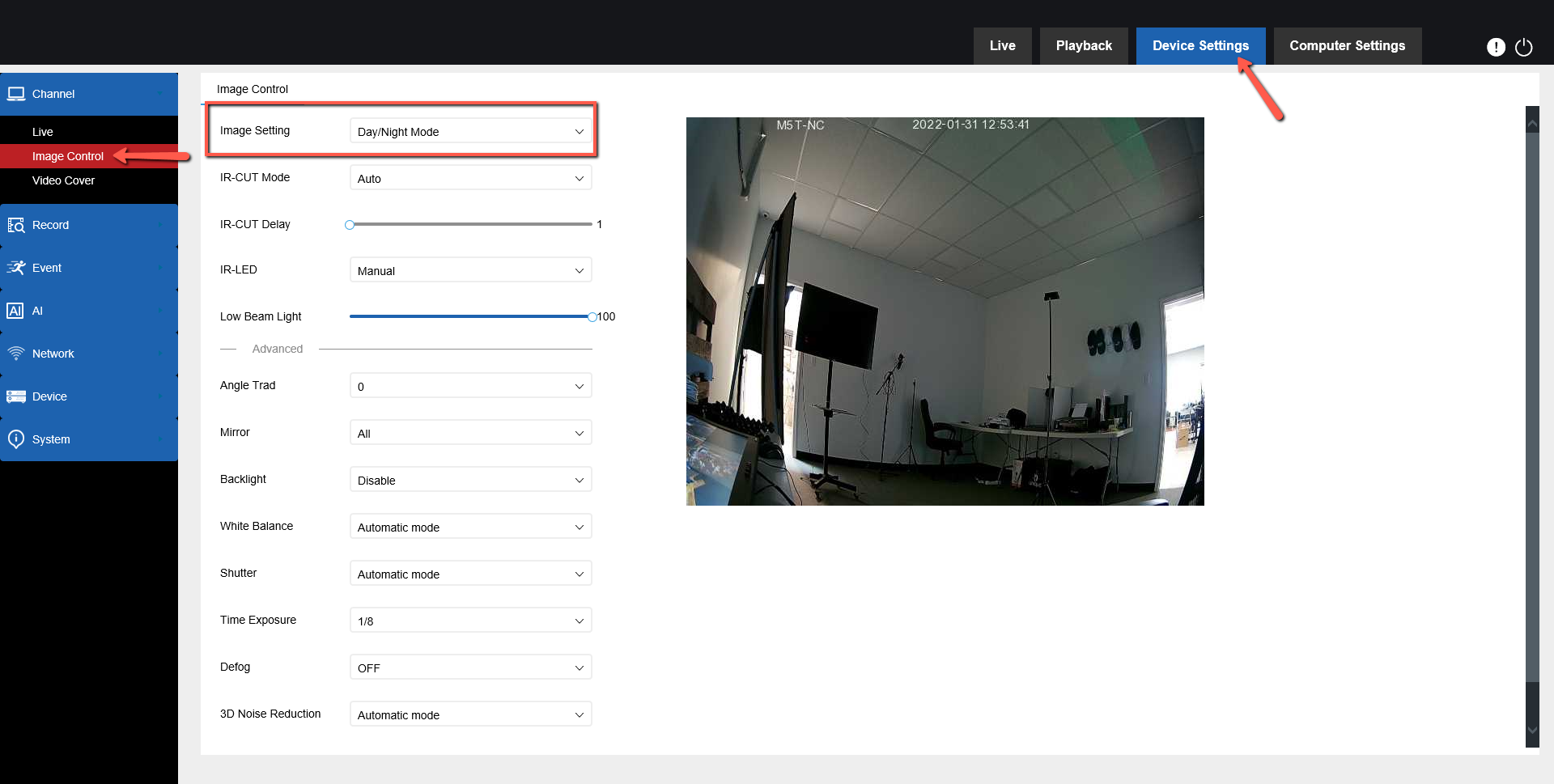
Configuring Deterrence Setting
First, you must enable the Deterrent capabilities in the camera but going to Device Settings -> Event -> Setup -> Deterrence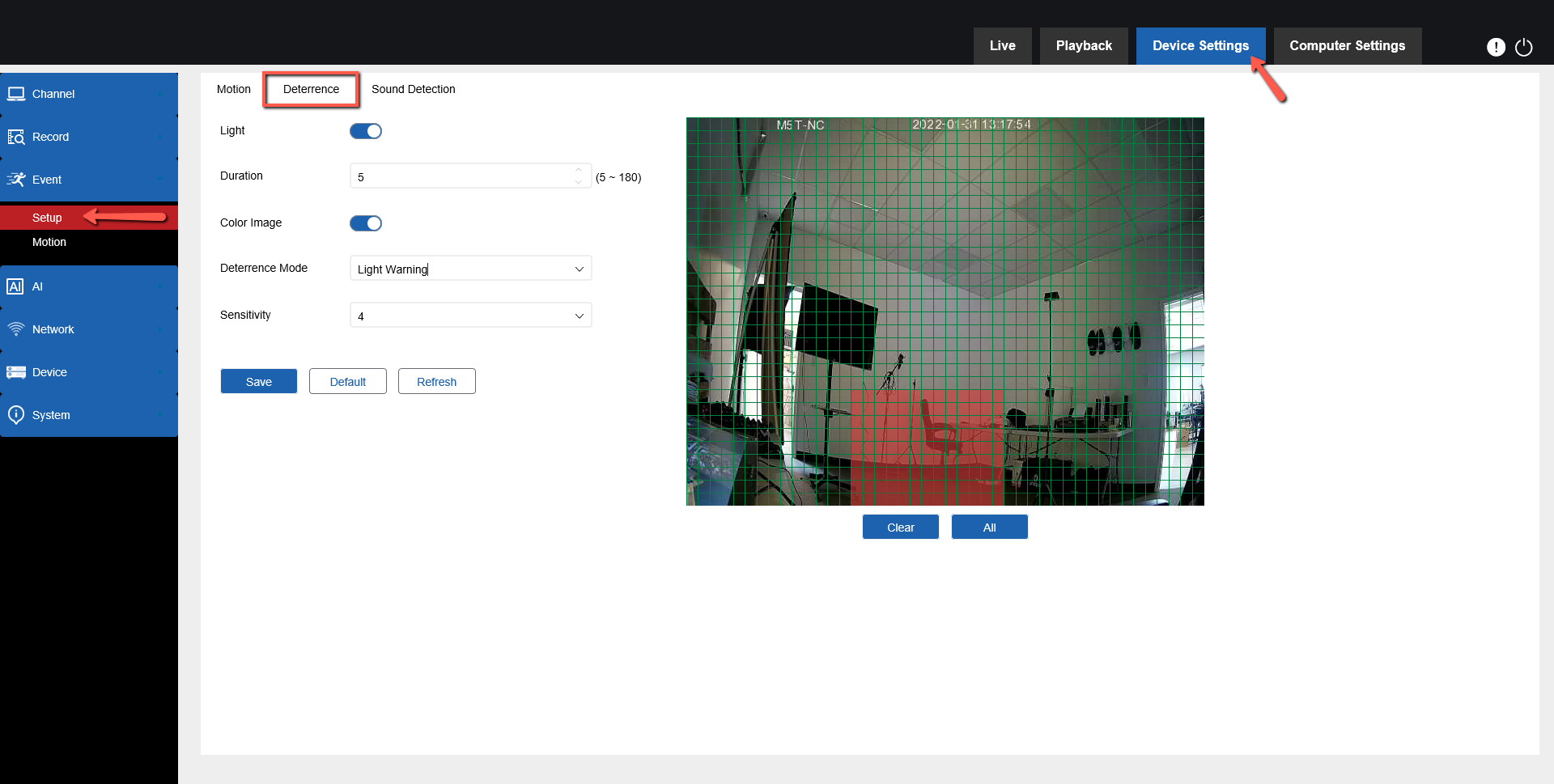
- Light - Enables the Deterrent Light
- Duration - Sets the amount of time the deterrent function will be enabled for once triggered
- Color Image - The Camera will switch from Black&White to Color in order to get a quality image on the Event Trigger.
-
Deterrence Mode:
- Light Warning - White LED will be solid for the duration set
- Light Strobe - White LED will strobe for the duration & frequency set
- Sensitivity - From 1 to 8, with 8 Being the highest sensitivity and 1 being the lowest
Linking Deterrent to AI Event
Go into Device Settings -> AI -> Motion
Select the specific event you want the deterrence light to be triggered by, then enable Deterrent.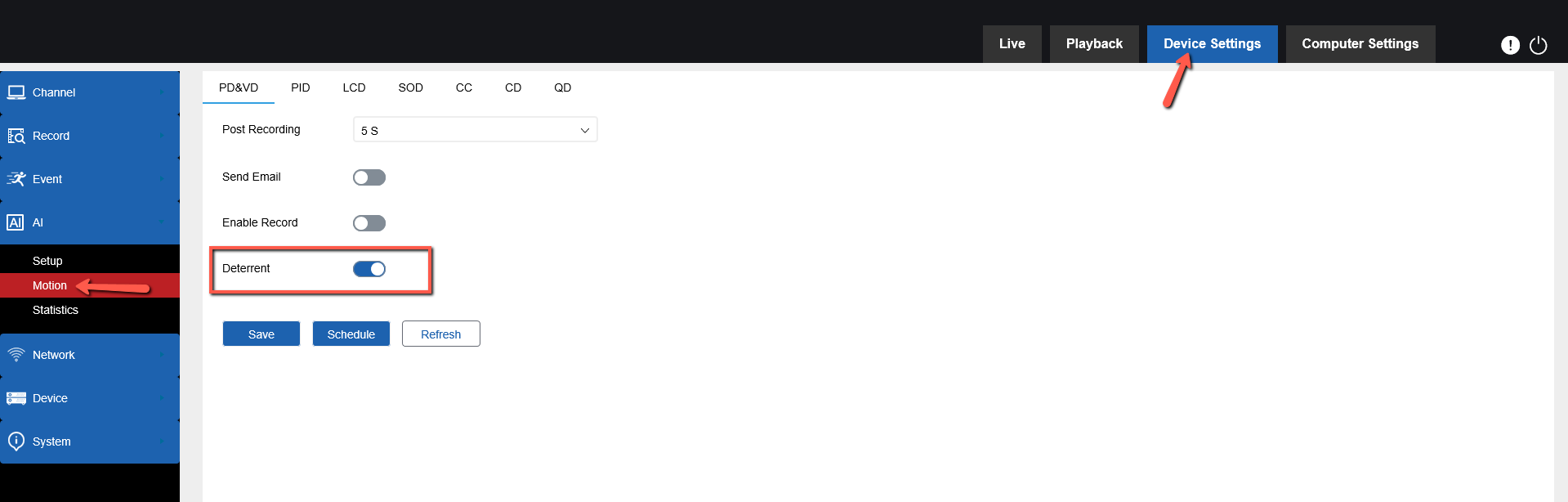
Was this article helpful?
Bu bilgiler sorununuzu çözmeye yardımcı oldu mu?
Thanks for your feedback!
Still need help?
Uzman ekibimiz size yardımcı olmak için burada.