How to connect the battery camera to CloudEdge APP?
Applies to:
I21FF/I41FK
Please confirm that your phone has successfully connected to the network.
Here are the steps:
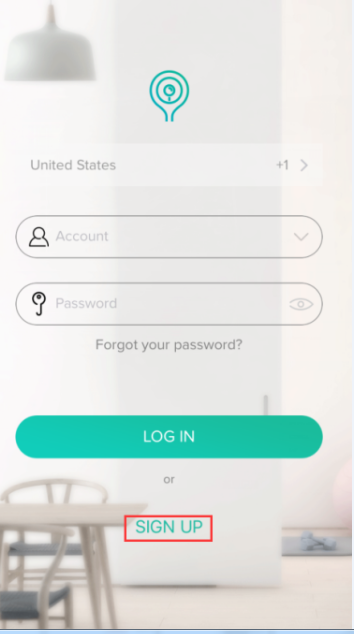
1. Open the app and click "Sign up"
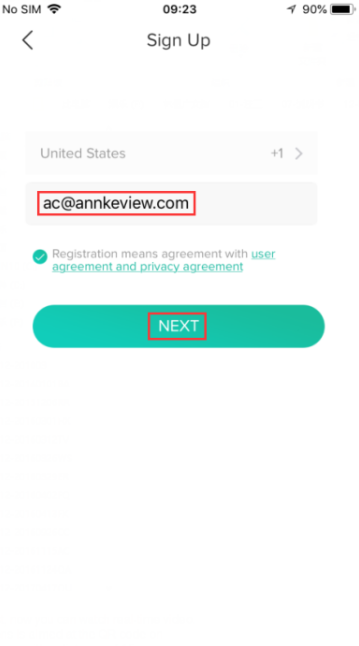
2. Please enter your email address and follow the steps to complete the registration.
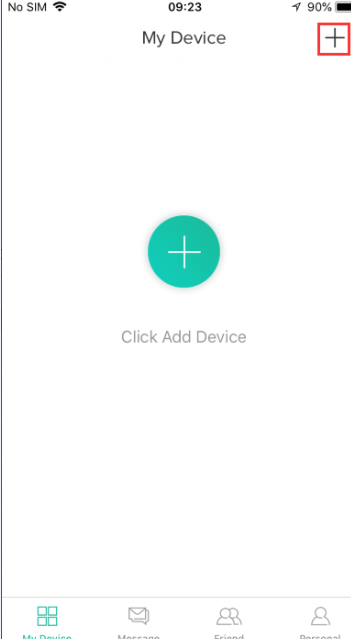
3. Click "+" in the upper right corner.
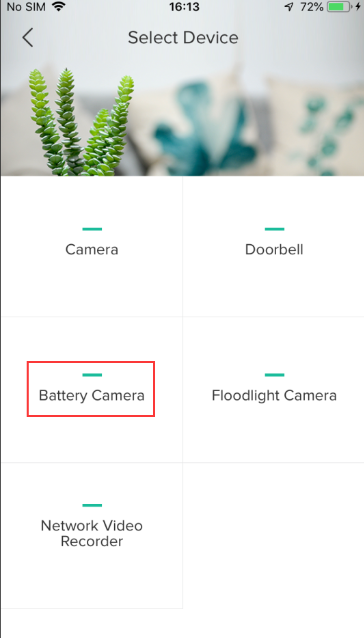
4. Select "Battery Camera"
5. Click "Next".
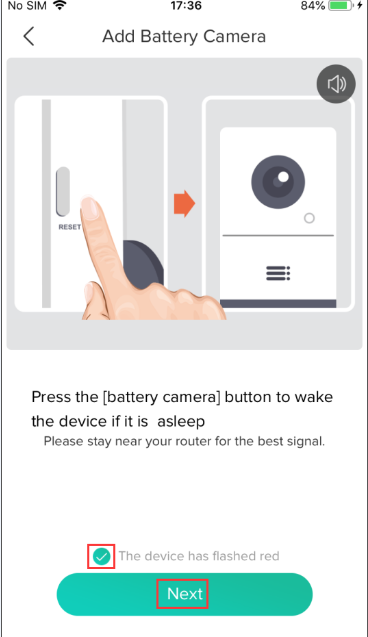
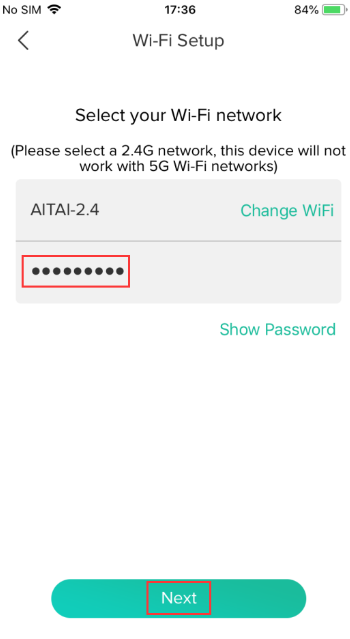
6. Enter the current Wi-Fi password and click "Next"
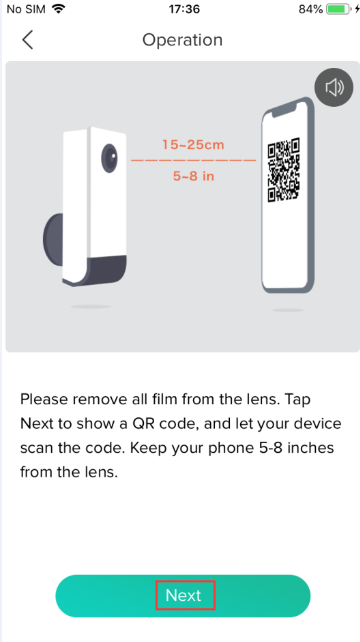
7. Make the QR code on the phone face the camera`s lens directly. After the camera scans the QR code successfully, please click "Next"
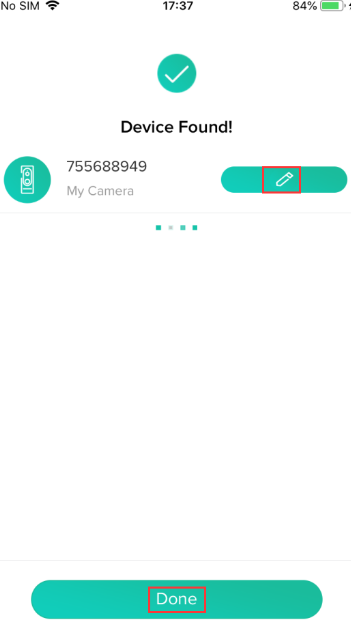
8. After the connection is completed, you can edit the camera`s name and click “Finish”.
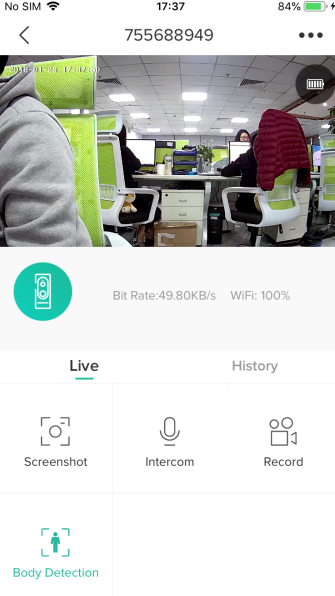
9. Now you can view images on the phone app
Note: The camera is only available for 2.4GHz Wi-Fi and does not support 5GHz Wi-Fi.
Was this article helpful?
Bu bilgiler sorununuzu çözmeye yardımcı oldu mu?
Still need help?
Uzman ekibimiz size yardımcı olmak için burada.