How to Create Custom Live View Grid on Speco Blue Recorder
20 Aug 2026
394 views
Step 1: Setup
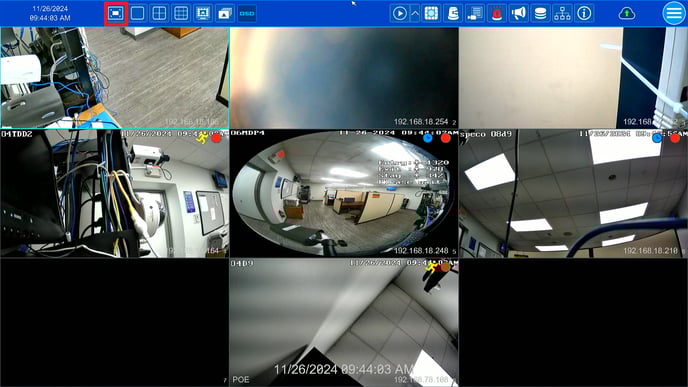
- If Live View is in full-screen, please make sure to exit full screen mode.
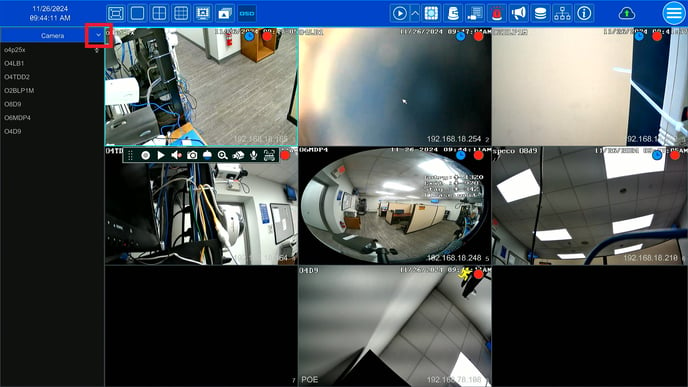
- Click the carrot on the left hand side bar.
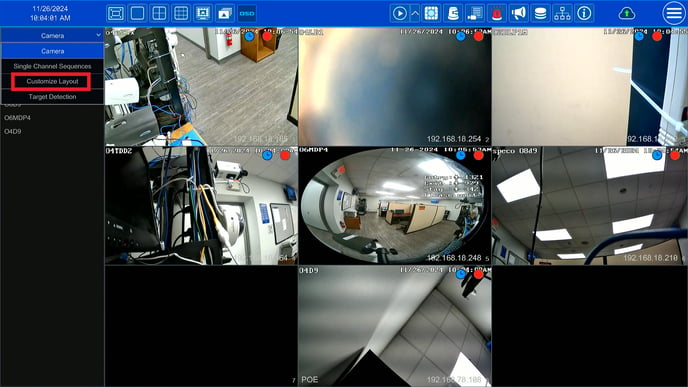
- Click Customize Layout.
Step 2: Configure Layout
- Click and drag the camera sources to the desired layout.
Step 3: Save
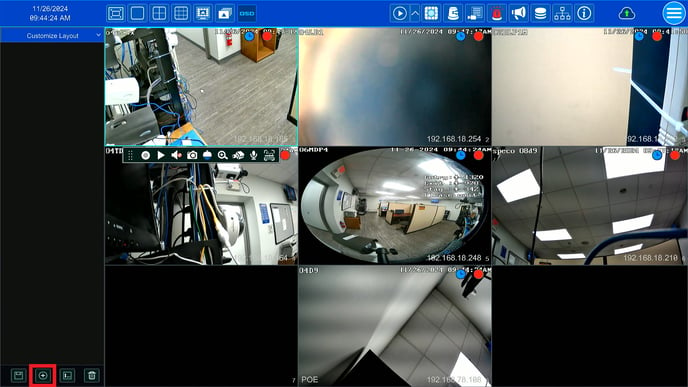
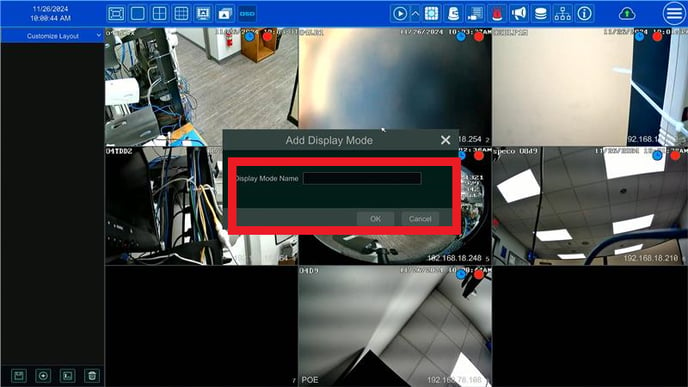
- After the layout is set, Click on the plus icon on the bottom of the left hand side bar to Save your layout
- Give this layout a name and click OK
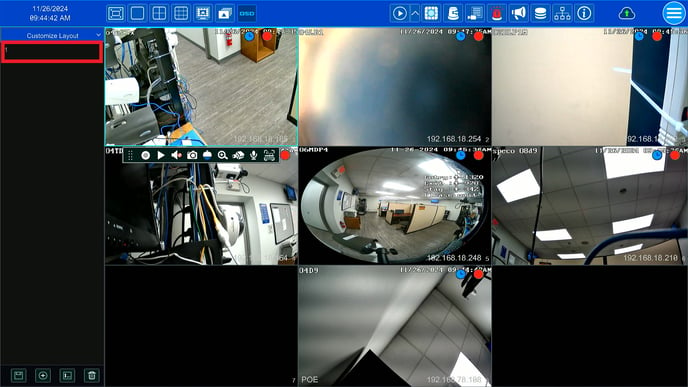
- Now every time this layout is needed, simply double click the saved layout under Customize Layout
Click here to learn how to configure your Secondary Output
Initial submission Date: November 26, 2024
Article Authored by: Christopher Cataldo, Tier 1
Step 1: Setup
- If Live View is in full-screen, please make sure to exit full screen mode.
- Click the carrot on the left hand side bar.
- Click Customize Layout.
Step 2: Configure Layout
- Click and drag the camera sources to the desired layout.
Step 3: Save
- After the layout is set, Click on the plus icon on the bottom of the left hand side bar to Save your layout
- Give this layout a name and click OK
- Now every time this layout is needed, simply double click the saved layout under Customize Layout
Click here to learn how to configure your Secondary Output
Initial submission Date: November 26, 2024
Article Authored by: Christopher Cataldo, Tier 1
Was this article helpful?
Bu bilgiler sorununuzu çözmeye yardımcı oldu mu?
Thanks for your feedback!
Still need help?
Uzman ekibimiz size yardımcı olmak için burada.