How to enable the white light 24/7 using the Speco Blue recorders interface
20 Aug 2026
405 views
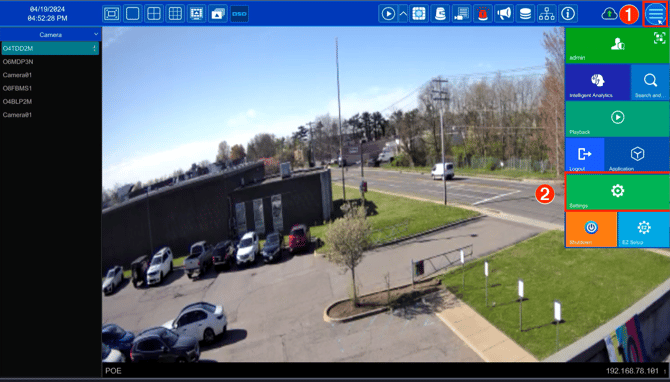
Step 1:
- ➊ Click on the hamburger icon,
- ➋ Click on settings (gear icon)
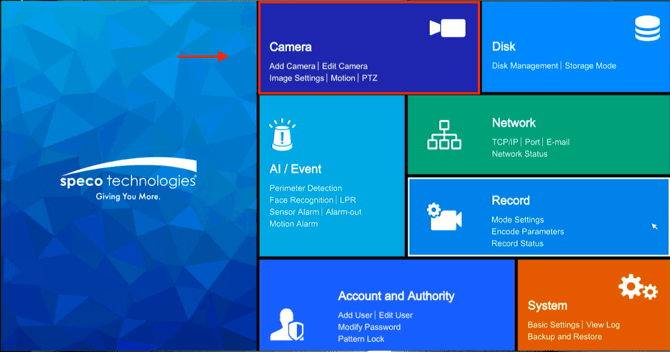
Step 2:
- Choose camera
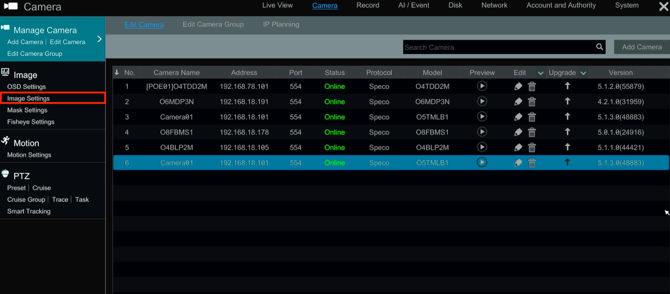
Step 3:
- Under Image, Click on image settings
Step 4:
- ➊ From the pull down menu, Select the camera to be adjusts
- ➋ Choose the advanced tab
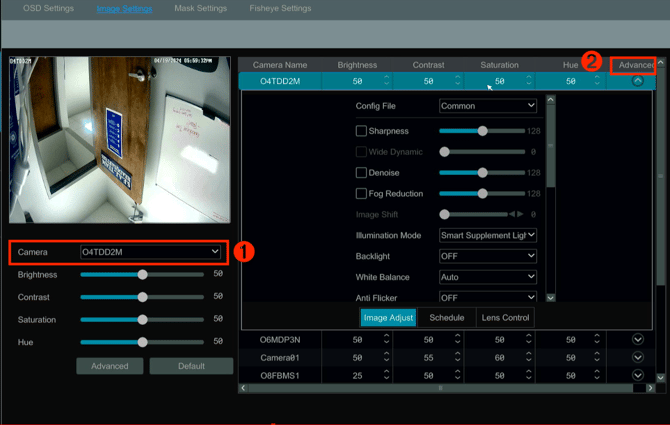
Step 5:
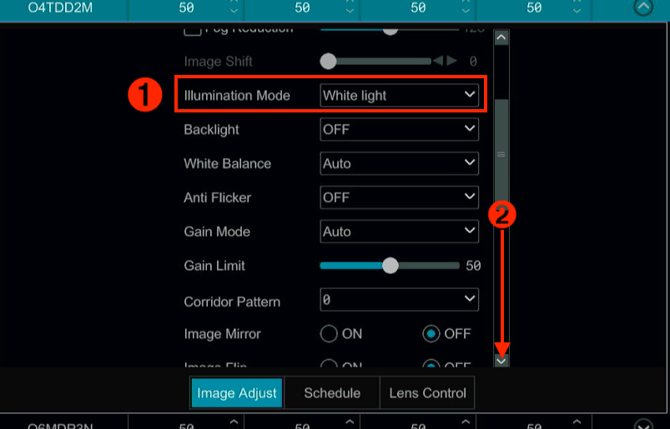
- ➊ Under illumination mode, select White light from the dropdown
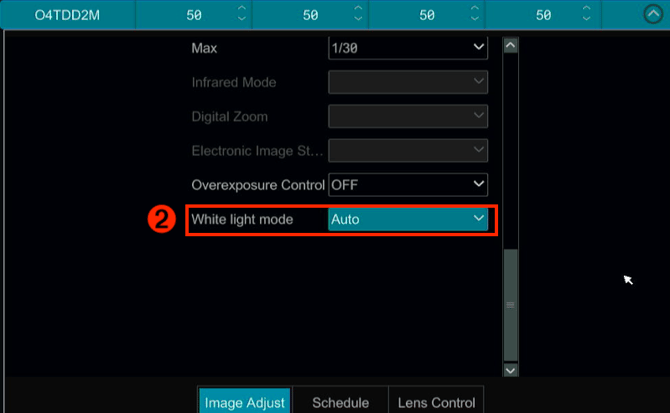
- ➋ Scroll down and ensure White light mode is select to auto
Step 6:
- It will automatically apply the settings when changed.
Initial Publish Date: April 19th, 2024
Edited: April 22. 2024
Published by: Tim O'Brien, Technical Support Lead
Step 1:
- ➊ Click on the hamburger icon,
- ➋ Click on settings (gear icon)
Step 2:
- Choose camera
Step 3:
- Under Image, Click on image settings
Step 4:
- ➊ From the pull down menu, Select the camera to be adjusts
- ➋ Choose the advanced tab
Step 5:
- ➊ Under illumination mode, select White light from the dropdown
- ➋ Scroll down and ensure White light mode is select to auto
Step 6:
- It will automatically apply the settings when changed.
Initial Publish Date: April 19th, 2024
Edited: April 22. 2024
Published by: Tim O'Brien, Technical Support Lead
Was this article helpful?
Bu bilgiler sorununuzu çözmeye yardımcı oldu mu?
Thanks for your feedback!
Still need help?
Uzman ekibimiz size yardımcı olmak için burada.