How to Export video from directly at Speco Blue recorder
20 Aug 2026
408 views
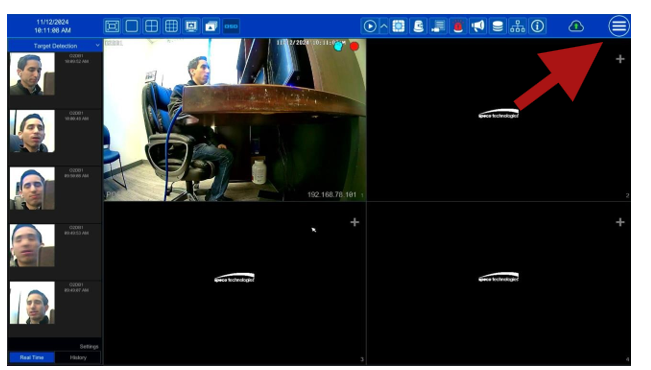
Step 1: Access the Main Menu
- Click on the hamburger icon ☰ (three horizontal lines) in the upper right-hand corner.
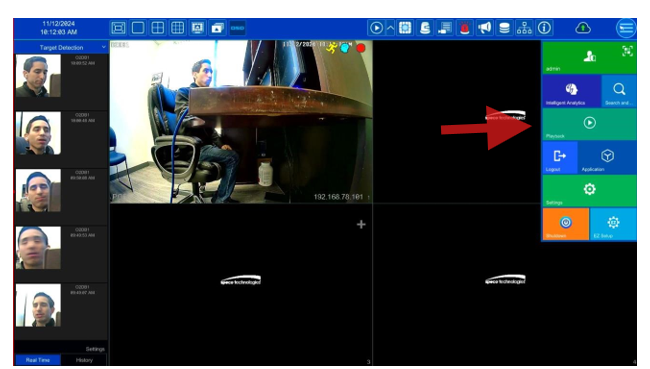
Step 2: Open Playback Mode
- Select Playback from menu
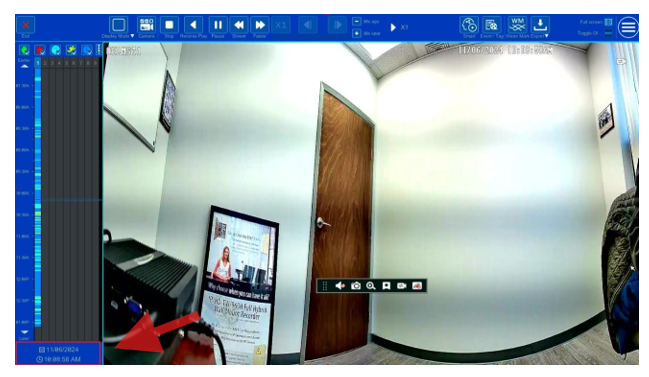
Step 3: Choose Date and Time
- On the lower left-hand side of the screen, select the date and time for the recording you want to view.
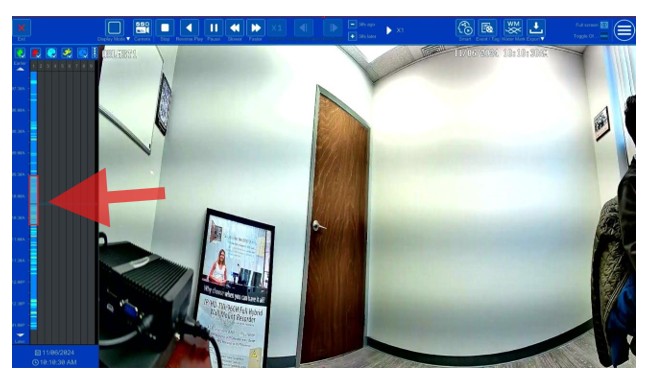
Step 4: Mark the Export Duration
- Left-click and drag on the timeline to highlight the time segment you want to export. The selected time will appear in light blue.
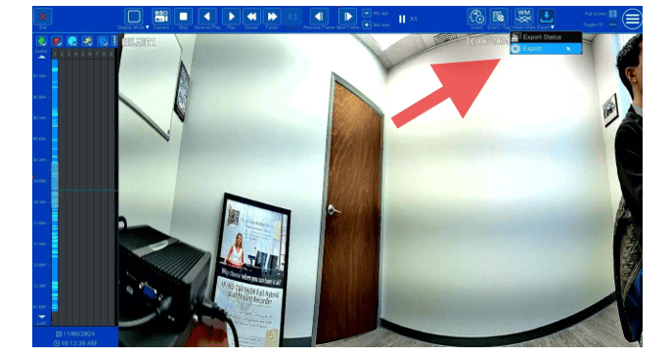
Step 5: Export the Video Clip
- Click Export. You'll see the export options and status.
Ensure a flash drive is plugged into the recorder. Select the
destination (your flash drive) where you'd like the clip saved.
Initial submission Date: November 13th
Article authored by: Phil Benanti
Step 1: Access the Main Menu
- Click on the hamburger icon ☰ (three horizontal lines) in the upper right-hand corner.
Step 2: Open Playback Mode
- Select Playback from menu
Step 3: Choose Date and Time
- On the lower left-hand side of the screen, select the date and time for the recording you want to view.
Step 4: Mark the Export Duration
- Left-click and drag on the timeline to highlight the time segment you want to export. The selected time will appear in light blue.
Step 5: Export the Video Clip
- Click Export. You'll see the export options and status.
Ensure a flash drive is plugged into the recorder. Select the
destination (your flash drive) where you'd like the clip saved.
Initial submission Date: November 13th
Article authored by: Phil Benanti
Was this article helpful?
Bu bilgiler sorununuzu çözmeye yardımcı oldu mu?
Thanks for your feedback!
Still need help?
Uzman ekibimiz size yardımcı olmak için burada.