How to Reformat HDD on Blue Recorder
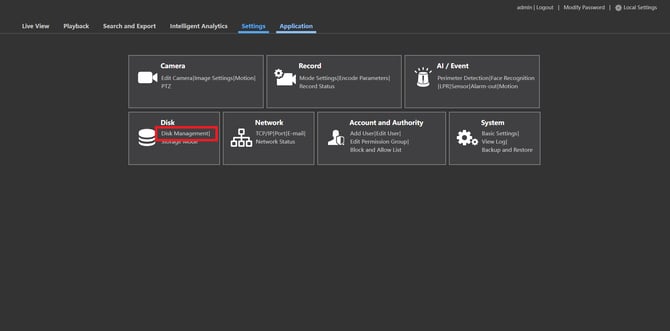
To begin the reformatting process, please go to settings and click on Disk Management.
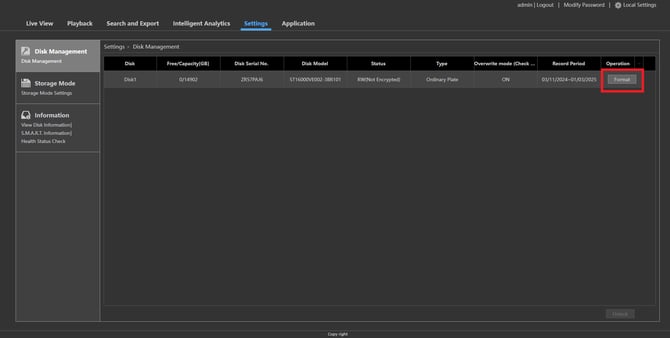
Once in Disk Management, you will see each HDD listed out. Please click on format on the right for the HDD that you wish to reformat.
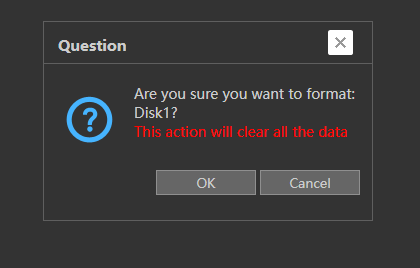
After clicking on Format, the NVR will let you know that reformatting erases all data on the drive, so it is crucial to back up important files before proceeding if you need to.
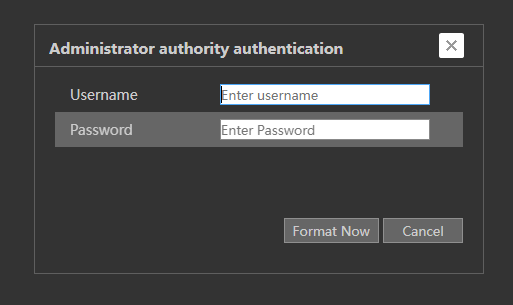
After clicking OK, the NVR will ask for your Username and Password to proceed. Once these credentials are entered, the NVR will format the HDD.
Initial Publish Date: December 26th, 2024

Published by: Armand Juliani, Technical Support, Tier 1
To begin the reformatting process, please go to settings and click on Disk Management.
Once in Disk Management, you will see each HDD listed out. Please click on format on the right for the HDD that you wish to reformat.
After clicking on Format, the NVR will let you know that reformatting erases all data on the drive, so it is crucial to back up important files before proceeding if you need to.
After clicking OK, the NVR will ask for your Username and Password to proceed. Once these credentials are entered, the NVR will format the HDD.
Initial Publish Date: December 26th, 2024

Published by: Armand Juliani, Technical Support, Tier 1
Was this article helpful?
Bu bilgiler sorununuzu çözmeye yardımcı oldu mu?
Still need help?
Uzman ekibimiz size yardımcı olmak için burada.