How to setup Smart Supplement Light on Speco White Light Intensifier IP Cameras
20 Aug 2026
414 views
NOTE: This feature is only available on camera models:
O4LT1M, O4LB1M, O4TDD2, O4TDD2M, O4BDD2, O8TDD2, O8TDD2M
Method #1 - Speco Blue Recorder
- Go to Settings > Camera > Image Settings
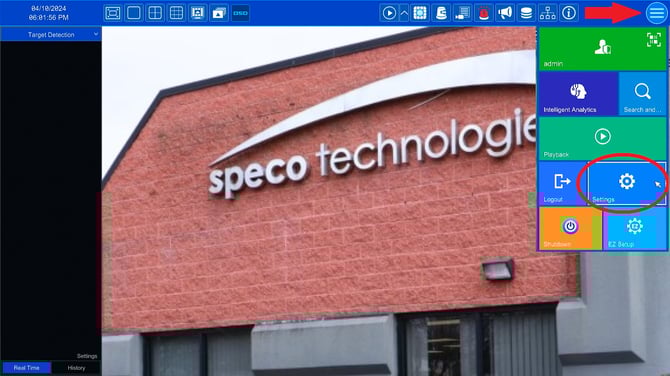
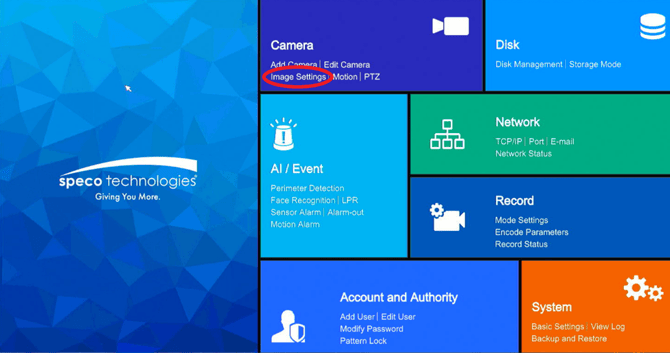
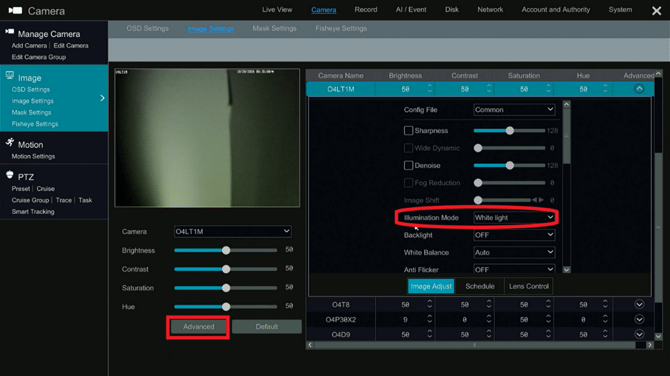
- Select the camera in question and click Advanced
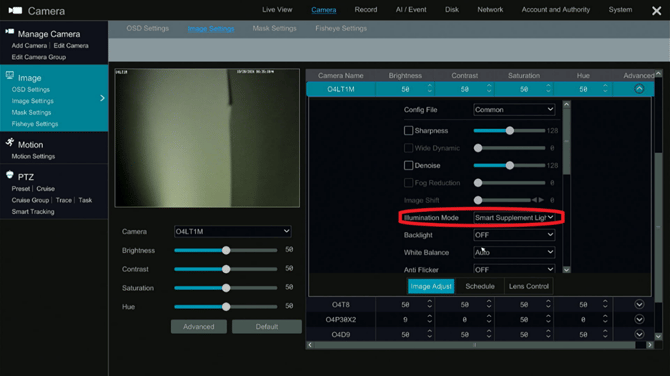
- Scroll down and find Illumination Mode, pick the mode below based on the needs of the camera:
- White Light - White light goes on at night
- Infrared Light - Black and White IR's at night
- Smart Supplement Light - Motion at night that triggers the White Light to give you a color image at night
Method 2: Web Browser
- Open a web browser.
- Type in the IP address of the camera into the web browser's address bar.
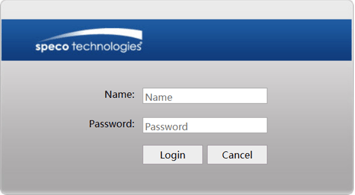
- This should present the camera's login screen.
- Insert the camera's username and password.
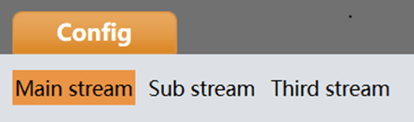
- At the top-left corner click the Config tab
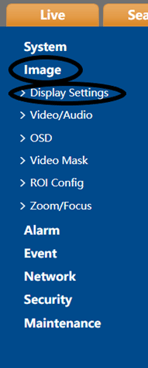
- On the left-side menu, Select Image > Display Settings.
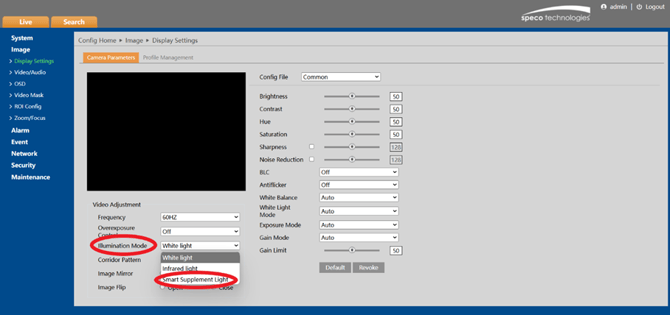
- Under Illumination mode, select the proper option below based on what you want the camera to do:
- White Light - White light goes on at night
- Infrared Light - Black and White IR's at night
- Smart Supplement Light - Motion at night that triggers the White Light to give you a color image at night
Initial submission Date: July 9, 2025

Article authored by: Christopher Cataldo, Technical Support Lead
NOTE: This feature is only available on camera models:
O4LT1M, O4LB1M, O4TDD2, O4TDD2M, O4BDD2, O8TDD2, O8TDD2M
Method #1 - Speco Blue Recorder
- Go to Settings > Camera > Image Settings
- Select the camera in question and click Advanced
- Scroll down and find Illumination Mode, pick the mode below based on the needs of the camera:
- White Light - White light goes on at night
- Infrared Light - Black and White IR's at night
- Smart Supplement Light - Motion at night that triggers the White Light to give you a color image at night
Method 2: Web Browser
- Open a web browser.
- Type in the IP address of the camera into the web browser's address bar.
- This should present the camera's login screen.
- Insert the camera's username and password.
- At the top-left corner click the Config tab
- On the left-side menu, Select Image > Display Settings.
- Under Illumination mode, select the proper option below based on what you want the camera to do:
- White Light - White light goes on at night
- Infrared Light - Black and White IR's at night
- Smart Supplement Light - Motion at night that triggers the White Light to give you a color image at night
Initial submission Date: July 9, 2025

Article authored by: Christopher Cataldo, Technical Support Lead
Was this article helpful?
Bu bilgiler sorununuzu çözmeye yardımcı oldu mu?
Thanks for your feedback!
Still need help?
Uzman ekibimiz size yardımcı olmak için burada.