How to use the Talkback feature for a Speco Blue Recorder from the Speco Blue App
20 Aug 2026
417 views
This function requires that camera audio and Talkback are first enabled at the Speco Blue recorder. For a guide on how to enable the Talkback feature, CLICK HERE.
- Open the Speco Blue app and connect to the recorder unit with the camera that had the Talkback function enabled.
- Double-tap the camera so the app is only viewing that one camera.
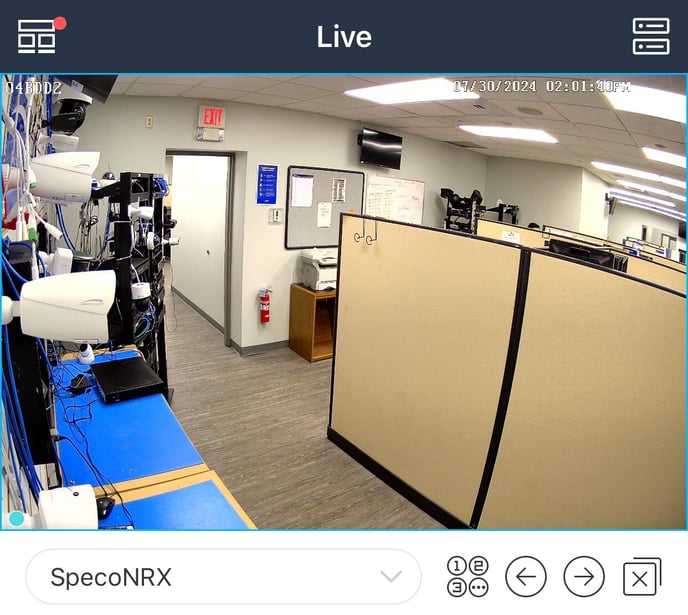
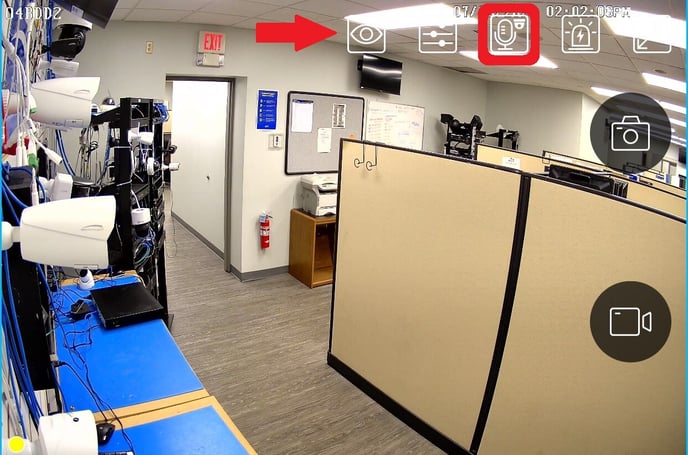
- Once viewing the one camera, tap the camera's image once more, and a row of Icons will appear towards the top of the image.
- Of the several icons to appear, one will have an icon containing a microphone and a mini camera. Select that Icon.
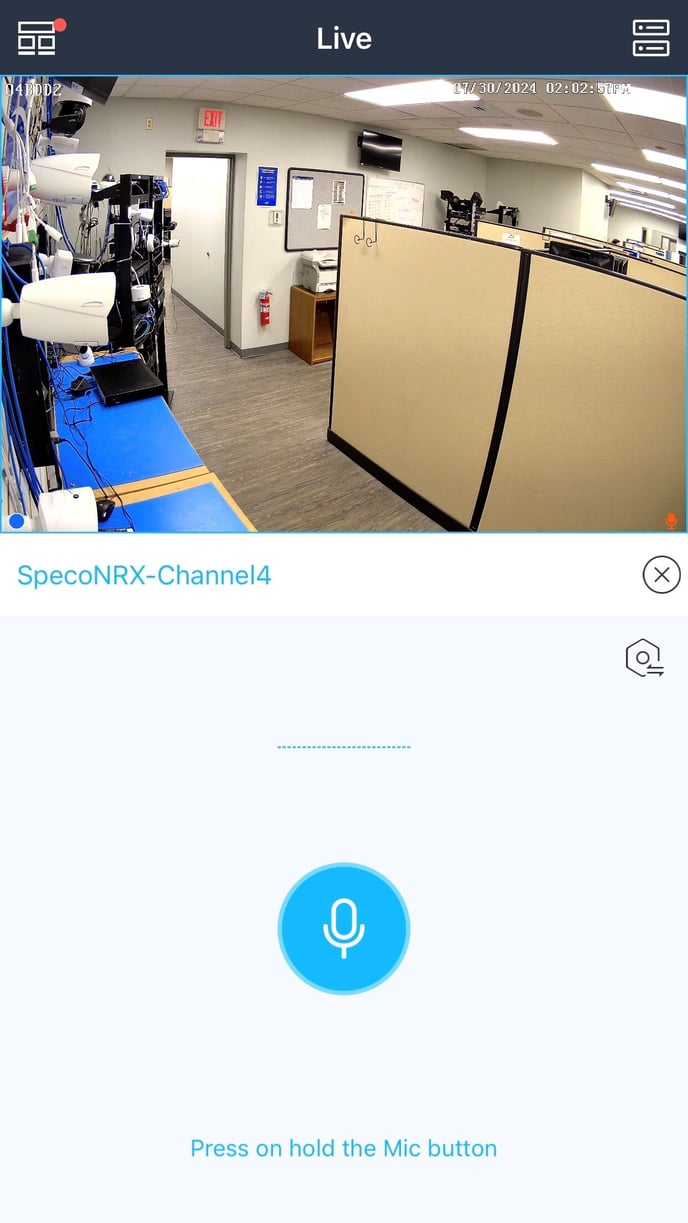
- An additional microphone button will appear on the bottom half of the screen.
- Press and hold the microphone and talk into the mobile device. What is spoken into the device, should be heard from the camera if the original setup was done correctly.
- When the microphone button is not being pressed, the camera's audio should play from the mobile device if the original setup was done correctly.
- Press and hold the microphone and talk into the mobile device. What is spoken into the device, should be heard from the camera if the original setup was done correctly.
Initial submission Date: July 31, 2024
Article Authored by: Frank Bondietti
This function requires that camera audio and Talkback are first enabled at the Speco Blue recorder. For a guide on how to enable the Talkback feature, CLICK HERE.
- Open the Speco Blue app and connect to the recorder unit with the camera that had the Talkback function enabled.
- Double-tap the camera so the app is only viewing that one camera.
- Once viewing the one camera, tap the camera's image once more, and a row of Icons will appear towards the top of the image.
- Of the several icons to appear, one will have an icon containing a microphone and a mini camera. Select that Icon.
- An additional microphone button will appear on the bottom half of the screen.
- Press and hold the microphone and talk into the mobile device. What is spoken into the device, should be heard from the camera if the original setup was done correctly.
- When the microphone button is not being pressed, the camera's audio should play from the mobile device if the original setup was done correctly.
- Press and hold the microphone and talk into the mobile device. What is spoken into the device, should be heard from the camera if the original setup was done correctly.
Initial submission Date: July 31, 2024
Article Authored by: Frank Bondietti
Was this article helpful?
Bu bilgiler sorununuzu çözmeye yardımcı oldu mu?
Thanks for your feedback!
Still need help?
Uzman ekibimiz size yardımcı olmak için burada.