IC Realtime - Configuration- Changing Camera Resolution in Camera OSD using PTZ Controls
- Access Live View
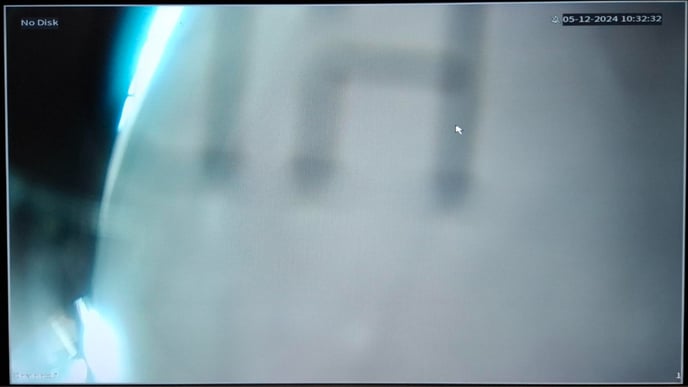
Navigate to the Live View section in the recorder's local interface and press right click to bring up the sub menu controls.
- Open the PTZ Menu
In the sub menu, select PTZ Control.
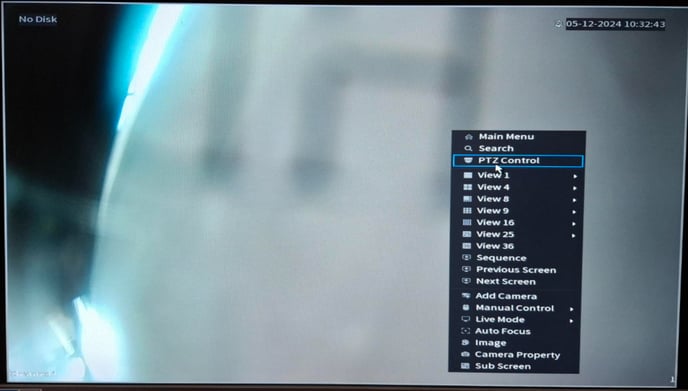
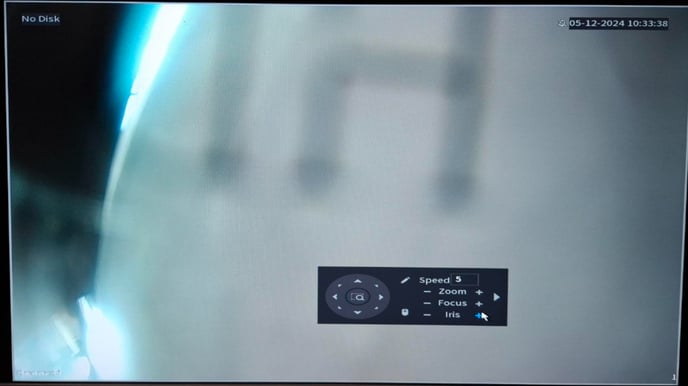
You can drag the PTZ controls out of the way of the centre of the screen.
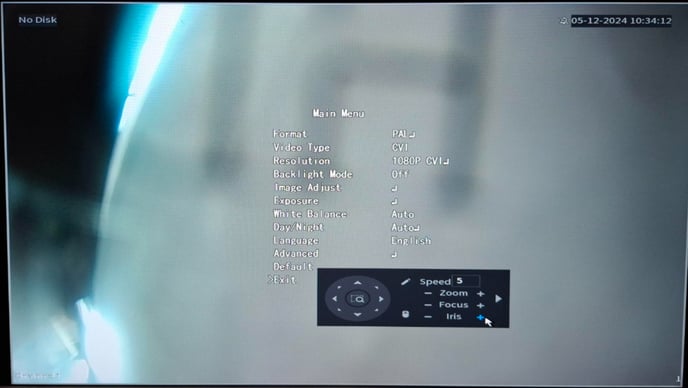
Press + on the iris control to bring up the OSD Menu.
- Changing the Resolution
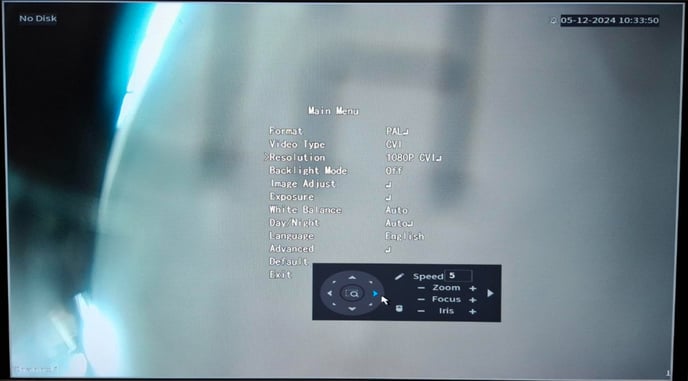
Use the directional buttons to navigate down to the Resolution option in the OSD menu.
Use Left or Right to change the resolution to your required Resolution, 1080p CVI for example.
- Saving the Setting
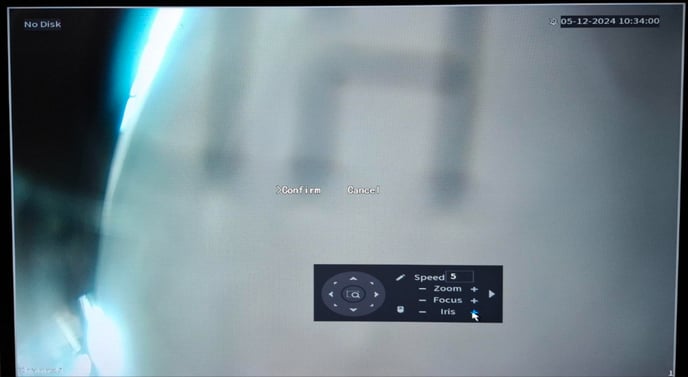
Once you have selected the required resolution, press + on the iris control again to bring up Confirm or Cancel.
Ensure you have the arrow pointing to the Confirm option and press + on the iris again to save the setting.
- Exit the Menu
Lastly, navigate down to the Exit option and press + on the iris again to close the menu.
Was this article helpful?
Bu bilgiler sorununuzu çözmeye yardımcı oldu mu?
Still need help?
Uzman ekibimiz size yardımcı olmak için burada.