iCsee-How to Setup 24 Hours Recording for the Camera?
20 Aug 2026
302 views
Applies to I41ES
The camera supports recording constant videos for 24 hours. Please follow below instruction to set it up step by step.
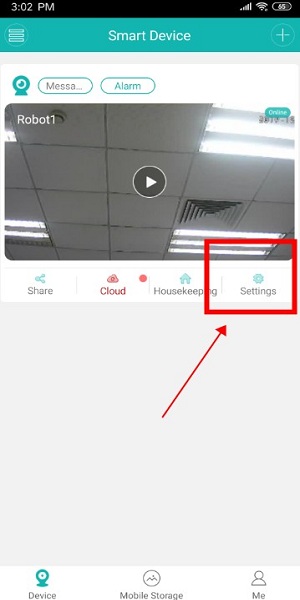
- Before you set up the recording, please make sure an SD card has been inserted into the camera, and the SD card is recognized. Please go to the Settings of the camera.
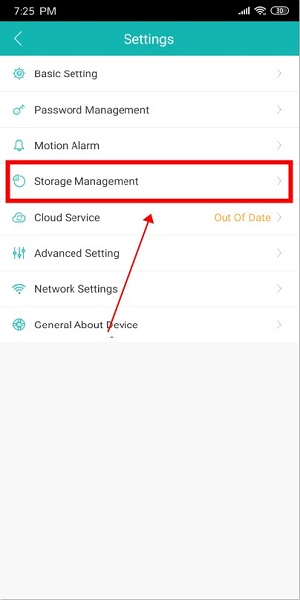
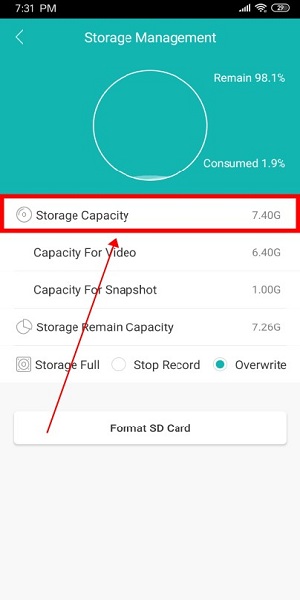
- Then, please go to Storage Management to check the Storage Capacity. If the SD card is recognized, the capacity won't be 0.
- Next, please go to Advanced Settings.
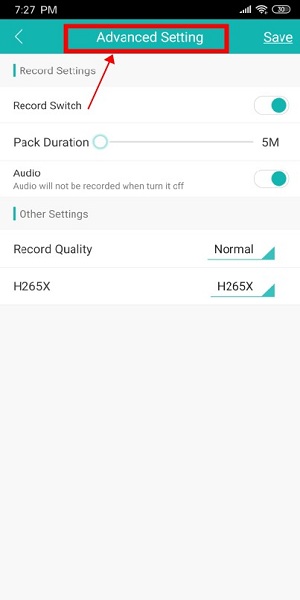
- Finally, please turn on the Record switch.
Once the Record Switch is turned on, the camera will record videos for 24 hours.
Pack Duration: it means that each recording file will be 5 minutes. The users could adjust the length of the recordings files manually.
Audio: the camera will record audio for the video if it is turned on.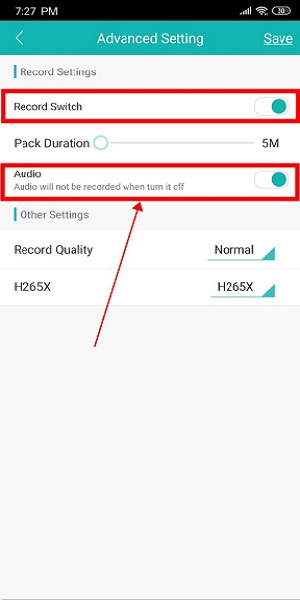
If you have a concern about the instruction, please submit a request to the help centre.
Was this article helpful?
Bu bilgiler sorununuzu çözmeye yardımcı oldu mu?
Thanks for your feedback!
Still need help?
Uzman ekibimiz size yardımcı olmak için burada.