(IE) - Playback & Download
Add to the Trust Site first.
By default, the Internet Explorer won't allow you to save any files thru the program/plug-in.
Therefore, you need to add the location to the Trust Site list first.
Go to the Internet Explorer, Tool (Gear icon), then go to the Internet Options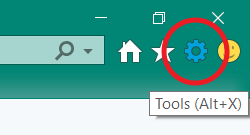
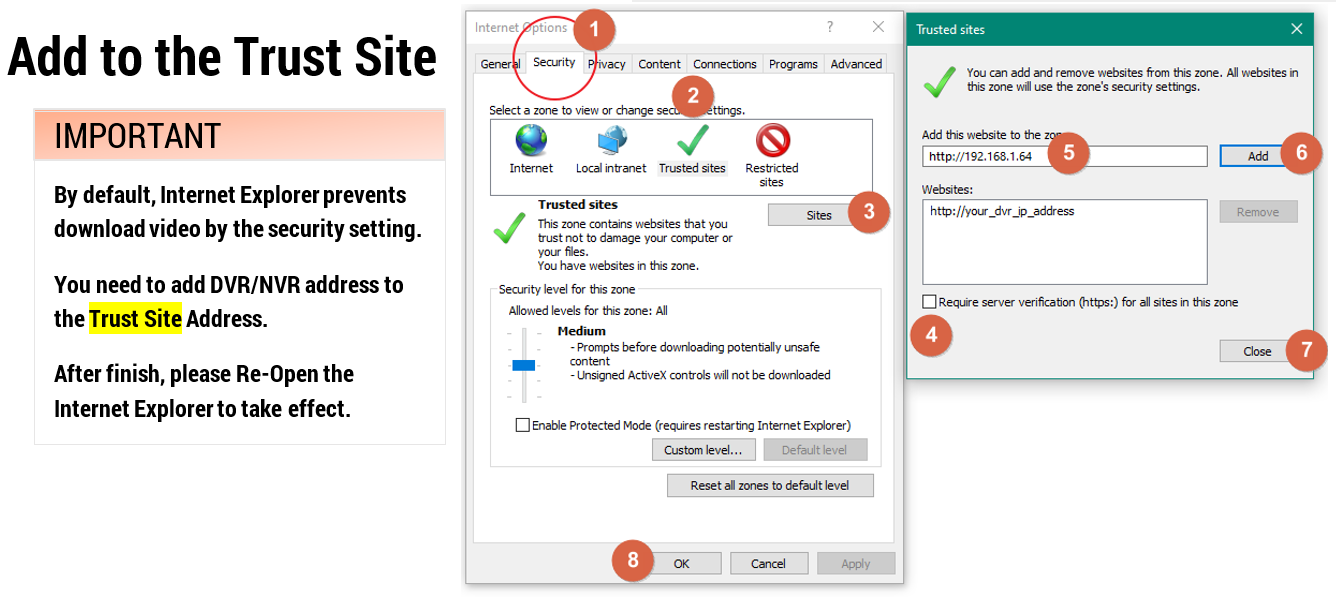
Click the Security Tab on the top, switch to the Trust Site. Click the Sites button to add the DVR ip address. After completed the setting. Close the Internet Explorer and re-open to take effect.
How to do the Playback?
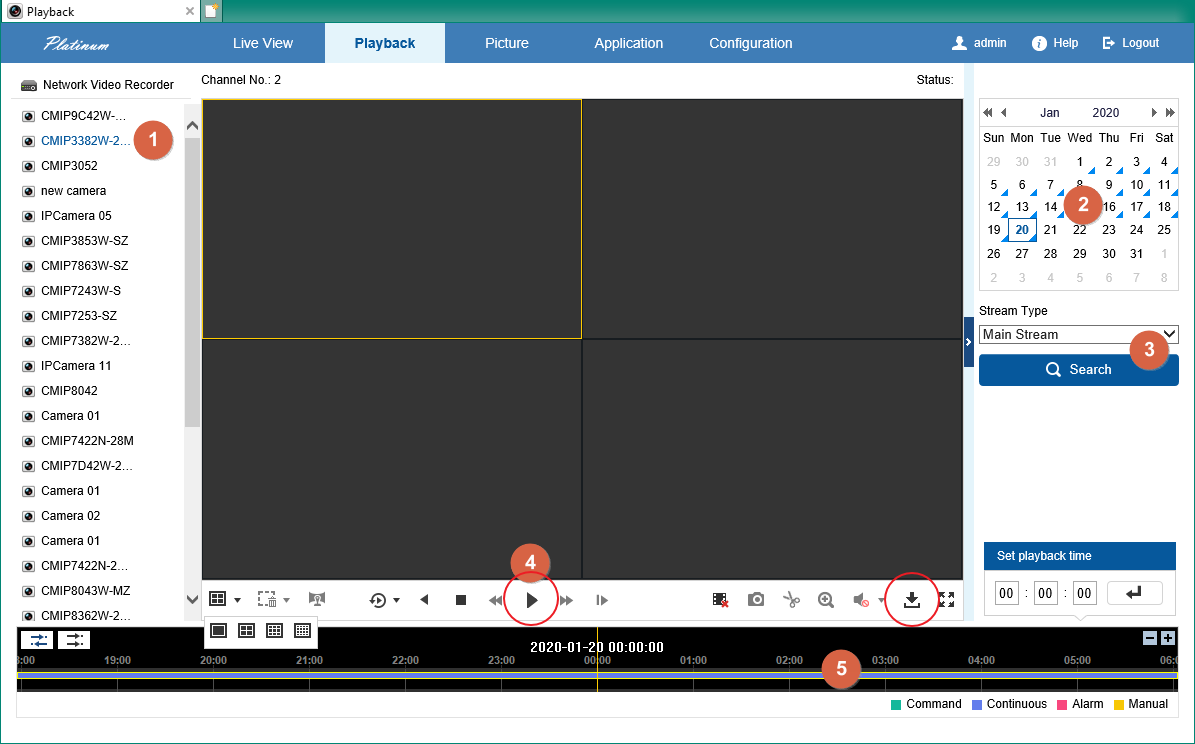 More camera display will takes more CPU / network speed to run it.
If it can't display the video, please check the date contains the record is available first.
Otherwise, please check the plug-in loading, port 8000, stream type.
How to Download the Video file
(click Picture to enlarge the view)
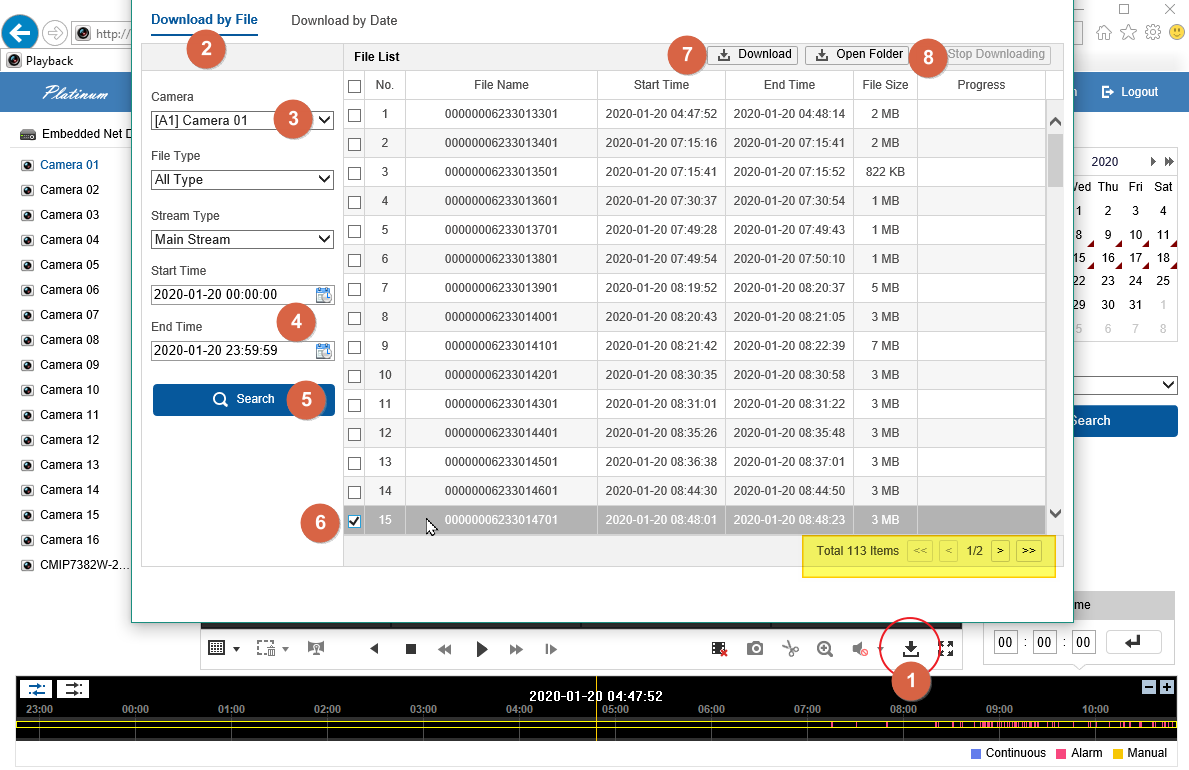
1. click Download button
2. Download by File
3. Select Camera
4. Search Date/Time (Begin/End)
5. Search
6. Select File
7. Download
8. Open Folder
For some newer DVR model, it support Download by Date. You may use this feature can crop the file time and download when you needs it.
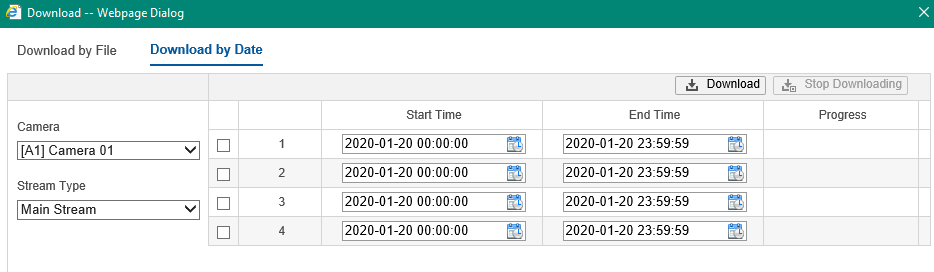
Next > Where is the download file & change the location
For Google Chrome, looks like this.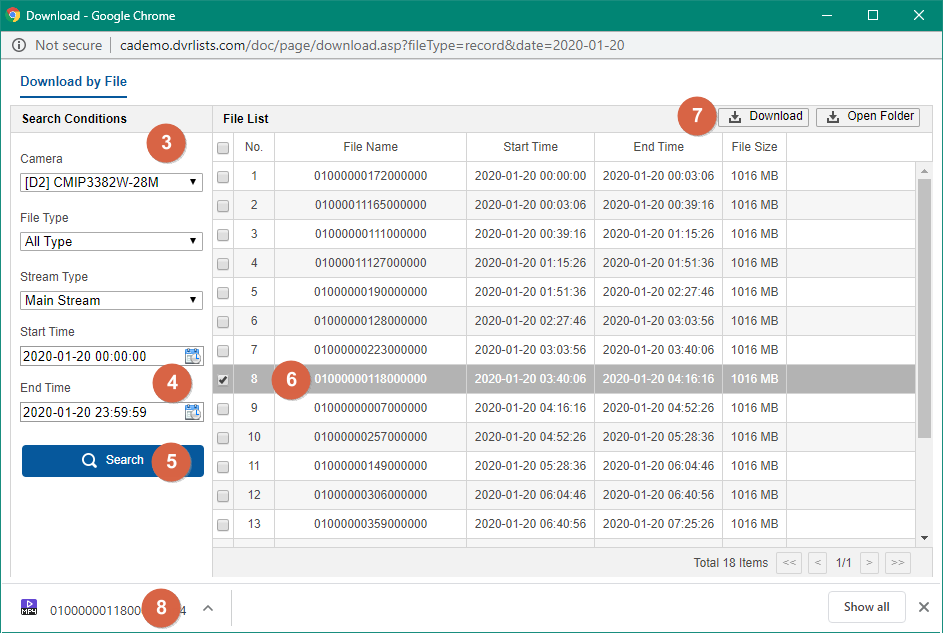
Was this article helpful?
Bu bilgiler sorununuzu çözmeye yardımcı oldu mu?
Still need help?
Uzman ekibimiz size yardımcı olmak için burada.