Network Setup: To get the MAC address of your recorder (for DVR/NVR Password Reset)
If you need to reset your password, you can use the the MAC address of your device. To reset your password on an android device, please launch this link.
FOR MAC Users, click here.
FOR Windows, click here.
You do not need the Internet to get the MAC address, but you need a router where both your phone/computer and DVR/NVR are connected.
- A single ethernet cable must be connected to the LAN port of your recorder and the other end of the cable to one of the LAN ports of your router. (Wired DVRs and NVRs do not have built-in Wi-Fi adapters)
- Your Android phone (with Fing) or computer (with the correct Swann software) must be connected to the same router (do not use a hub / wall extension / switch / extender).
This setup ensures the devices (computer/phone and recorder) are on the same subnet for local discovery.
The recommended length of the ethernet cable is the supplied ethernet cable with your recorder, which is 3 feet or 1 meter. The maximum length (not included) can be up to 328 feet or 100 meters.
Compatible Routers
Routers are also commonly known as modems. They usually have multiple (4) LAN or Ethernet ports available and a Line port (telephone line) or WAN port. See the image above.
Other types of routers are:
- Broadband wired routers
- Mesh routers with a LAN port for the DVR/NVR
- Wireless routers with a LAN port for the DVR/NVR
- Cable modem with a LAN port for the DVR/NVR
- Some mobile routers with a LAN port for the DVR/NVR - there is a tendency for some routers to affect the subnet of NVR cameras causing video loss
Firewall settings on routers
As much as possible adjust the firewall settings of your router to allow discovery on private networks.
- Log into your router's admin interface.
- Look for UPnP settings under Advanced or Network.
- Enable UPnP to allow devices to advertise themselves and discover each other in your network.
- Ensure "wireless isolation" or "AP isolation" is disabled as some routers have this (if you are using a mobile phone to detect the MAC address).
If you are unable to find this configuration, your router manufacturer or ISP will have information to assist.
Network Setups NOT Recommended
We do not recommend our recorders to be connected to the following devices because they cannot provide the necessary network configuration information to the recorder to allow it to join the network automatically. The recorders will less likely be detected by the main router or its MAC address hidden.
The following are examples of why some customers are unable to get the MAC address.
| The following setup is not recommended: | Example: |
| Bridge mode: DVR / NVR to secondary router to the main modem/router In bridge mode, the secondary router is no longer acting as a router. |
|
| The following are not routers with LAN ports and may not be compatible with your DVR / NVR: | Example: |
| Network switch or hub | |
| Wi-Fi extender or repeater | |
| Mobile router - uses a mobile data SIM card | 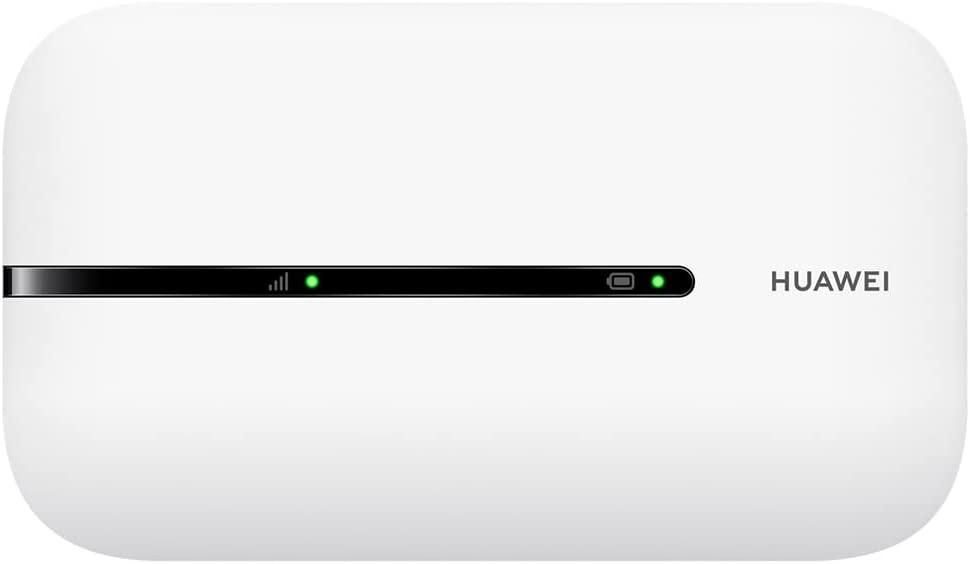 |
| Wall extension |
Wi-Fi Connection to your Router is not recommended
If you have a Swann USB Wi-Fi adapter, but have never set up the Wi-Fi SSID and password in the menu of the recorder, you will not be able to use this method to get the MAC address.
Was this article helpful?
Bu bilgiler sorununuzu çözmeye yardımcı oldu mu?
Still need help?
Uzman ekibimiz size yardımcı olmak için burada.