(PC) - LTS Protect (Live View / Playback / Backup)
| LTS Protect | CMS client software | Sapphire Series | Windows 32 bit/ Windows 64 bit |
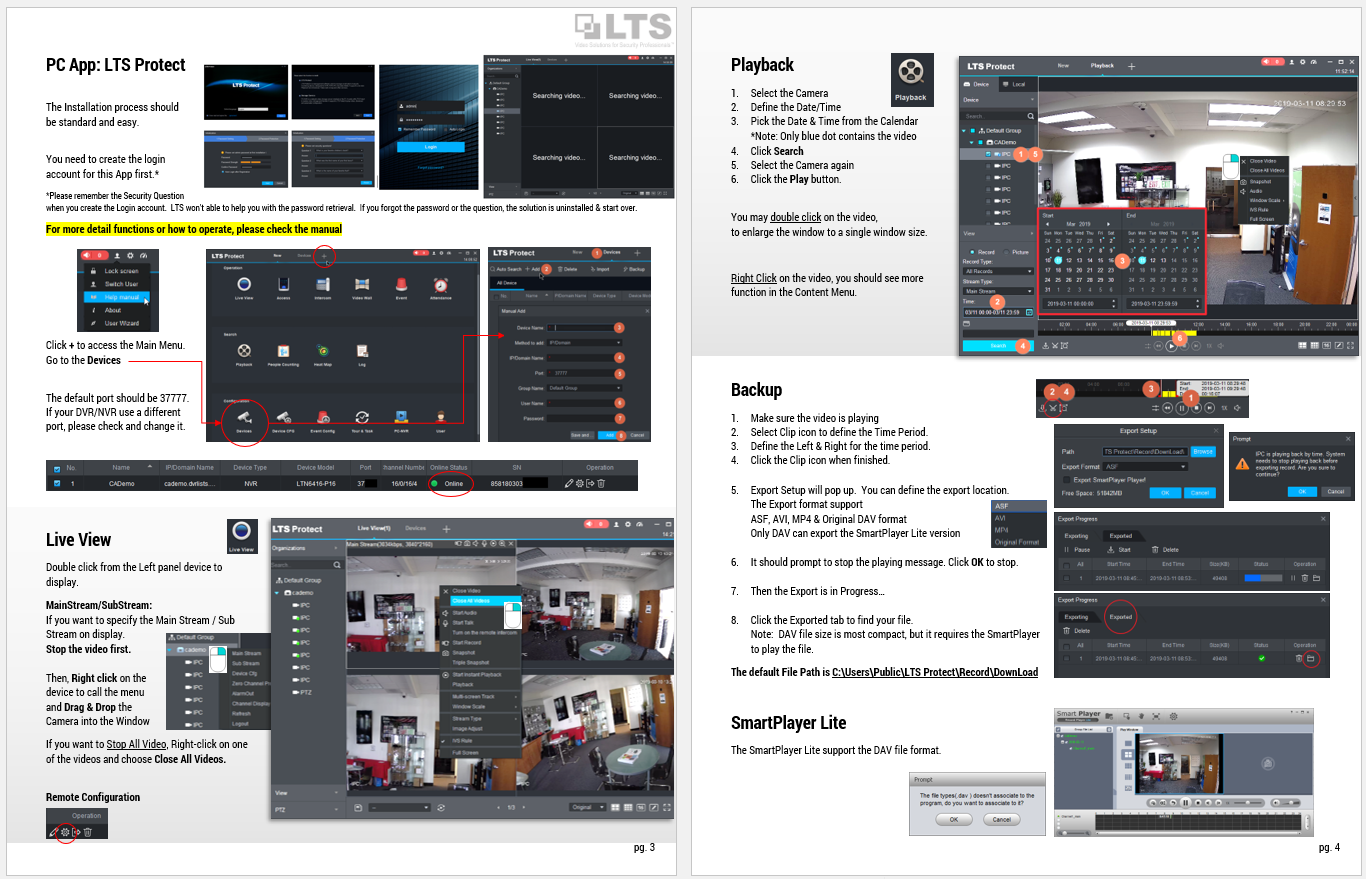
Install: LTS Protect
The Installation process should be simple. Just Agree & keep go to the Next.
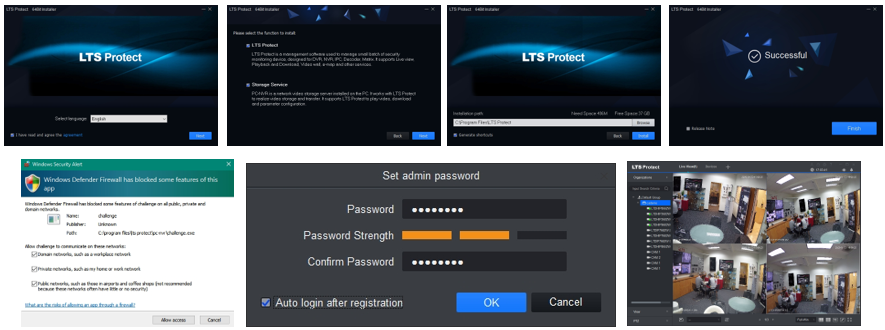
You need to create the admin password for this App first.*
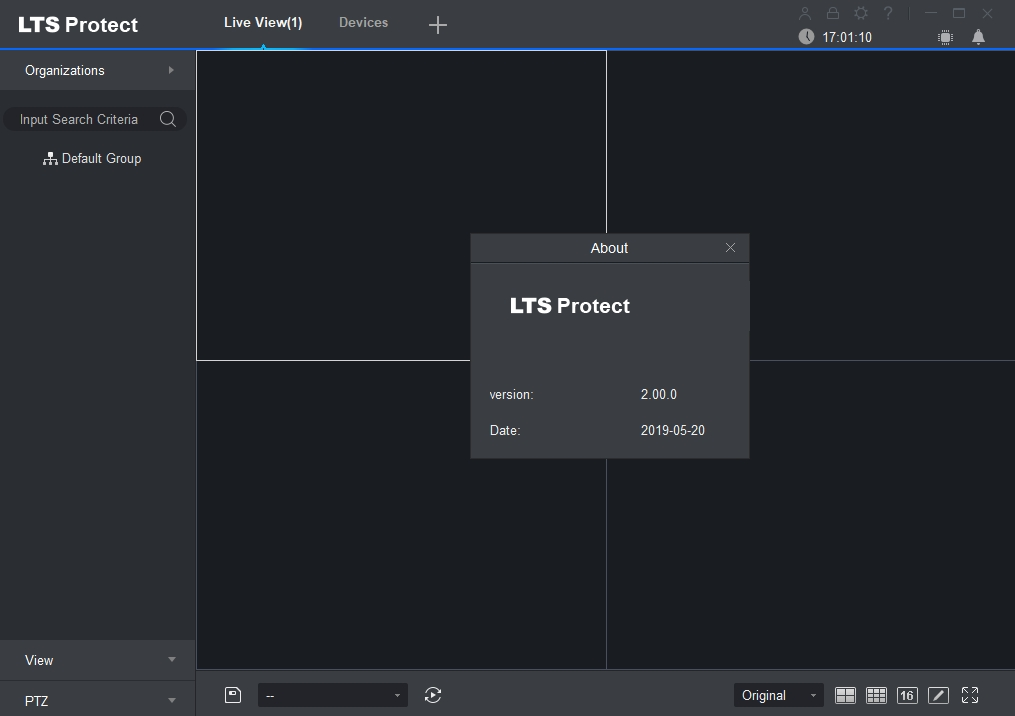
For more detail functions or how to operate, please check the manual
Go to Device & Add the DVR/NVR
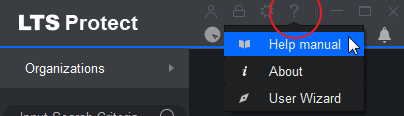
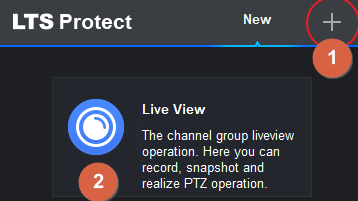
Click + to access the Main Menu. Go to the Devices
If you don't know the IP address, you can use the Auto Search to find it.
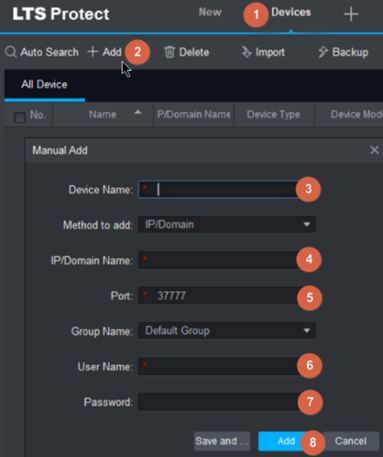
The default port should be 37777.
If your DVR/NVR use a different port, please check and change it
Check Status Online

Live View
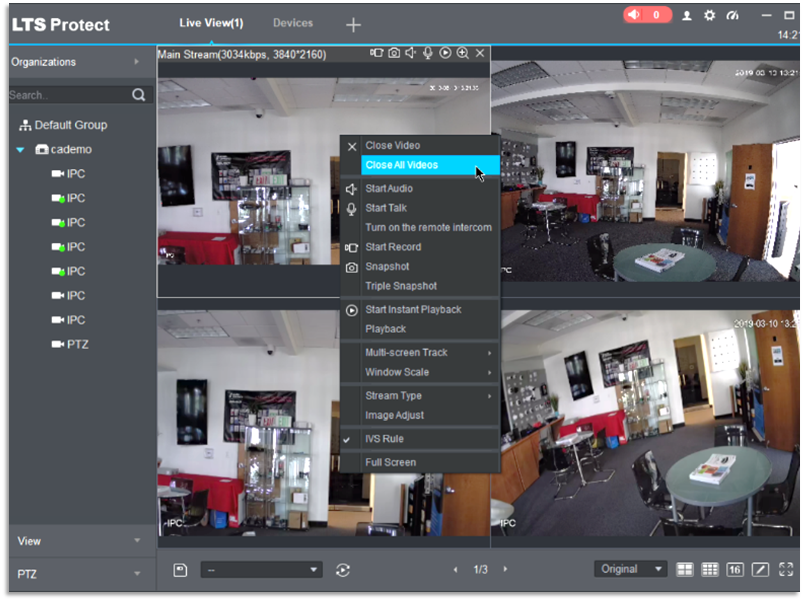
Double click from the Left panel device (for example: cademo) to display.
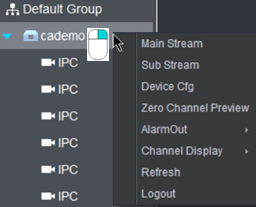
Change to MainStream/SubStream:
If you want to specify the Main Stream / Sub Stream on display. Stop the video first.
Then, Right click on the device to call the menu and Drag & Drop the Camera into the Window
If you want to Stop All Video, Right-click on one of the videos and choose Close All Videos.
Playback
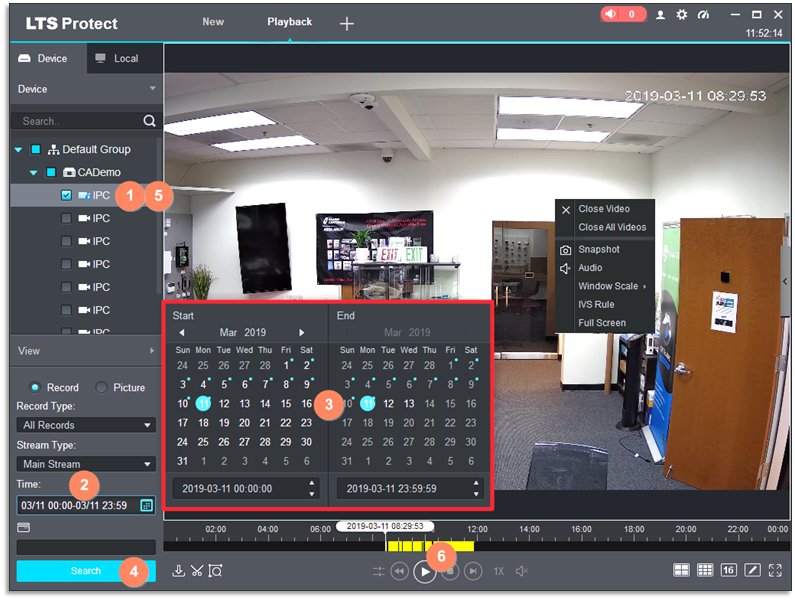
- Select the Camera
- Define the Date/Time
- Pick the Date & Time from the Calendar
*Note: Only blue dot contains the video - Click Search
- Select the Camera again
- Click the Play
You may double click on the video,
to enlarge the window to a single window size.
Right Click on the video, you should see more function in the Content Menu.

Backup
- Go to Playback and Make sure the video is playing

- Select Clip icon to define the Time Period.
- Define the Left & Right for the time period.
- Click the Clip icon when finished.
- Export Setup will pop up. You can define the export location.
The Export format support
ASF, AVI, MP4 & Original DAV format
Only DAV can export the SmartPlayer Lite version
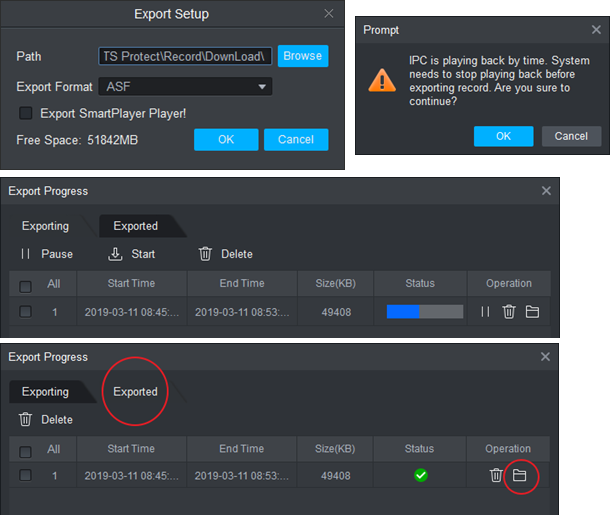
- It should prompt to stop the playing message. Click OK to stop.
- Then the Export is in Progress…
- Click the Exported tab to find your file.
Note: DAV file size is most compact, but it requires the SmartPlayer to play the file.
The default File Path is C:\Users\Public\LTS Protect\Record\DownLoad
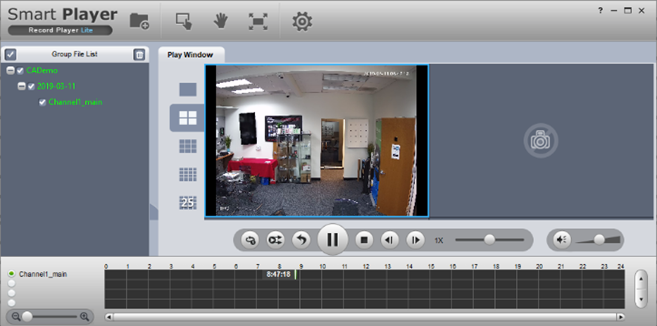
Player - SmartPlayer Lite
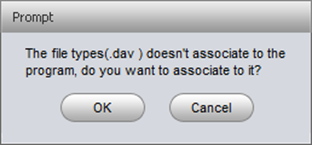
The SmartPlayer Lite support the DAV file format.
Was this article helpful?
Bu bilgiler sorununuzu çözmeye yardımcı oldu mu?
Still need help?
Uzman ekibimiz size yardımcı olmak için burada.