(Playback) - Playback Sapphire Video thru IE browser
Playback separate to two versions, the Internet Explorer Version or the HTML5 browser version.
- Internet Explorer Version (Only for the Internet Explorer; support save and more functions)
- HTML5 Browser Version (for Chrome/Firefox/Safari Browser; mostly for view purpose only)
Playback - The Internet Explorer version
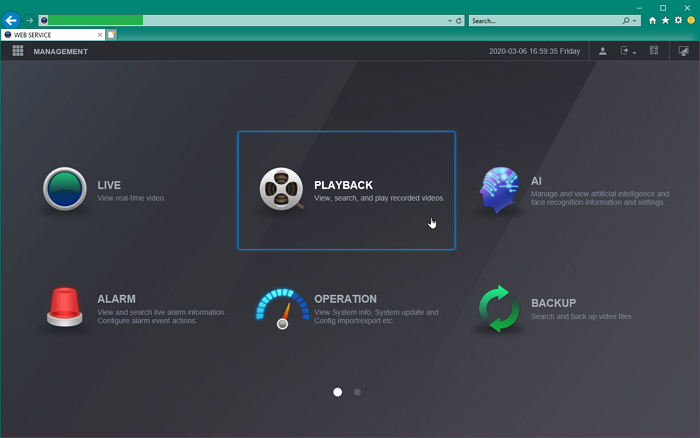
After successfully Log in and install the Plugin, you should see Main Menu, go to the Playback window.
Most button functions are pretty simple to understand.
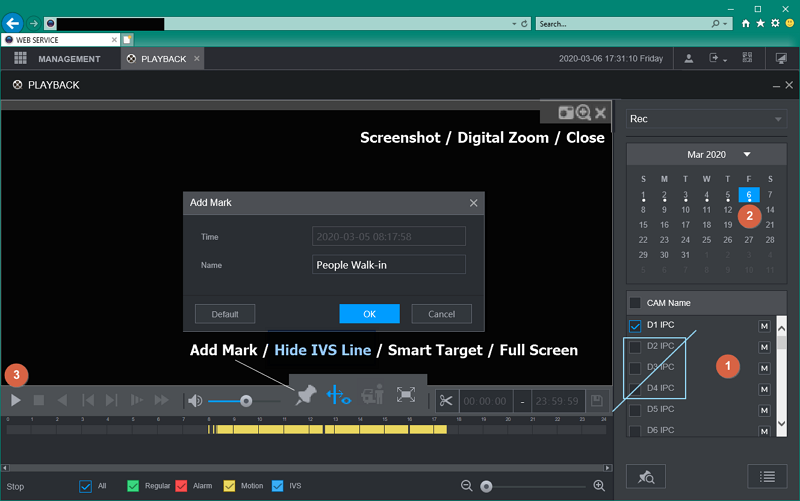
1. By default, 4 camera is selected, but select 1 camera only as recommended.
2. Pick Date
3. Click the Play button.
Add Mark -- You can bookmark the event and find it quicker next time.
Hide IVS Line -- hide the detection line.
Smart Target -- for the special camera only, it can fast filter/search the event for Human / Vehicle
Full Screen -- Full Screen
The Screenshot button will capture the picture to C:\PictureDownload
Switch Playback Stream
Click M - Main Stream to switch in between S - Sub Stream

Clipping

While the video is playing, click the Clip button to enable the clipping.
Then, the Start/End Time will show up. Set it up first. Click the Save button to back up.
It will ask your save location.
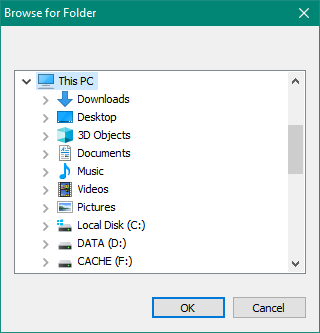
After it selected, it will begin to download. 
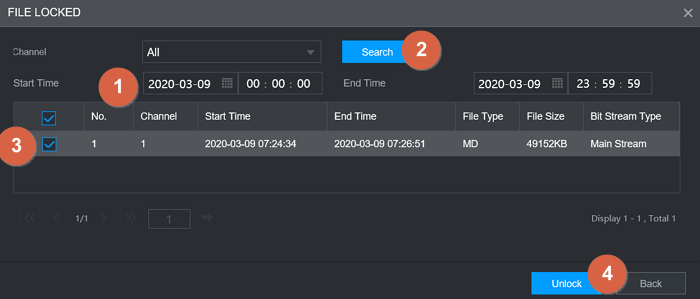
File List / Lock File
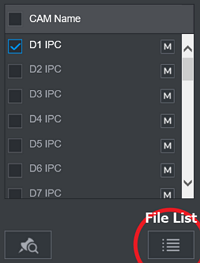
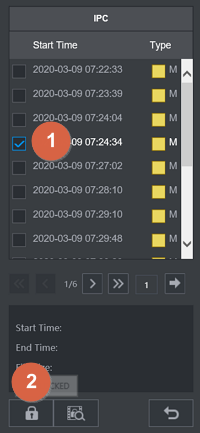

Unlock File Search / Unlock File

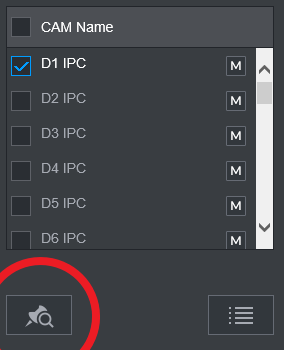
Search Bookmark
While the video is Stop playing, click the bookmark button to find the previous bookmark.
Was this article helpful?
Bu bilgiler sorununuzu çözmeye yardımcı oldu mu?
Still need help?
Uzman ekibimiz size yardımcı olmak için burada.