RESET Milesight Cameras
Information about resetting Milesight cameras can be found in the manufacturer's article:
1) Reset Steps
For cameras with model suffix -A, -B, -C, -D, or -E (for example: MS-C8165-PA, MS-5373-PB, MS-C2866-X4RPC, MS-C5375-FPD, MS-C5367-X23PE) with software version later than xx.7.0.1.
(Including the TraffiX series: TS5510-GH, TS5511-GH))
Step1: Press and hold the reset button, then power on the network camera and the IR LEDs will start flashing.
Step2: Keep holding the reset button until the IR LEDs stay steadily lit.
Step3: The reset will take 1 to 3 minutes to complete and the IP will change to 192.168.5.190 (if the IP does not change to 192.168.5.190, try again from step 1).
Step4: Change your local IP again using SmartTools.
For cameras with model suffix -A or -B (for example: MS-C3377-PNA, MS-C4463-FIPB) with software version earlier than xx.7.0.1.
Step1: Power on the network camera and wait 2 minutes until it is fully powered on.
Step2: Press the reset button for more than 5-10 seconds, until you hear the IR cut voice and see the IR LEDs stay lit.
Step3: The reset will take 1 to 3 minutes to complete and the IP will change to 192.168.5.190 (if the IP does not change to 192.168.5.190, try again from step 1).
Step4: Change your local IP again using SmartTools.
For other cameras whose model suffix does not have -A or -B: (for example: MS-C2182-P)
Step1: Press the reset button before powering on the network camera (do not release it).
Step2: Power on the network camera and hold the reset button for 10 seconds.
Step3: The reset will take 1 to 3 minutes to complete and the IP will change to 192.168.5.190 (if the IP does not change to 192.168.5.190, try again from step 1).
Step4: Change your local IP again using SmartTools.
Indoor Parking Guidance Camera (PM3322-E)
Step1: Power on the network camera and hold the reset button for 5-10 seconds.
Step2: Release the reset button, wait about 25 seconds until the indicator light starts alternating colors.
Step3: The reset will take 1 to 3 minutes to complete and the IP will change to 192.168.5.190 (if the IP does not change to 192.168.5.190, try again from step 1).
Step4: Change your local IP again using SmartTools.
4G Solar-Powered Traffic Detection Camera (SC211-NA/EU/AU)
Step1: Power on the network camera and press the reset button.
Step2: Keep pressing the reset button until the indicator light turns red and starts blinking (do not let the red light blink for more than 10 seconds).
Step3: The reset will take 1 to 3 minutes to complete and the IP will change to 192.168.5.190 (if the IP does not change to 192.168.5.190, try again from step 1).
Step4: Change your local IP again using SmartTools.
4G Solar-Powered Security/ANPR Camera (SP111-41/41L)
Step1: Power on the network camera and press the reset button.
Step2: Power on the network camera and press the reset button. Hold the reset button for 5 seconds until the green LED blinks rapidly 5 times; then it will blink slowly during the reset process. A steady green LED indicates the reset is complete.
Step3: The reset will take 1 to 3 minutes to complete and the LAN IP will change to 192.168.5.190 (if the IP does not change to 192.168.5.190), try again from step 1).
Step4: Change your local IP again using SmartTools.
2) Reset Button Location
Mini Dome:
IR Mini Dome:Open the camera cover, a button like the one shown in the following image.. 

Weather-proof Mini Dome:Open the rear cover of the camera dome, you can use tools to access the reset button, as shown in the following image.


Vandal-proof Mini Dome: Open the camera cover, a button like the one shown in the following image.


Motorized Mini Dome: Open the bottom cover of the camera, unscrew the two screws as shown below, you can use tools to access the reset button as shown in the following figure.


180° Panoramic Mini Dome: Rotate the dome, you can use tools to access the reset button, as shown in the following image.


Other: Open the camera cover, a button like the one shown in the following image.

Mini Bullet:
Motorized Mini Bullet / Weather Proof Mini Bullet / Color Vandal Proof Mini Bullet/ Entrance & Exit AI LPR Bullet/Other: Open the camera base cover, a black button like the one shown in the following image.


Vandal Proof Mini Bullet: Remove the rear cover of the camera body; you can use tools to access the reset button, as shown in the following image.


180° Panoramic Mini Bullet: Remove the rear cover of the camera body; you can use tools to access the reset button, as shown in the following image.


Pro Dome:
Pro Dome / Entrance & Exit AI LPR Pro Dome : Open the top cover of the camera; you can use tools to access the reset button, as shown in the following image.


Pro Bullet:
Remove the rear cover of the camera body, a button like the one shown in the following image.


Pro Bullet Plus:
Pro Bullet Plus / Motorized Pro Bullet Plus / 5G AIoT Pro Bullet Plus / 5G Pro Bullet Plus/ 5G Motorized Pro Bullet Plus / Road Traffic Pro Bullet Plus / Road Traffic Parking Detection Pro Bullet Plus / Road Traffic Supplement Light Pro Bullet Plus / Road Traffic Radar Pro Bullet Plus / Road Traffic 5G Pro Bullet Plus / Entrance & Exit LPR Pro Bullet Plus / Entrance & Exit Supplement Light LPR Pro Bullet Plus / Outdoor Parking Management Pro Bullet Plus:Remove the rear cover of the camera body, a button like the one shown in the following image.


Pro Box:
Pro Box / Pro Box Plus:a hole on the back of the camera, use a pin or something similar to push the button deeper inside the hole.


PTZ Dome:
Open the dome cover and the SD card cover, and you will find a black button next to the SD card slot, as shown in the following image.


PTZ Bullet:
PTZ Bullet / Road Traffic PTZ Bullet: Remove the top casing and the SD card cover located on the left side of the camera body, a button like the one shown in the following image.


PTZ Bullet Plus:
PTZ Bullet Plus / Road Traffic PTZ Bullet Plus: Open the rear cover of the camera body; you can use tools to access the reset button, as shown in the following image.


Speed Dome:
Speed Dome/ Road Traffic Speed Dome:Open the front cover of the camera, a black button like the one shown in the following image.


Fisheye:
Open the front cover of the camera, a black button like the one shown in the following image.


Dual-sensor 180° Panoramic:
Remove the SD card cover located on the back of the camera and use a pin or something similar to press the button inside the hole.


Solar-Powered Series:
4G Solar-powered Traffic Sensing:
Remove the SIM card cover located on the back of the camera and use a pin or something similar to press the button inside.


4G Solar-powered Security/ANPR Camera:
With the device powered on, hold the reset button for 5 seconds. The green LED will blink rapidly 5 times to confirm and then blink slowly during the reset. When the green LED stays solid, the reset is complete.
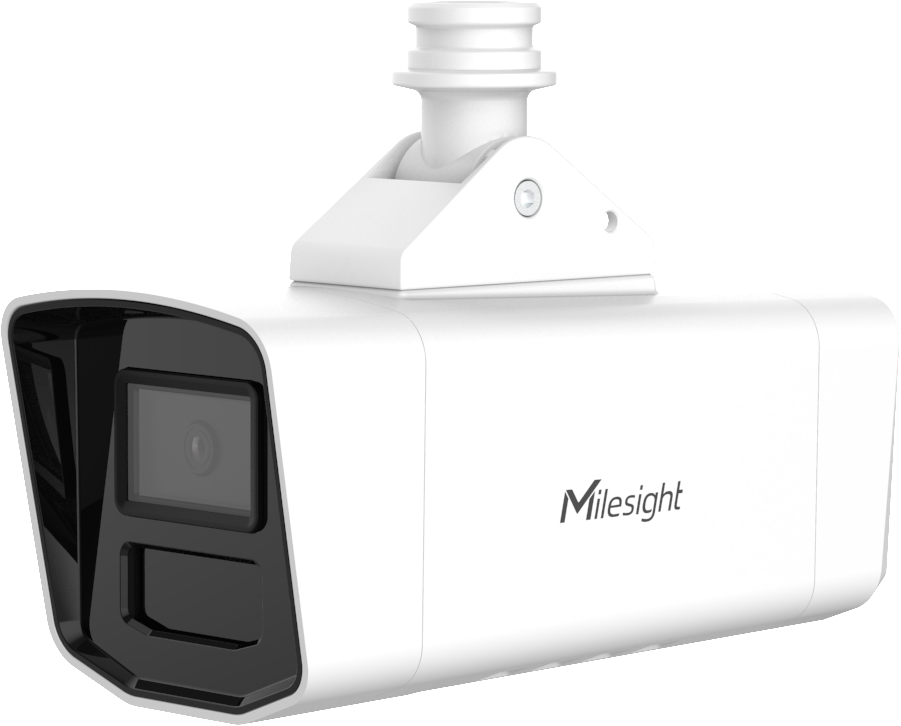
Indoor Parking Guidance Camera:
Open the top cover of the camera, a black button like the one shown in the following image.


TrafficX:
TrafficX / TraficX Enforcement:
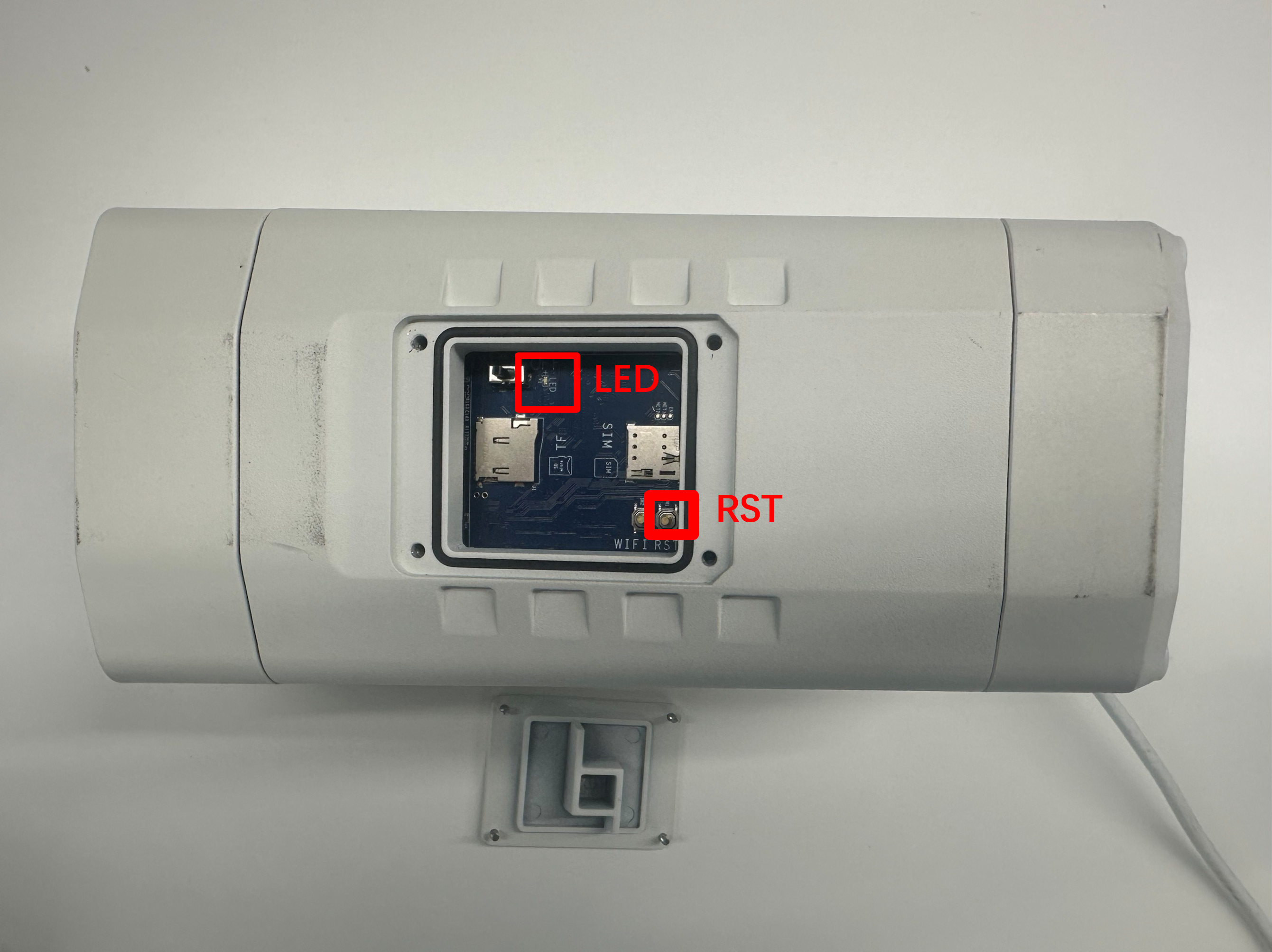
Open the rear cover located at the bottom of the camera and press the reset button, as shown in the following image.


Wi-Fi Mini Cube (Discontinued):
A black button on the back of the camera.


Was this article helpful?
Bu bilgiler sorununuzu çözmeye yardımcı oldu mu?
Still need help?
Uzman ekibimiz size yardımcı olmak için burada.