Type 1-How to connect DVR/NVR to software CMS on the computer?
Applies to:
DL41B/DL81B/DL41A/DL81A/DL41D/DL81D/DH81S/DH81X/DH81NG/DM41D/DM41A/DM81A/DN41D/DN81D/DN41S/DN41NA/DM41H/DM81H/DM21O/DM31O/DE41N/DE81N/DN81NB/DM81Z/DM61W/DG81CP/DG81CQ/DH81NK/DG81CR/DH41NK/DM41G/DN41CJ/DN81BJ/DN61EC/DG81W/DG61X/DG41T/DT81DQ/DT41DC/DT61ER/DG41BE/DG81BE/NP41F/N43SU/N44SU/N48PZ/N481U/N441U/N44PBD/N461W/N48PAU/N98PBD/DT61BH
The CMS can help you to manage your DVR/NVR both locally and remotely. But before adding your DVR/NVR to CMS,
please go to the Main menu--Info--Version to make sure NAT status is connected. If you have a problem, please click this link for help.
Here is new CMS software for Windows computers.
https://download.annke.com/document/Computer_Software/General_Bate_CMS_V3.1.0.9.T.20190306.exe
Then you can follow the steps below to add NVR/DVR to your CMS.
1 Download CMS and install it on your computer according to the instruction in the download file.
2 Double click the icon to open CMS, the default User Name is super, the password is blank (no password).
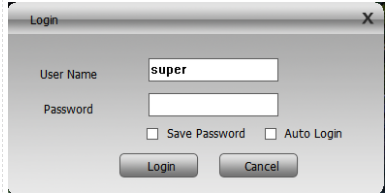
3 For the first time login, you will see the interface as below.
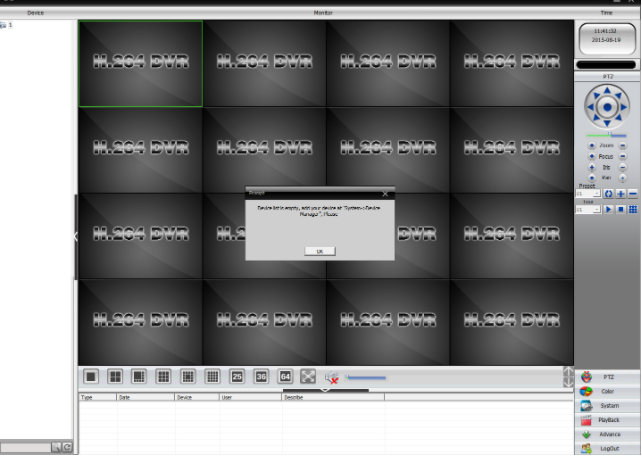
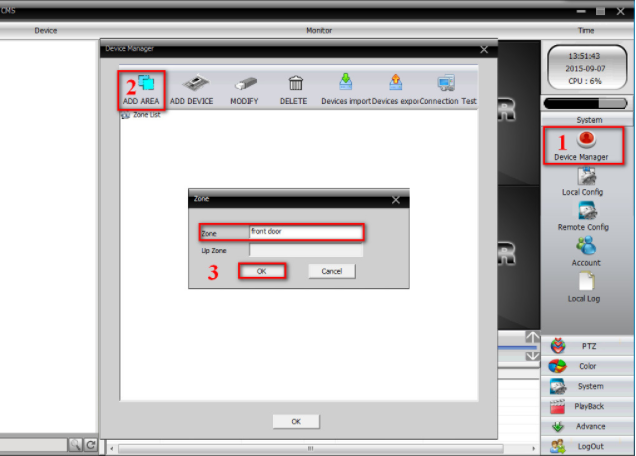
4 To add DVR/NVR, you can click the System menu on the bottom right corner. Then go to Device Manager, click ADD AREA to create a zone.
Name the zone yourself and click OK.
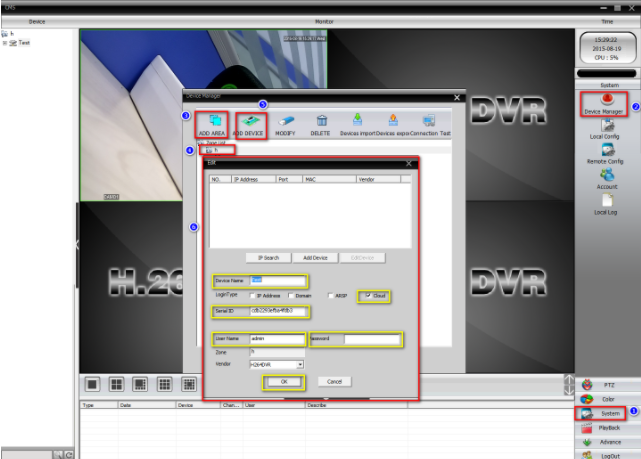
5 After adding area, click the area name you created then click on  to add your DVR/NVR.
Device Name: name it yourself
Login type: choose Cloud
Serial ID: Here is a method to find Serial ID.
User Name/Password: default is admin and no password, same as your DVR
Click “ OK” after you have done the above parameters, you could double click to open this device.
6 After you add your DVR successfully, you can view and manage your DVR on CMS.
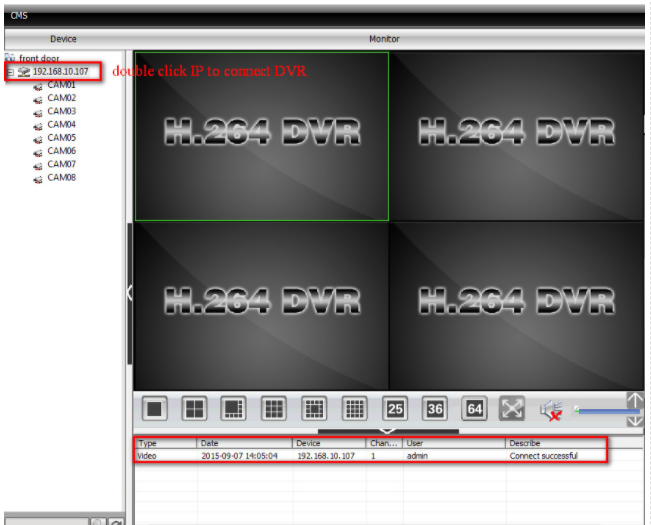
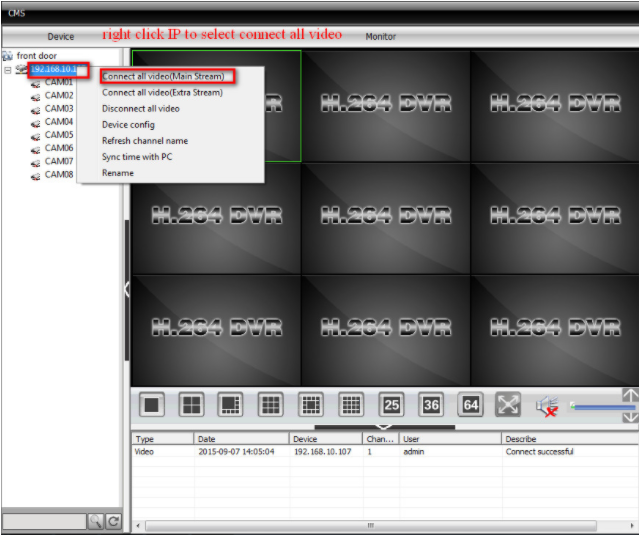
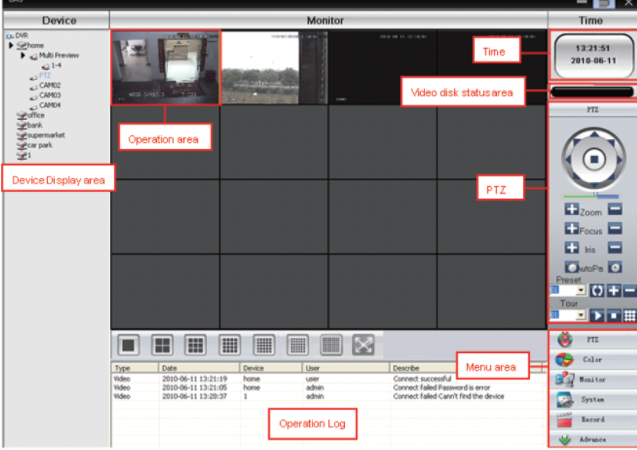
7 Here is the introduction to the CMS interface.
Note: If you have a problem to add DVR/NVR to CMS, please double-check the connection between
your DVR/NVR and the Internet.
Was this article helpful?
Bu bilgiler sorununuzu çözmeye yardımcı oldu mu?
Still need help?
Uzman ekibimiz size yardımcı olmak için burada.