Uniview - NVR - No Resource/Sub Stream Displaying
Note: This method is applicable to most of the scenarios. If the method still cannot solve your problem, it is recommended to consult our Tech Support Team.
Operating Steps
- Verify that the Sub Stream First option is activated on the NVR by navigating to Menu > System > Preview > Advanced.
- Enabling sub streams reduces NVR decoding resources when displaying camera feeds, especially when compared to main streams for the same number of cameras.
- Return to the live view to observe the changes. If the issue persists, proceed to the next step.

- Unlink the cameras from any unused video output to release occupied decoding resources.
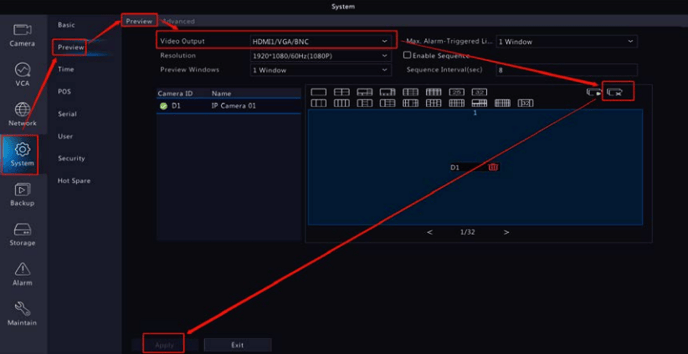
- Locate and choose the Video Output that is not linked to a monitor via Menu > System > Preview > Preview.
- Click the "Disable Preview for All" button and remember to Apply the settings.
- Return to the live view to observe any changes. If the issue persists, proceed to the next step.
-
Note: When you click on Video Output, the display will indicate HDMI/VGA. In this scenario, whether the monitor(s) is (are) connected to HDMI, VGA, or both, it (they) utilizes the same amount of NVR decoding resources.
If it displays HDMI1/VGA on the first row and HDMI2 on the second row, it signifies that HDMI1/VGA are synchronous outputs, while HDMI2 is an asynchronous output compared to HDMI1/VGA. In this situation, HDMI1/VGA share the NVR's decoding resources, and HDMI2 consumes additional decoding resources.
In such a case, if the monitor is connected to the HDMI1 port or VGA port, consider removing cameras from the HDMI2 port to conserve the NVR's decoding resources.
- Choose each camera individually.
- Adjust the sub stream resolution to D1 or lower via Menu > Camera > Encoding.
- Click Apply to save the changes for each camera.
- Repeat this process for all cameras.
- Utilize the copy function to replicate settings from one camera to others.
- Return to the live view to observe any changes. If the issue persists, proceed to the next step.

- Verify for any available updates by navigating to Menu > Maintain > Upgrade > Upgrade by Cloud.
- If a new version is found, proceed to upgrade the device.
- Return to the live view to assess any changes. If the issue persists, reach out to IC Plus Technical Support for additional assistance.
-
Ensure that the NVR is linked to EZCloud/EZView and is online to facilitate the upgrading process. If the NVR is not connected or online, reach out to Uniview Tech Support for the latest firmware to perform a local upgrade.
-
Throughout the cloud upgrading process, maintain a stable power supply and network connection to prevent potential damage to the NVR.
Was this article helpful?
Bu bilgiler sorununuzu çözmeye yardımcı oldu mu?
Still need help?
Uzman ekibimiz size yardımcı olmak için burada.