XMEye-How to Access Your System Remotely by DDNS or IP Address?
Applies to: Most ANNKE models
Step 1. Connect the DVR/NVR to your router with a network cable.
Step 2. Modify the IP address of your DVR. For more information about how to modify the IP address, please refer to this FAQ
Step 3. See this FAQ to create a no-IP DDNS account.
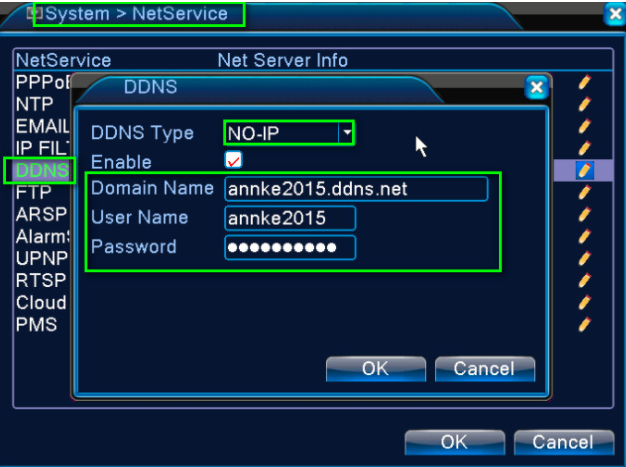
Step 4. Please fill out DVR’s DDNS setting with the DDNS information.
Step 5. Log in the router interface on your PC to set up the port forwarding. The picture below shows where to find the information of your DVR’s IP address, HTTP port and media port.
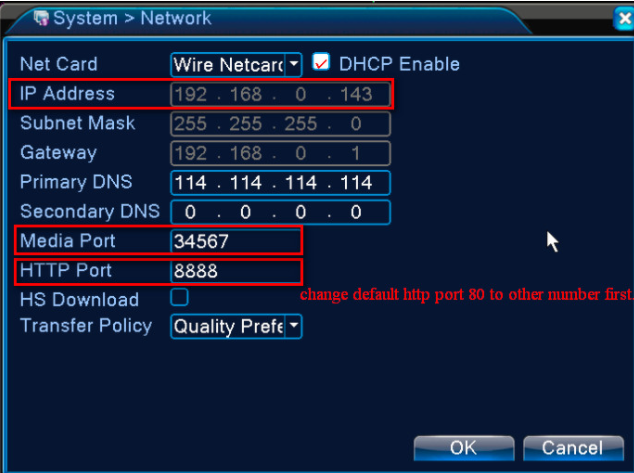
For specific steps to set up port forwarding, please refer to this FAQ.
Step 6. When the settings of DDNS and port forwarding are completed, verify if the format of your address looks like http://annkesupport.ddns.net:8888. If the format is correct, then you can access your DVR/NVR system remotely.
Note: Check your IP address is static or dynamic. The format of the static IP address should be "http://externalIP:port."
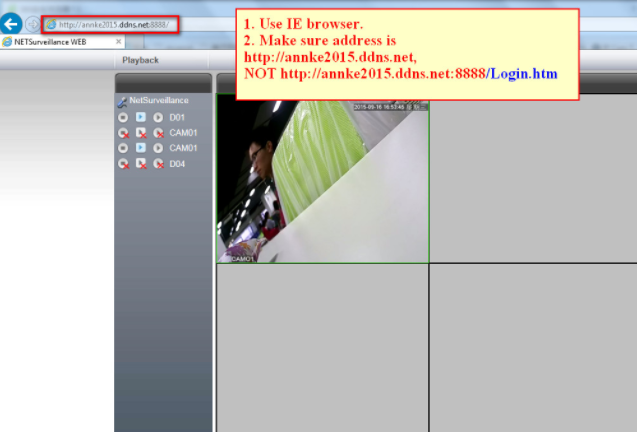
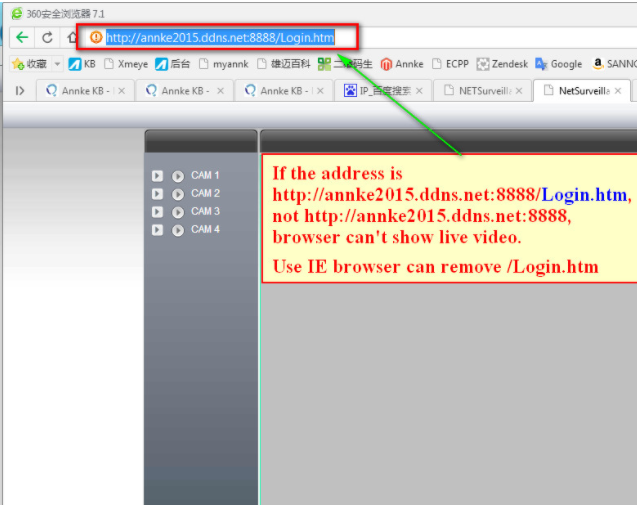
Step 7. Refer to the pictures below to access your DVR/NVR via the IE browser.
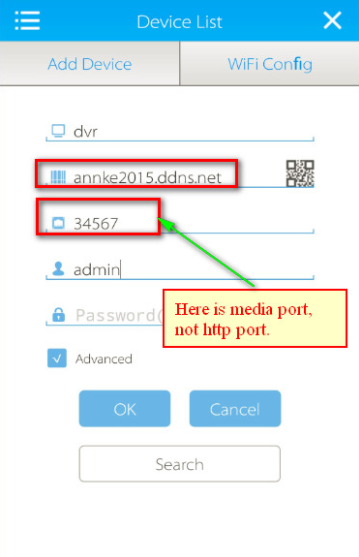
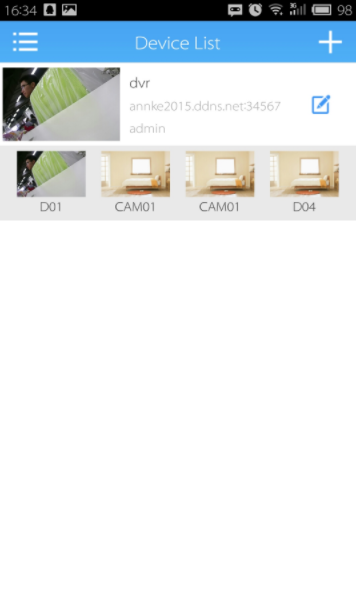
Was this article helpful?
Bu bilgiler sorununuzu çözmeye yardımcı oldu mu?
Still need help?
Uzman ekibimiz size yardımcı olmak için burada.